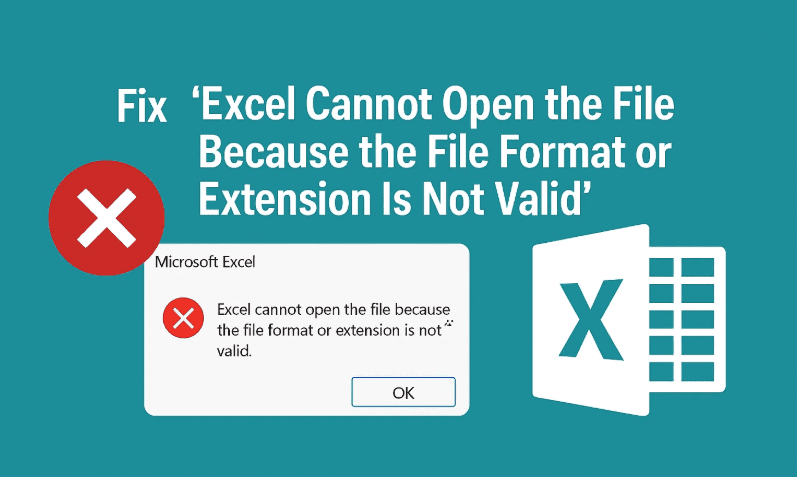
Have you ever double-clicked an Excel file only to be greeted with this frustrating error?
“Excel cannot open the file because the file format or file extension is not valid.”
Don’t panic — you’re not alone, and more importantly, you can fix this. In this blog, I’ll walk you through six proven methods to resolve this error and recover your Excel file — whether it’s due to a wrong extension, corruption, or permission issues.
Let’s walk through each step carefully so you can get your spreadsheet back in working order. Some of these methods involve native Excel options, while others introduce advanced tools. So take a deep breath — and let’s dive in!
🔧 Method 1: Check and Correct the File Extension
First things first — sometimes it’s just the wrong file extension.
Excel files primarily use two extensions:
.xlsfor older versions (Excel 97–2003).xlsxfor modern versions (Excel 2007 and later)
If the file has the wrong extension or was renamed incorrectly, it may prevent Excel from opening it properly.
🔄 Steps:
- Right-click the Excel file and select Properties.
- Look at the file extension under the Type of file section.
- If the extension is
.xlsbut it was saved from a newer Excel version, try renaming it to.xlsx. - Apply the changes and try opening the file again.
📝 Tip: Only do this if you’re confident the file is meant for a newer Excel version — renaming can cause issues if done incorrectly.
🛠 Method 2: Use Excel’s Built-In “Open and Repair” Feature
If fixing the extension doesn’t work, don’t lose hope yet. Excel has a hidden gem called Open and Repair that can help fix a mildly corrupted file.
🔄 Steps:
- Open Excel.
- Click File > Open and navigate to the problematic file.
- Click the drop-down next to the Open button and select Open and Repair.
- When prompted, click Repair.
If successful, save the file under a new name to avoid future issues.
✅ Bonus Tip: If repair fails, try the Extract Data option instead of Repair — this pulls out values and formulas if possible.







📁 Method 3: Recover a Previous Version
Let’s say the file worked fine yesterday. If your system has File History or a restore point enabled, you may be able to get back an earlier version of the file.
So far we’ve attempted to fix the file using Excel features. Now let’s explore backup-based recovery.
🔄 Steps:
- Right-click the Excel file and select Properties.
- Go to the Previous Versions tab.
- If you see a backup listed, select it and click Restore.
⏳ Note: This works only if you’ve enabled System Restore or File History in Windows.
💾 Method 4: Recover Unsaved Excel Workbooks
Closed Excel without saving? Or your PC crashed mid-edit? No worries — Excel sometimes saves a temp copy automatically.
🔄 Steps:
- Open Excel.
- Go to File > Info > Manage Workbook.
- Select Recover Unsaved Workbooks.
- A folder with temporary files will open — check for your unsaved file.
If found, open it and immediately Save As to a permanent location.
🔒 Method 5: Fix Permissions and Use Safe Mode (Advanced)
If you’ve received the file from another user or you’re working on a shared system, there might be a permissions problem.
This step requires a little extra effort, but it’s often the missing piece when nothing else works.
🔄 Check File Permissions:
- Right-click the Excel file and select Properties.
- Go to the Security tab.
- Look for your username in the list.
- If it’s missing: Click Edit > Add > Advanced > Find Now, then choose Everyone and hit OK.
- If it’s there but restricted: Select your username, check Full Control, and hit Apply.
✅ Launch in Excel Safe Mode:
If the above fails, try launching Excel in Safe Mode:
- Press
Win + R, typeexcel /safe, and hit Enter. - Then try opening the file.
This disables add-ins and macros that might be interfering.
❓Frequently Asked Questions (FAQs)
Q: Why do I get the “Excel cannot open the file” error?
A: It usually happens due to incompatible extensions, corrupted files, or insufficient permissions.
Q: Is it safe to rename file extensions?
A: Only if you’re sure of the correct format. Don’t rename randomly — it can corrupt the file further.
⚠️ Disclaimer
This guide is intended for troubleshooting and educational use. Be cautious when renaming or editing system-level properties. Always back up original files before attempting repair or recovery.
🔚 Final Thoughts
Getting hit with the “Excel cannot open the file because the file format or extension is not valid” error is definitely frustrating — especially when you’re racing against a deadline. But with the methods covered here, from checking the extension to using advanced file repair tools like 4DDiG, you have a solid chance of recovering your valuable data.
Take it one step at a time, and don’t forget to backup your files regularly going forward. Prevention is always better than repair.
Tags: excel error fix, excel cannot open file, file format not valid, excel file repair, recover excel file, excel permissions, 4DDiG file repair, data recovery, microsoft excel tips
Hashtags:
#ExcelFix #ExcelError #FileFormatError #ExcelRepair #OpenAndRepair #4DDiG #DataRecovery #ExcelTips #MicrosoftExcel #ProductivityTips
