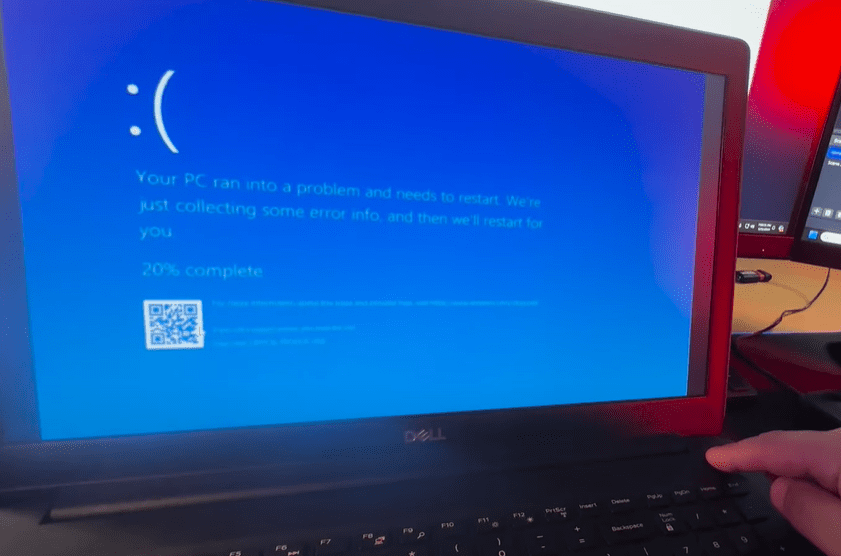
A widespread issue is currently affecting Windows 10 and Windows 11 users across the globe. From television broadcasters to banks, airports, and supermarkets — many systems have been hit with the dreaded Blue Screen of Death (BSOD). If your device has been crashing unexpectedly, you’re not alone.
This BSOD issue is linked to a faulty update rolled out by CrowdStrike, a cybersecurity company that typically helps protect systems from threats. Unfortunately, a problematic update from them has resulted in a critical crash affecting Windows systems worldwide.
Microsoft has advised users to restart their systems multiple times, but this method has proven ineffective for many. If you’re stuck with a BSOD and don’t know what to do next, follow the steps below to fix your computer and get back to normal.
Step-by-Step Guide to Fix the BSOD Error
1. Force Shutdown Your Computer
- Press and hold the power button on your laptop or desktop for at least 5 seconds.
- This will force the machine to power off completely. Ensure that the power indicator light goes off.
2. Boot into Recovery Mode
Depending on your system, use one of the following methods:
For Windows 10:
- Turn on your computer and repeatedly press the F8 key during startup until you see the Advanced Boot Options or Safe Mode menu.
For Windows 11:
- Turn the system on and off quickly, repeating the process 2 to 3 times.
- Windows will detect multiple failed startup attempts and launch the Recovery Mode automatically.
3. Enter Safe Mode
Once in Recovery Mode:
- Select “Troubleshoot”
- Choose “Advanced Options”
- Then click on “Startup Settings”
- Hit Restart
- When your system reboots, press F4 to enter Safe Mode
Safe Mode starts your system with minimal drivers and services, allowing you to make changes without interference from problematic software.
4. Locate and Delete the Faulty Driver
Now that you’re in Safe Mode:
- Open File Explorer and navigate to:
This PC > Local Disk (C:) > Windows > System32 > drivers - Use the search bar in the top-right corner and search for:
C-00000000-00000000-291*.sys - This is the CrowdStrike driver causing the issue.
- Right-click the file and delete it.
⚠️ Important: Do not delete the entire folder—only the specific driver file.
5. Restart Your Computer Normally
After deleting the driver file:
- Restart your computer.
- Your system should now boot normally, and the BSOD issue should be resolved.
Additional Methods (If BSOD Persists)
If Safe Mode or the above fix doesn’t work, try these alternatives:
A. Startup Repair
- Go to Advanced Options > Startup Repair
- Let Windows attempt to fix boot-related issues automatically.
B. Uninstall Updates
- Go to Advanced Options > Uninstall Updates
- Remove the most recent quality updates that may have triggered the BSOD.
C. System Restore
- In Advanced Options, choose System Restore
- Select a restore point from a date before the issue started.
- Let Windows roll your system back to a previous state.
Important Note on Windows 10 End of Support
Microsoft has announced that Windows 10 will reach end-of-support on October 14, 2025. After this date, it will no longer receive security updates. If your device supports it, consider upgrading to Windows 11 to stay protected.
Final Thoughts
This BSOD issue has been disruptive, but with the right steps, you can recover your system quickly. We hope this article helped you troubleshoot the problem and restore your PC.









Stay safe and keep your system up to date (minus faulty updates, of course).
Tags: Windows 11, Windows 10, BSOD Fix, Blue Screen of Death, Safe Mode, CrowdStrike Issue, Windows Update Crash, System Recovery, Startup Repair, Windows Troubleshooting
Hashtags:
#Windows11 #Windows10 #BSOD #BlueScreen #CrowdStrike #TechFix #SafeMode #WindowsCrash #SystemRecovery #PCFix #StartupRepair #Microsoft #Cybersecurity #WindowsSupport #TechGuide #WindowsError








