If you’ve ever tried launching Battlefield, Call of Duty, or other modern multiplayer games and suddenly received the frustrating message “This software cannot be used at the same time as the game (Virtual Controller Detected)”, you’re not alone.
This particular error usually occurs when your system detects an emulated or virtual controller driver running in the background — even when you don’t think one is active. It’s a common issue on Windows PCs, especially for players who have used DS4Windows, reWASD, vJoy, Demon Tools, or similar input remappers in the past.
The good news? You can fix it completely by following a few careful steps. Let’s go through them one by one, ensuring you understand why each action matters and how to safely execute it.
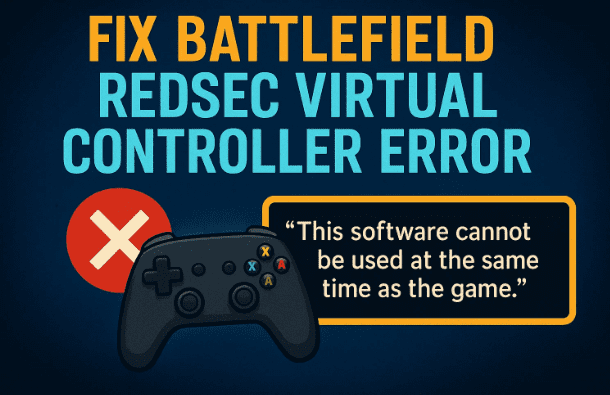
Understanding the Cause
Before we jump into fixing the problem, it’s worth understanding why it happens.
Battlefield’s anti-cheat systems (and similar protection layers in other games) are designed to block virtual game controllers — these are software-based devices that mimic real controllers. They can be used for legitimate customization (e.g., mapping keyboard keys to a controller) or for unfair automation in online matches.
When the game detects a virtual driver or emulation service running — like DS4Windows, reWASD, or vJoy — it triggers this message and prevents the game from launching.
So, our main goal here is to identify and stop any such services, drivers, or background tasks from running when you launch the game.
Step 1: Close DS4Windows or Other Virtual Controller Tools
Let’s start with the most common culprit — DS4Windows.
If you’ve ever connected a PlayStation controller on PC using DS4Windows or other emulation software, it might still be running quietly in the background.
Here’s how to close it properly:
- Check the system tray (bottom-right corner of your Windows taskbar).
- If you see the DS4Windows icon there, right-click it and select Exit or Close.
- Check hidden icons — click the small arrow in your taskbar to reveal more.
- DS4Windows often hides here, so ensure you close it completely.
If the icon is not visible, don’t worry. It could still be running in the background, which leads us to the next step.






Step 2: End DS4 or Related Processes from Task Manager
Sometimes, even after closing the app, the process remains active. Let’s double-check through Task Manager.
- Press Ctrl + Shift + Esc or right-click your Start menu → Task Manager.
- Under the Processes tab, look for any of these entries:
- DS4Windows
- Demon Tools
- reWASD
- vJoy
- AutoHotKey
- Joy2Key
- Razer Synapse
- Corsair iCUE
- Logitech G Hub
- If you find any of them running, right-click and select End Task.
Take your time here — sometimes multiple helper processes run under different names (like DS4Updater.exe or reWASDService.exe). End all of them.
Step 3: Stop Related Background Services
Even if you end the main process, certain apps like DS4Windows or Corsair iCUE install Windows Services that start automatically. These must be stopped or disabled.
- Press Windows + R, type
services.msc, and press Enter. - Look for suspicious or known controller-related services such as:
- DSoftBus Service (from DS4 or virtual devices)
- Corsair Service
- Razer Chroma SDK Service
- vJoy Device Driver
- FaceIt Anti-Cheat Service
- Right-click on each and choose Stop.
- For permanent prevention, right-click again → Properties → set Startup type to Disabled.
This ensures they won’t start again next time you boot up your computer.
Step 4: Check Device Manager for Virtual Drivers
Now, let’s go deeper. Many of these tools install virtual device drivers that persist even when the software is closed. These are what anti-cheat systems often detect.
Here’s how to find and disable them:
- Right-click your Start menu → Device Manager.
- Expand these sections one by one:
- Human Interface Devices
- Storage Controllers
- Universal Serial Bus Controllers
- Look for anything resembling these names:
- “Virtual Game Controller”
- “DSoft Bus”
- “xvdc CSi miniport”
- “vJoy Device”
- “Corsair Bus”
If you find any:
- Right-click → Disable Device.
- Confirm the prompt.
Important: Don’t disable your real controller (like “Xbox 360 Controller for Windows”). If unsure, unplug your actual controller first and then see which one disappears — that helps you identify the real hardware.
Once disabled, close Device Manager.
Step 5: Uninstall Conflicting Apps (If Necessary)
If the problem persists, the issue might be buried deeper within installed applications that re-enable their drivers on startup.
Some apps known to interfere with Battlefield include:
- DS4Windows
- reWASD
- AutoHotKey
- Joy2Key
- vJoy
- Razer Synapse
- Corsair iCUE
- Wallpaper Engine
- MSI Dragon Center
- VC Codec Packs
You can safely uninstall them temporarily:
- Go to Settings → Apps → Installed Apps.
- Find and uninstall each of the above one by one.
- Restart your computer after each uninstall to clear drivers completely.
Once done, try launching your game again.
Step 6: Reboot and Retest
After disabling or uninstalling the conflicting components, restart your computer to ensure all temporary drivers are unloaded.
Then, launch Battlefield (or whichever game triggered the error).
In most cases, the message “This software cannot be used at the same time as the game” should now be gone.
Step 7: (Optional) Use Safe Mode or Clean Boot
If you’ve tried everything and still get the same warning, your system may be loading virtual drivers during startup that are not visible in standard mode.
You can test this with a Clean Boot:
- Press Windows + R, type
msconfig, and hit Enter. - In the Services tab, check Hide all Microsoft services.
- Click Disable all to turn off third-party services.
- Go to the Startup tab → Open Task Manager → Disable all startup items.
- Click Apply → OK, then restart your PC.
Now try running the game again. If it works, that confirms a startup app was responsible.
You can then re-enable items one by one to identify the culprit.
Step 8: Advanced Tip — Check for Hidden Input Drivers
Some software installs kernel-level drivers that don’t appear in Device Manager by default. To reveal hidden devices:
- Open Command Prompt as Administrator.
- Type:
set devmgr_show_nonpresent_devices=1 start devmgmt.msc - In Device Manager, click View → Show hidden devices.
You might now see ghosted or greyed-out drivers like vJoy, DS4 Virtual Bus, or InputMapper HID Device.
Right-click and uninstall them.
Step 9: Reconnect Your Real Controller
After cleaning up, reconnect your real game controller (e.g., Xbox or DualSense).
Windows should automatically install the correct official drivers. Test it by opening Game Controllers (joy.cpl):
- Press Windows + R, type
joy.cpl, and hit Enter. - You should now only see your actual controller listed — not any virtual ones.
If you still see ghost controllers, uninstall them from this menu.
Step 10: Launch the Game
Now that all conflicting services and drivers are removed or disabled, you can safely launch Battlefield again.
If you’ve followed each step carefully, the error should disappear completely, allowing your game to start normally.
Common Questions and Answers
Q: Why does Battlefield block virtual controllers?
A: Because anti-cheat systems detect them as potential macro or aimbot tools. Even if you’re using them legitimately, they can appear suspicious.
Q: Can I use DS4Windows again after playing?
A: Yes — just make sure to close it and disable its drivers before launching any anti-cheat-enabled games.
Q: What if the error persists even after removing everything?
A: Try reinstalling the game after performing a clean boot. In rare cases, cached anti-cheat data may still reference old drivers.
Q: Does this affect only Battlefield?
A: No. Similar anti-cheat systems in Valorant, Apex Legends, and Call of Duty can also trigger the same message.
Final Thoughts
This error might look intimidating, but at its core, it’s simply a conflict between your game’s anti-cheat system and third-party input software. Once you identify and stop those background tools, your game will launch perfectly.
It’s always a good idea to keep your system lean — avoid unnecessary controller remapping software, and only use trusted official drivers from Microsoft, Sony, or your hardware manufacturer.
With the steps above, you can confidently get back to your gaming sessions without being interrupted by this annoying message again.
Disclaimer:
This guide is meant for troubleshooting purposes only. Disabling or uninstalling legitimate software such as DS4Windows, Razer Synapse, or Corsair iCUE may affect controller customization or lighting profiles. Always re-enable them after you finish gaming if needed.
#BattlefieldError #VirtualController #GamingFix #WindowsTips #DS4Windows #AntiCheat #PCGaming #ErrorSolution #BattlefieldGuide #ControllerSetup







