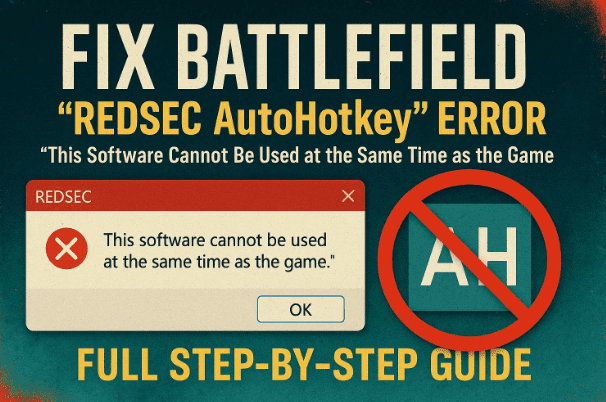
There’s nothing more frustrating than preparing to jump into a Battlefield match only to be greeted with this cryptic message:
“This software cannot be used at the same time as the game. AutoHotkey detected.”
This REDSEC AutoHotkey error usually appears when the Battlefield anti-cheat system detects background programs using AutoHotkey (AHK) scripts or related automation utilities. Even if you never intentionally installed AutoHotkey, certain peripherals or utilities may use it quietly in the background — leading the game to block your launch.
But don’t worry. In this detailed guide, we’ll walk you through everything you need to know to identify and stop AutoHotkey-related processes so you can launch Battlefield smoothly again.
Let’s get started.
1. What Causes the Battlefield REDSEC AutoHotkey Error
Before we dive into the solution, let’s first understand what’s really happening behind the scenes.
REDSEC is Battlefield’s anti-cheat security system. Its job is to prevent automation tools, macro scripts, or programs that emulate input from interfering with the game. AutoHotkey is a powerful scripting tool that allows users to create shortcuts or custom macros — but since it can also simulate game actions, REDSEC immediately flags it as unsafe.
This error can occur even if you don’t have AutoHotkey installed manually. Many third-party programs (especially for keyboards, mice, and controllers) include small AutoHotkey scripts inside them.
Common culprits include:
- Joy2Key
- vJoy or ViGEm-based controller tools
- Corsair iCUE or Logitech G Hub (macro mode)
- Razer Synapse
- YoloMouse, Droptop, or Rainmeter overlays
- Keyboard lighting control software (like 3XS or SteelSeries Engine)
- Any program using AHK scripts or macros
So, if Battlefield detects any such background service, it will block the game with the AutoHotkey error message.
2. How to Fix the Battlefield REDSEC AutoHotkey Error
Now that we know what’s causing it, let’s fix it step-by-step. The most effective solution is to use Microsoft Process Explorer to find and close all programs that use AutoHotkey.



We’ll go through this carefully.
3. Step 1 – Download Microsoft Process Explorer
Let’s start with the essential tool. Process Explorer is an official utility from Microsoft that lets you view and control every process running on your computer — including hidden background apps.
- Open your browser and go to the official Microsoft download page:
👉 https://learn.microsoft.com/sysinternals/downloads/process-explorer - Click Download Process Explorer.
- Once downloaded, open your Downloads folder.
- Right-click the ZIP file and select Extract All → then click Extract again.
- Open the extracted folder and locate
procexp.exe. - Right-click on
procexp.exeand choose Run as Administrator. - Click Yes if Windows asks for permission.
Process Explorer will now launch with full system access.
4. Step 2 – Search for AutoHotkey Processes
Now that Process Explorer is open, we can use its built-in search to locate any running process related to AutoHotkey.
Let’s move to the next step carefully.
- Click on the Search (binoculars) icon in the toolbar, or press Ctrl + F.
- In the search box, type autohotkey (no spaces).
- Click Search.
If Process Explorer finds a result, it means some application or service using AutoHotkey is currently running.
You’ll see a list of one or more entries showing where AutoHotkey is being used.
5. Step 3 – Kill the AutoHotkey Process
Once you’ve located the offending process, you’ll need to close it safely.
Here’s how:
- Note the process name shown in the search results.
- Go back to the main Process Explorer window.
- Locate that process in the list (it should be highlighted automatically).
- Right-click the process → select Kill Process.
- Confirm by clicking OK.
This doesn’t uninstall or damage your software — it simply stops it temporarily until the next restart.
After killing the process, try launching Battlefield again. In most cases, the REDSEC AutoHotkey error should disappear immediately.
6. Step 4 – Also Search for “AHK”
Sometimes, the AutoHotkey executable isn’t labeled as “autohotkey.exe” but instead uses script-based identifiers like “AHK”.
So, let’s search for that too.
- In Process Explorer, click the search icon again.
- Type ahk and press Enter.
- If any results appear, repeat the same process — right-click and select Kill Process.
This step ensures we also catch renamed or embedded AutoHotkey components hidden inside other utilities.
7. Step 5 – Close Other Conflicting Programs
Even after ending all AutoHotkey-related tasks, Battlefield may still flag other utilities that use scripting or automation. Let’s check and close those next.
Before we list them, it’s helpful to know these programs don’t necessarily harm your system — they just interfere with Battlefield’s anti-cheat. You can safely restart them after playing.
Here are the most common background programs you should close:
- Joy2Key / vJoy / ViGEm — Controller emulation tools.
- YoloMouse — Custom mouse cursor utility.
- Droptop / Rainmeter — Desktop overlays and widgets.
- Corsair iCUE / Logitech G Hub / Razer Synapse — Gaming peripheral control suites (if macro features are active).
- 3XS Software Support App — Can load background menu.exe processes.
- Game Companion — Often includes AHK components.
- Viveport or VIVE VR software — May use scripting for overlay control.
You can close them either through Process Explorer or directly from Task Manager.
8. Step 6 – Use Task Manager to Double-Check
Let’s ensure no background program is still running that might conflict with Battlefield.
- Press Ctrl + Shift + Esc to open Task Manager.
- Click More details if it shows the compact view.
- Look through the Processes tab for any of the above-mentioned applications.
- Right-click each and select End Task.
Also, check your system tray (bottom-right corner) for hidden icons. Many apps minimize there even after being closed. Right-click and Exit them from the tray as well.
9. Step 7 – Restart Your Computer
Once you’ve closed everything, it’s a good idea to restart your PC. This clears any leftover background hooks or driver-level scripts that may still be running invisibly.
After rebooting, launch Battlefield again. The REDSEC AutoHotkey error should now be gone.
If the problem persists, repeat the scan in Process Explorer — there may be another program using AutoHotkey that wasn’t visible earlier.
10. Step 8 – Optional: Uninstall Problematic Programs
If you consistently face this issue and don’t use those utilities for anything important, consider uninstalling them completely.
You can do this by:
- Pressing Windows + R, typing
appwiz.cpl, and pressing Enter. - Finding the app (e.g., Joy2Key, YoloMouse, Rainmeter, etc.).
- Right-clicking and choosing Uninstall.
Reboot afterward, then launch Battlefield to confirm it’s resolved.
11. Additional Tips to Prevent Future REDSEC Conflicts
You’ve done great so far, but let’s take it one step further and make sure this doesn’t happen again.
- Avoid running macro tools before launching Battlefield.
- Disable overlays (like MSI Afterburner or Discord Overlay) if they cause detection issues.
- Keep your drivers updated — older keyboard or mouse drivers may load legacy AHK components.
- Run Battlefield as Administrator to ensure clean startup permissions.
These small habits can prevent future headaches.
12. Frequently Asked Questions (FAQ)
Q1. I’ve never installed AutoHotkey. Why am I still getting the error?
Some peripheral or macro software (like Joy2Key or iCUE) include AutoHotkey scripts internally. Battlefield detects these as potential risks even if you didn’t install AHK yourself.
Q2. Can I keep using AutoHotkey outside Battlefield?
Yes, absolutely. AutoHotkey is safe and useful — just make sure to close any active scripts before launching the game.
Q3. Is it safe to use Process Explorer?
Yes. It’s an official Microsoft tool used by IT professionals to monitor processes. You can download it safely from the Microsoft Sysinternals website.
Q4. Will killing a process harm my computer?
No, ending a background process only stops it temporarily. When you restart your PC, the program will start again normally.
Q5. Can antivirus software trigger the same issue?
In rare cases, certain antivirus overlays or sandbox features may interfere. Try disabling real-time game overlays if nothing else works.
13. Final Thoughts
The Battlefield REDSEC AutoHotkey error might look intimidating, but it’s simply a precaution — not a system fault. By methodically using Process Explorer and Task Manager to identify and close AutoHotkey-related programs, you can resolve it completely in just a few minutes.
Once done, you’ll be back on the battlefield — without the interruptions, without the false detections.
If you continue to face the issue after following these steps, double-check for hidden utilities or reinstall Battlefield’s anti-cheat components for a clean slate.
Disclaimer:
This article is intended to help users troubleshoot software conflicts that cause the “REDSEC AutoHotkey” error in Battlefield. Process Explorer is an official Microsoft tool, and all steps described are safe if followed correctly. Do not terminate critical system processes unless you are sure they are related to AutoHotkey or game conflicts.
Official Tool Link: https://learn.microsoft.com/sysinternals/downloads/process-explorer
#Battlefield #REDSEC #AutoHotkeyError #GameFix #WindowsTroubleshooting #ProcessExplorer #GamingErrorFix #dtptips








