If you play games, run editing software, or use tools that rely on various Microsoft libraries, then installing the full set of Microsoft Visual C++ Redistributable Packages is essential for smooth performance. This article walks you through how to download and install all versions of Microsoft Visual C++ (from 2015 to 2022) on your Windows PC — all from a single, reliable source.
🔧 What is Microsoft Visual C++ Redistributable?
Microsoft Visual C++ Redistributables are runtime components required to run applications developed with Visual C++. Many modern games and software programs won’t launch or work correctly unless the proper redistributables are installed on your system.
✅ Step-by-Step Guide to Install All Microsoft Visual C++ Redistributables
Step 1: Open Your Browser
You can use Google Chrome, Mozilla Firefox, Microsoft Edge, or any other browser of your choice. For this guide, we’ll use Google Chrome.
Step 2: Visit the Official Microsoft Download Page
Head over to the official Microsoft support page for Visual C++ Redistributables. Here’s the direct link:
🔗 https://learn.microsoft.com/en-us/cpp/windows/latest-supported-vc-redist
This page contains the latest supported Visual C++ downloads for all current Windows versions.
Step 3: Scroll Down to Download Links
Once the page loads:
- Scroll to the “Visual Studio 2015, 2017, 2019, and 2022” section.
- You will find download links for:
- x86 (for 32-bit Windows)
- x64 (for 64-bit Windows)
📝 Tip:
If you are not sure which version your Windows is, press Windows + I → System → About → Check under System type.
Step 4: Choose the Right Installer
- If your system is 64-bit, click the link ending with
vc_redist.x64.exe. - If your system is 32-bit, click the link ending with
vc_redist.x86.exe.
Both files can be installed regardless of your architecture, and it’s actually recommended to install both versions to ensure maximum compatibility.
Step 5: Run the Installer
After downloading:
- Locate the
.exefiles in your Downloads folder. - Right-click and choose Run as administrator.
- When the setup window appears:
- Check the “I agree to the license terms and conditions” checkbox.
- Click the Install button.
Step 6: Wait for Installation to Complete
The installer will take a few moments. Once it finishes:





- You may be prompted to restart your PC. Please do so to finalize the changes.
Step 7: Verify Installation
To confirm that everything is installed:
- Press
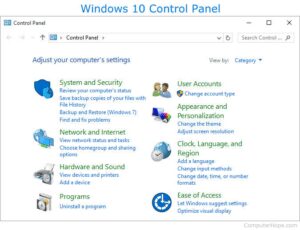
Windows + Sand type Control Panel. - Go to Programs and Features.
- Look for entries such as:
- Microsoft Visual C++ 2015-2022 Redistributable (x64)
- Microsoft Visual C++ 2015-2022 Redistributable (x86)
This confirms that the installation was successful.
💡 Why Is It Important?
Many programs and games depend on these redistributables to work correctly. Without them, you might experience:
- Launch errors
- Missing DLL file messages
- Program crashes
By installing all versions of Visual C++ Redistributables, you minimize the risk of compatibility issues.
📌 Final Notes
- Reboot your system after installation to ensure all components are properly integrated.
- Keep the installers saved on your PC or a USB stick for future use.
- Always use the official Microsoft download page to avoid security risks from third-party sites.
🔒 Disclaimer
Installing Microsoft Visual C++ Redistributables is completely safe when done through the official Microsoft website. Do not download these files from unknown or third-party websites to avoid malware or corrupted packages.
📎 Tags
visual c++ redistributable, microsoft visual c++ installer, windows redistributables, fix dll missing, game support libraries, install all c++ versions, visual studio 2015 to 2022, microsoft windows tools
📢 Hashtags
#VisualCPlusPlus #Redistributables #MicrosoftTools #DLLFix #GameSupport #WindowsTips #InstallVisualC #TechGuide #SoftwareSetup #SystemRequirements








