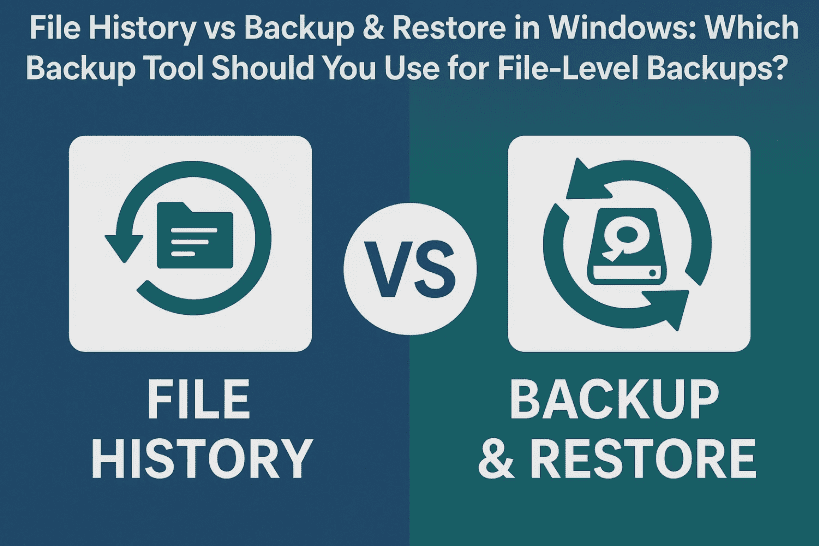
Keeping your files safe should always be a top priority — especially if you’re working on important documents, personal projects, or work data. Fortunately, Windows offers two built-in file backup tools: File History and Backup and Restore (Windows 7). But what’s the difference between the two? Which one should you use?
In this detailed blog post, we’ll walk you through everything you need to know about both tools — how they work, how to set them up, and which one might suit your needs better.
So grab a coffee and let’s break it down step by step — with real-life use cases, tips, and even some FAQs.
🆚 File History vs Backup and Restore: A Quick Comparison
Before jumping into the setup steps, let’s first understand how these two tools differ:
| Feature | File History | Backup and Restore (Windows 7) |
|---|---|---|
| Backup Type | File & Folder only | File & Folder + System Image |
| File Selection | User folders only (Documents, Pictures, etc.) | Custom selection |
| Scheduling | Hourly (default) | Custom: Daily, Weekly, Monthly |
| Storage Location | External drive or network location only | Internal, external, or network |
| Restore Options | Restore previous versions | Restore files or full system image |
| Ease of Use | Simple and user-friendly | Slightly more advanced and flexible |
🛠️ Let’s Start with File History – For Simple, Regular Backups
File History automatically backs up copies of your personal files (Documents, Pictures, etc.) every hour by default.
🔧 How to Set Up File History:
Let’s move to the first setup:
- Open Control Panel > File History.
- Plug in an external hard drive (required).
- Click Turn On to enable backups.
- Want to back up immediately? Click Run Now.
- Click Select Drive if you want to change the backup destination.
- Click Exclude folders to skip folders you don’t want to back up.
- Go to Advanced Settings to:
- Change frequency (hourly to daily)
- Choose how long to keep backups (Forever, Until space needed, etc.)
- Clean up older versions manually
💡 Pro Tip: Choose “Until space is needed” to avoid your drive filling up.
🔁 Restoring Files with File History
After a while, File History will have versions of your files. Here’s how to restore them:
- In File History, click Restore personal files.
- Browse through backups by date.
- Right-click a file or folder and click Restore.
- Or click Restore to to choose a different folder.
You can even preview files before restoring — very handy for recovering older versions of important documents.
💼 Now Let’s Talk About Backup and Restore (Windows 7)
Despite its outdated name, Backup and Restore (Windows 7) still works perfectly on Windows 10 and 11. It’s more flexible and allows custom file selection and optional system image creation.
Let’s go through the steps together.



🔧 How to Set Up Backup and Restore:
So far, we’ve seen how File History works — now let’s move to the next option:
- Go to Control Panel > Backup and Restore (Windows 7).
- Click Set up backup.
- Choose your destination drive — internal, external, or network location.
- Choose:
- Let Windows choose (default libraries + system image)
- Let me choose (you select files/folders manually)
- If you only want file-level backups, uncheck the system image box.
- Select the folders or libraries you want.
- Click Next and review your selections.
- Click Save settings and run backup.
⚠️ You can’t back up files to the same drive they’re on. Windows will skip those files automatically.
📅 Managing Your Backup Schedule
Once the backup is configured:
- The default schedule is Every Sunday at 7 PM.
- Click Change Schedule to make it daily, weekly, or monthly.
- You can disable scheduling and run backups manually if preferred.
🧩 Restoring Files with Backup and Restore
Let’s say you want to recover a folder from an old backup. Here’s what to do:
- In Backup and Restore, click Restore my files.
- Click Browse for folders or Search.
- Select the folder you want to restore.
- Choose to restore to the original location or browse to a new location (e.g., Desktop).
- Click Restore and you’re done.
Restored files maintain their original folder structure — great for recovering large directory trees.
🧠 Real-World Tip
If you’re using an external drive and have plenty of space, you can use both File History and Backup & Restore to create redundant backups:
- Use File History for hourly backups of your user folders.
- Use Backup & Restore for weekly snapshots of selected folders and documents.
❓ FAQs
Q1. Can I use both File History and Backup & Restore together?
✅ Yes! As long as they use different drives or schedules, they won’t interfere.
Q2. Can I restore older versions with Backup and Restore like File History?
❌ Not exactly. It saves the current version during the scheduled backup, not hourly versions.
Q3. Why doesn’t File History support internal drives?
It’s by design — Microsoft assumes you may lose the whole system. Hence, it requires external or network storage.
Q4. Can I still use Backup and Restore even though it’s labeled ‘Windows 7’?
✅ Absolutely. It’s fully functional in Windows 10 and 11.
Q5. Does Backup and Restore support cloud backup?
❌ No, both tools are local-only. For cloud backups, consider tools like OneDrive, Google Drive, or third-party software.
⚠️ Disclaimer
This article is intended for informational purposes only. Always test your backup and restore setup before relying on it fully, and periodically verify that backups are running as expected.
🏷️ Tags:
file history, windows backup, file backup windows 11, restore deleted files, backup vs file history, system image backup, backup and restore windows 7, windows control panel tools, file versioning, windows restore options
🔖 Hashtags:
#WindowsBackup #FileHistory #RestoreFiles #SystemBackup #DataRecovery #Windows11Tips #TechGuide #BackupTools #Windows10Help
✅ Final Thoughts
Both File History and Backup and Restore offer solid solutions for file-level backups, each with its own strengths:
- File History = Easy to use, hourly updates, best for version control of personal files.
- Backup and Restore = More control, more flexible, includes full-system backup options.
Why not try both and see which fits your needs better?
🛠️ Download System Image Backup Guide (optional): [Add your own system image tutorial or link here]
Stay safe, stay backed up — because data loss always happens when you least expect it.
Ready to protect your files?
Head to Control Panel > File History or Backup and Restore and get started today!







