In today’s fast-paced digital world, whether you’re a gamer, video creator, online educator, or freelancer, screen recording has become an essential part of content creation. But finding a reliable and high-quality screen recorder can feel like searching for a needle in a haystack — some tools crash, others lag, and many compromise on video clarity.
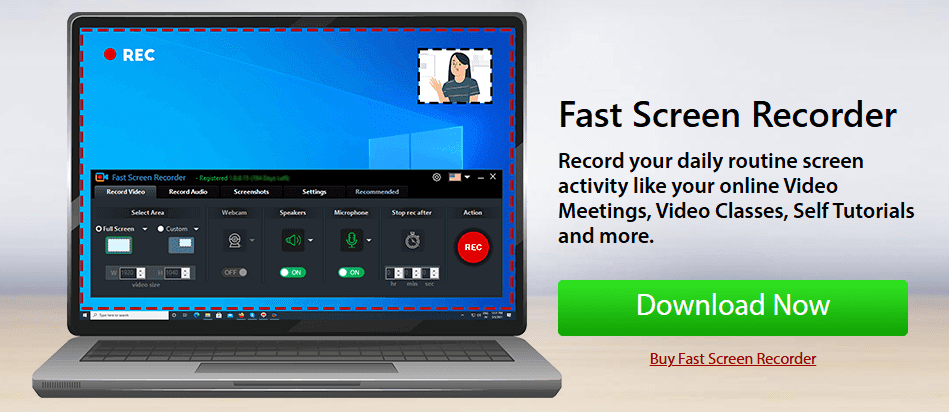
Enter Fast Screen Recorder — a simple yet powerful software that offers a lossless screen recording experience with customizable settings and outstanding performance. In this article, we’ll walk you through how to use Fast Screen Recorder, its features, and why it might be the only screen recording tool you’ll ever need.
🔗 Official Website: https://fastpctools.com/appdownload/fsr
Why Fast Screen Recorder?
Fast Screen Recorder stands out because of its simplicity, quality output, and range of features that are typically only found in premium screen recorders. Unlike many competitors, this tool doesn’t bog down your system and is ideal for recording anything from gaming footage to professional tutorials.
Step-by-Step Guide to Using Fast Screen Recorder
Step 1: Download and Install the Software
Start by downloading the installer from the official website. The installation process is quick and easy — just follow the on-screen prompts. Once installed, launch the application.
Step 2: Choose Your Recording Area
By default, the software opens in full-screen recording mode. You can switch to a custom area recording if you only want to capture part of the screen. This flexibility allows users to focus on specific applications or areas of interest.
Step 3: Enable Webcam Support (Optional)
If you have a webcam connected, Fast Screen Recorder will detect it automatically. This is particularly useful for gamers or vloggers who want to include a facecam overlay while recording gameplay or walkthroughs.
Step 4: Configure Audio Settings
You can capture:
- System sound (e.g., game audio, videos, apps).
- Microphone input, with a dropdown list of connected devices.
You can enable or disable either option based on your recording needs. Having clear background sound and commentary is vital, especially for tutorials and presentations.
Step 5: Use the Recording Timer
One of the handy features is the auto-stop timer. This is useful when recording lengthy content — just set the duration and the recorder will automatically stop after the specified time.
Step 6: Capture Screenshots Instantly
The software includes shortcut buttons to take screenshots while recording. These are incredibly useful for capturing key frames or saving visual references from your session.








Step 7: Adjust Output Settings
To ensure maximum video quality, follow these settings:
- Preset: Medium
- Quality: 5
- Frame Rate: 60 FPS
You can also choose where to save your videos. It’s recommended to create a dedicated folder for quick access and organization.
Step 8: Set Up Keyboard Shortcuts
Customize your shortcut keys for easier control:
F5: Start/Stop recordingF6: Pause/Resume recording
This allows you to manage recordings hands-free while working or gaming.
Step 9: Start Recording
When you’re ready, hit the Action button. A countdown will begin, and the recording will start automatically. Perform your actions as normal — the recorder captures everything with sharp and smooth output.
Once finished, use the shortcut key (F5) to stop the recording. The file will be saved automatically to your chosen location.
Step 10: Review and Share
Open the recorded video and you’ll be impressed by the crystal-clear quality, even on zoom. Fast Screen Recorder ensures that every detail is preserved — whether it’s tiny text or high-speed gameplay.
Pricing and Trial
Despite its powerful capabilities, Fast Screen Recorder is affordable and beginner-friendly. Here’s what you get:
- Free trial version: Use without restrictions for basic needs.
- Premium: One-year subscription available for just $10, including a 30-day money-back guarantee.
For the price of a coffee or two, you get professional-level screen recording without ads, crashes, or frustration.
Final Thoughts
If you’ve struggled to find a stable, high-quality screen recorder that doesn’t break the bank, Fast Screen Recorder is your answer. Whether you’re streaming games, creating YouTube videos, or capturing business tutorials, this tool ticks all the boxes.
- Simple installation
- Custom recording zones
- Webcam and audio integration
- Keyboard shortcuts
- Lossless output quality
- Budget-friendly pricing
Why wait? Head over tohttps://fastpctools.com/fast-screen-recorder/ and start creating stunning recordings today.
Happy recording, and may your next video be your best one yet!
Tags:
screen recording software, fast screen recorder, record screen in HD, game recording tool, webcam recorder, audio screen capture, best screen recorder for PC, screen capture software, video creation tools, desktop recording
Hashtags:
#FastScreenRecorder #ScreenRecording #ContentCreation #GameRecording #PCRecorder #HDRecording #TutorialSoftware #VideoTools #WebcamOverlay #ProductivityTools







