Adobe InDesign’s latest update introduces groundbreaking features that enhance creativity and workflow efficiency. In this article, we’ll explore two of the most powerful additions: Generative Fill Beta and PDF-to-InDesign Conversion.
1. Generative Fill Beta: AI-Powered Design Enhancements
One of the most exciting new features in Adobe InDesign is Generative Fill Beta, which allows users to automatically generate fill effects for shapes and text using AI.
How to Use Generative Fill Beta
- Open the Text to Image Panel
- Go to Window > Text to Image.
- This panel enables AI-generated fills for shapes and text.
- Apply Generative Fill to Shapes
- Select a shape (e.g., an SVG from Illustrator).
- In the Text to Image panel, choose Generative Fill Beta.
- Enter a prompt (e.g., “lime wedge”) and click Generate.
- Three AI-generated options will appear—select the best fit.
- Apply Generative Fill to Text
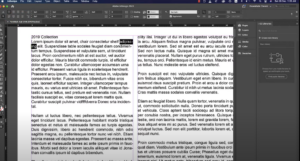
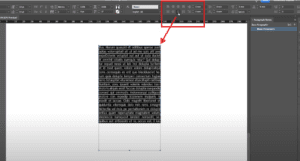
- Select a text frame.
- Enter a prompt (e.g., “lime peel texture”).
- Click Generate and choose from the AI-generated textures.
- Enhance with Effects > Inner Shadow for depth.
- Refine with Text Wrap
- Select the AI-filled shape.
- Open Text Wrap Panel (Window > Text Wrap).
- Choose Wrap Around Object Shape > Alpha Channel.
- Adjust the offset for seamless text flow.
This feature is a game-changer for designers, allowing quick, AI-assisted styling without leaving InDesign.
2. Convert Any PDF into an Editable InDesign Document
Another major update is the ability to convert PDFs directly into editable InDesign files, eliminating the need for source files.
Steps to Convert a PDF to InDesign
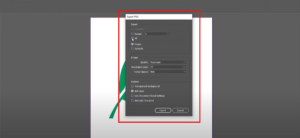
- Open the PDF in InDesign
- Launch InDesign and click Open from the homepage.
- Select your PDF and click Open.
- InDesign will automatically convert the PDF into an editable document.
- Review and Adjust Layout
- Some elements (text, images, alignment) may need minor adjustments.
- Use the Alignment Tool (Window > Align) to fix spacing issues.
- Reapply styles if necessary.
Important Notes
- Text formatting may shift slightly—be prepared to refine spacing.
- Complex vector graphics may require manual tweaking.
- This feature is ideal for repurposing PDFs when original files are unavailable.
Final Thoughts
These updates make Adobe InDesign more powerful than ever, integrating AI-driven design and seamless PDF conversion. Whether you’re enhancing layouts with Generative Fill or repurposing PDFs, these tools save time and boost creativity.
Tags
Adobe InDesign, Graphic Design, AI Design Tools, PDF Conversion, Desktop Publishing, InDesign Tips
Hashtags
#InDesign #AdobeCreativeCloud #GenerativeAI #DesignTips #PDFtoInDesign #GraphicDesign
Disclaimer: Adobe InDesign is a registered trademark of Adobe Inc. This article is not affiliated with Adobe but provides insights into its features.