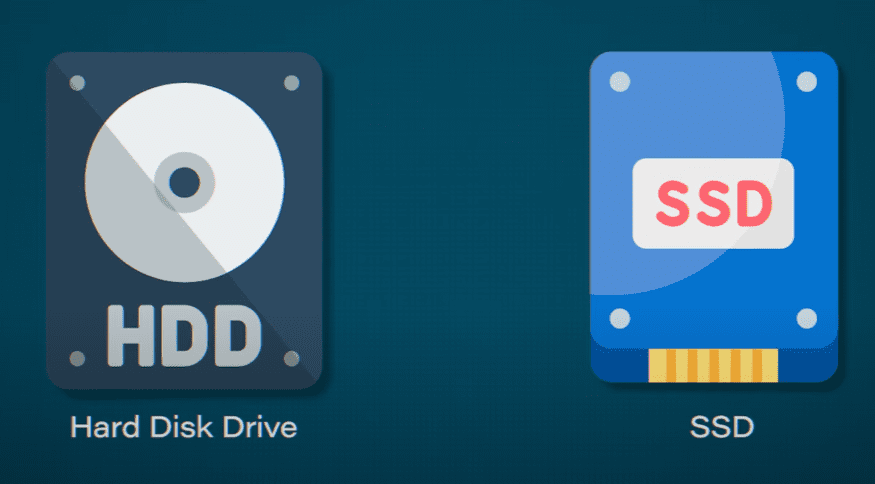
If you use a computer or laptop, you’ve likely heard of an SSD. An SSD (Solid State Drive) is a storage device that holds your data—whether it’s photos, videos, games, or software. In the past, most systems used an HDD (Hard Disk Drive), but with modern technology, SSDs have taken over because they’re much faster, more compact, and more reliable.
But have you ever wondered what makes SSDs so fast? What’s the internal technology behind them? In this article, we’ll explain how SSDs work, what components make them fast, and how you can choose the right SSD for your needs.
Key Components Inside an SSD
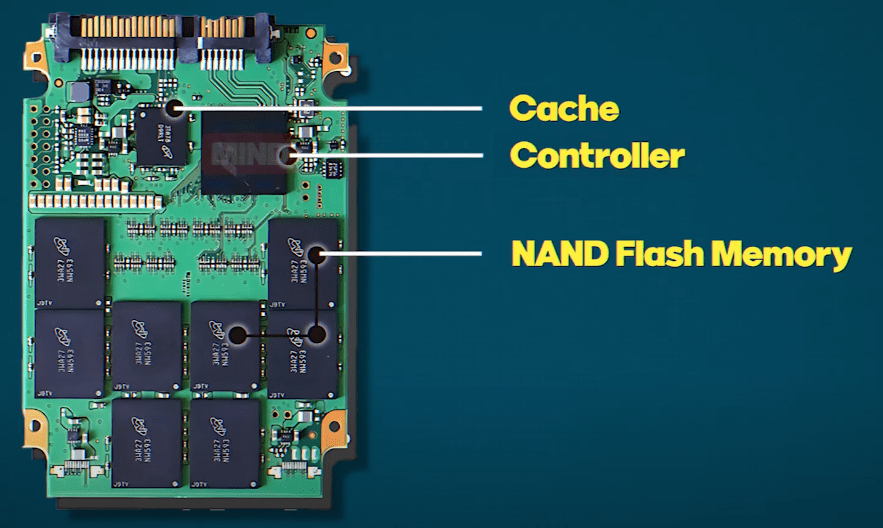
An SSD primarily consists of three major components:
- NAND Flash Memory
- Controller
- Cache (or DRAM Cache)
Let’s understand each one in detail.
1. NAND Flash Memory: The Storage Brain
NAND Flash is where your data is actually stored. You can think of it like a giant cabinet filled with thousands of tiny compartments (called “cells”). Each cell stores data in binary form—either 0 or 1—and uses electrical signals to store this data.
The most fascinating part? Even when your computer shuts down or loses power, the data inside NAND memory remains intact. This is known as non-volatile memory.
Types of NAND Flash:
- SLC (Single-Level Cell): Stores 1 bit per cell. Fastest and most durable, but expensive.
- MLC (Multi-Level Cell): Stores 2 bits per cell. Balanced in speed and price.
- TLC (Triple-Level Cell): Stores 3 bits per cell. Common in consumer SSDs.
- QLC (Quad-Level Cell): Stores 4 bits per cell. Higher capacity, lower speed and endurance.
For everyday use like gaming, browsing, and basic tasks, TLC or QLC SSDs are generally sufficient.
2. Controller: The Smart Manager
The controller is a small chip inside the SSD that acts like a librarian between your computer and the NAND Flash memory. Its responsibilities include:
- Writing data to NAND cells
- Reading stored data
- Managing deletion or duplication
- Error detection and correction
- Wear leveling (distributing usage evenly across memory cells to prolong SSD life)
Without a controller, your SSD would be fast but chaotic. It ensures everything is stored efficiently and accessed quickly.
3. Cache or DRAM: The Speed Booster
The cache (also called DRAM cache) is a small section of temporary memory that improves read/write speeds. When you save or access files, the data first passes through this cache, speeding up the overall process.
In budget SSDs, instead of a DRAM cache, HMB (Host Memory Buffer) is used, which utilizes a small portion of your computer’s RAM. However, high-performance SSDs include a dedicated DRAM cache, which significantly boosts performance.











If you’re using your SSD as a primary drive for your operating system (like Windows), it’s highly recommended to get one with DRAM cache for the best performance.
How an SSD Works – Step-by-Step
- You save a file to your computer.
- The data goes to the SSD’s controller.
- The controller decides which NAND cell should store the data.
- The data is temporarily stored in the cache.
- Finally, it’s written into the appropriate NAND cell.
- When you open that file, the controller retrieves the data from NAND and shows it to you via the cache.
This process happens in milliseconds, which is why SSDs feel incredibly fast compared to traditional hard drives.
Advantages of SSD Over HDD
- Speed: Windows, games, and applications load much faster.
- Durability: No moving parts, so it’s more resistant to shock or damage.
- Compact & Lightweight: Perfect for laptops.
- Energy Efficient: Consumes less power, extending battery life in laptops.
Limitations of SSD
- Cost: More expensive than HDDs (though prices are steadily dropping).
- Limited Write Cycles: NAND flash has a finite number of write operations (though sufficient for several years of normal use).
- Storage Capacity: For the same price, HDDs usually offer more storage space.
SSD vs. HDD – The Final Comparison
| Feature | SSD | HDD |
|---|---|---|
| Speed | Much faster | Slower due to moving parts |
| Durability | No moving parts, shockproof | Can get damaged easily |
| Price per GB | Higher | Lower |
| Storage Capacity | Lower in budget models | Higher |
| Best Use Case | OS & apps | Mass storage |
Best Practice: Use an SSD as your primary drive for Windows and applications, and an HDD for storing large files like photos, videos, and backups.
Final Thoughts: Should You Upgrade?
If your computer feels slow and you’re still using an HDD, upgrading to an SSD is one of the best decisions you can make. It will immediately boost your system’s speed and responsiveness.
Look for SSDs with DRAM cache if you’re planning to use it as a primary boot drive. While they might be slightly more expensive, the performance gains are worth it.
To explore SSD options and learn more, visit the official sites of major SSD manufacturers:
Tags
SSD, solid state drive, computer upgrade, NAND flash memory, SSD controller, DRAM cache, HMB SSD, laptop performance, HDD vs SSD, fast boot drive, how SSD works, SSD types, SSD storage guide
Hashtags
#SSD #ComputerUpgrade #TechGuide #NANDFlash #StorageDevices #HDDvsSSD #LaptopTips #DRAMCache #SSDTutorial #FastComputing #PrimaryStorage
Disclaimer
The information provided in this article is intended for educational purposes only. Product recommendations and technology descriptions are based on general consumer experience and research. Please verify technical specifications from the official websites before making any purchase or upgrade decisions.








