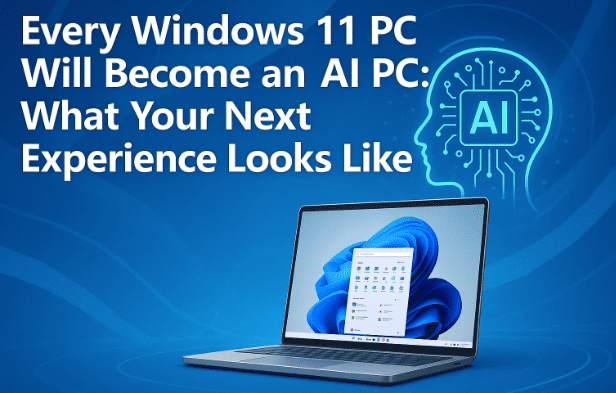
If you’re using Windows 11 today, big changes may be on your horizon. Microsoft recently made a sweeping announcement that, in effect, turns every Windows 11 machine into an AI PC. But what does that really mean for you — the everyday user? Is having AI built into your OS helpful, or intrusive?
In this article, I’ll break down what Microsoft announced, explain all new features, weigh pros and cons, and help you decide whether you should embrace or resist these changes.
Let’s dive in.
🔍 What Did Microsoft Announce?
Microsoft revealed a bold vision: that Windows 11 PCs will gradually evolve into full AI-powered systems. Key parts of this transformation include:
- A new Copilot + Agentic experience built into Windows, enabling text or voice interaction and the ability for AI to perform actions on your behalf (with permission).
- Replacing the classic Windows search box with a Copilot launcher prompt that combines search and AI commands.
- Introduction of “Hey Copilot” voice activation to summon the AI via voice.
- Expansion of Copilot Vision to interpret on-screen content (desktop, apps) and provide guidance or insights.
- Deeper integration between Windows settings, apps, and Copilot’s suggestions.
While Microsoft stresses that most features will start disabled by default and require user permission, these are substantial shifts from a passive, user-driven OS to one using AI as a hub.
Below, I unpack each major area with more detail, starting with the new Copilot interface.
🧰 Copilot Interface & Search Integration
One of the biggest changes is how search works in Windows 11 now:
Replacing the Search Box with Copilot
- Microsoft is phasing out the classic search box in favor of a Copilot launcher prompt. What used to be purely local file/app/web search becomes a hub for AI + search in one UI.
- The idea is that instead of choosing “Search Windows” or “Search Web,” you’ll type or speak commands like “Open calculator,” “Change desktop background,” or “Summarize this document.”
- Copilot will also offer quick shortcuts to settings or applications as you type queries — bridging between AI results and direct Windows functions.
Voice Activation: “Hey Copilot”
- A wake-word feature may arrive: say “Hey Copilot” to invoke the AI. A microphone icon appears and a chime indicates listening. After silence or saying “Goodbye,” it ends.
- This is opt-in initially. Windows users must explicitly enable it in settings.
This integration means Copilot becomes your central interface: search, AI queries, operations — all in one place.
👁️ Copilot Vision: Seeing What You See
If you’ve ever wished your PC could “look over your shoulder” and guide you — that’s the promise of Copilot Vision.
What Copilot Vision Does
- It can analyze screen content (desktop, open app windows) to answer questions, provide advice, or walk you through tasks.
- It includes a “Highlights” feature: Copilot can highlight menu options or UI elements on the screen to guide you.
- It is opt-in and never active without your permission.
- Currently available in the U.S. for Windows 10 & 11, with rollout to other regions planned.
Privacy & Security Safeguards
Microsoft says:
- No visual data or user screen content is stored for AI training.
- It blocks vision from reading DRM-protected content or sensitive areas such as banking apps.
- All sharing is initiated by the user (you click to share a window or desktop).
Though this sounds reassuring, some users remain cautious — after all, giving AI a “view” into your desktop raises new trust boundaries.








🤖 Agents & Copilot Actions: Letting AI Do Things
Beyond seeing and conversing, Microsoft wants Copilot to act on your behalf — with your explicit permission. Here’s how.
Agentic Features & Copilot Actions
- Copilot will soon be able to do tasks like open apps, change settings, launch workflows, or interact with your system as an “agent.”
- These are limited-permission tasks — meaning Copilot will only be able to touch what you explicitly allow.
For example:
You ask, “Change my wallpaper.” Copilot may respond with a link like, “Open Display Settings”. If you accept, it launches the correct settings, rather than just telling you what to click.
Use Cases vs. Overreach
For corporate users or power users, this capability is tempting: imagine automating repetitive UI tasks. For everyday users, however, the risk is that Copilot might become over-aware or too proactive.
This is where Microsoft’s assurances matter: transparency (you see what Copilot is doing) and control (you enable or disable features). Whether users will trust that remains to be seen.
🛠 Copilot + Windows Settings & Connectors
To make Copilot feel integrated rather than a plugin, Microsoft is weaving it into Windows fundamentals.
- When you type, “I want to change my Bluetooth settings,” Copilot can show a quick link that opens directly into Settings → Bluetooth.
- “Connectors” allow Copilot to interface with apps and services you use — so when you ask it to, it can pull relevant content or settings from the apps you already have.
- Microsoft calls these “Windows settings integration” and “easy doc creation” improvements. Copilot will not just suggest — it will embed actionable options.
This helps reduce friction. You type a request: Copilot answers and gives you a one-click to apply it.
🤔 Concerns, Critiques & What You Should Watch
It’s not all rosy. As you read about these future features, it’s normal to have concerns. Let me address some:
1. Do I have to accept these AI features?
Microsoft says everything is opt-in at first. Copilot Actions, voice activation, vision — you must enable them manually. But the worry is: will default settings nudge you toward enabling? Also, how easily can you disable them once turned on?
2. Isn’t this invasive?
Allowing an assistant to see your screen or act in your system potentially introduces privacy risks. Though Microsoft has safeguards, skeptics argue that any AI tool with elevated permissions is a risk vector.
3. Not all users want AI in their OS
You may think: “I prefer classic search, file browsing, manual control.” Many users share that sentiment. You might resent AI being baked in too tightly.
4. Edge cases & bugs
Whenever a new system-level AI feature is deployed widely, bugs, misinterpretations, or hallucinations are possible. Imagine Copilot mis-interpreting a command and altering a setting you didn’t want to change.
5. Hardware & performance constraints
Some AI features require stronger hardware (NPUs or neural cores). While Microsoft wants to push these features to all Windows 11 PCs, not all machines may run them smoothly. Certain functions may be exclusive to “Copilot+ PCs” — devices built with AI hardware.
✅ Where Microsoft Stands (and Their Promises)
To Microsoft’s credit, they included several assurances in their public statements:
- User control: You’ll always have visibility into what Copilot Actions perform.
- Default off: New AI features start disabled, so you choose to enable them.
- Responsible rollout: Microsoft says they intend this as a careful, gradual rollout.
- Security-first: They emphasize privacy controls and restrictions (e.g. blocking vision in DRM content, not storing visual data).
Still — as always — real trust is built over time, not with promises alone.
✔ What You Can Do Now (Your Options & Precautions)
Since this is a significant shift, here are steps you can take to stay in control:
- Delay enabling features: Don’t rush to activate “Hey Copilot,” Vision, or Actions — try them when you’re ready.
- Review privacy & permissions: When enabling, check exactly what permissions Copilot is asking for (screen access, input control, etc.).
- Stay updated: These AI features will come via Windows updates or Copilot app updates. Keep your system and Copilot app current.
- Use public feedback channels: Microsoft has feedback mechanisms in Insider builds — voice your concerns and report issues.
- Consider hardware readiness: If your PC lacks AI hardware, some premium features may lag or be restricted.
🔎 Frequently Asked Questions (FAQ)
Q: Will these AI features work on all Windows 11 PCs?
A: Microsoft’s intention is yes — they aim to bring Copilot, Vision, and Actions to all Windows 11 devices, not just special ones.However, devices with built-in AI accelerators (e.g. Copilot+ PCs) may handle more features smoothly.
Q: Can I disable Copilot entirely if I don’t want it?
A: That hasn’t been fully confirmed yet, but Microsoft claims you’ll always be able to disable or pause Copilot’s higher-permission features.
Q: Does Copilot Vision store what it sees?
A: According to Microsoft, no visual data is logged or used for training. All vision interactions are user-initiated and not automatically recorded.
Q: What’s a Copilot+ PC?
A: These are devices built specifically for AI with hardware support (neural cores, etc.) to enable advanced features.
Q: Could Copilot do harmful things automatically?
A: In theory, if misconfigured or if permissions are too broad. That’s why Microsoft emphasizes limitation by permission and transparency.
🧭 My Take: Enthusiasm with Caution
I’ll be honest: I’m intrigued and cautious in equal measure. The idea of having a smart assistant integrated everywhere is powerful — imagine doing complex file queries, automations, or cross-app tasks with natural language. But I also deeply value control over my system, and I’m skeptical about giving AI too much autonomy too soon.
At best, this is the start of an elegant, empowered computing experience. At worst, it may feel intrusive, buggy, or frustrating to disable. Over time, I hope Microsoft gives us fine-grained toggles, performance options, and robust privacy controls.
If you’re like me, you’ll wait, observe early releases or Insider builds, then decide which features you want enabled — rather than having them forced on you.
If you’d like, I can also prepare a side-by-side “What’s new vs. what you keep control over” cheat sheet, or help set up Copilot features safely on your PC. Do you want me to draft that for you now?
#Windows11 #MicrosoftCopilot #AIinWindows #CopilotVision #AIPC #WindowsFuture