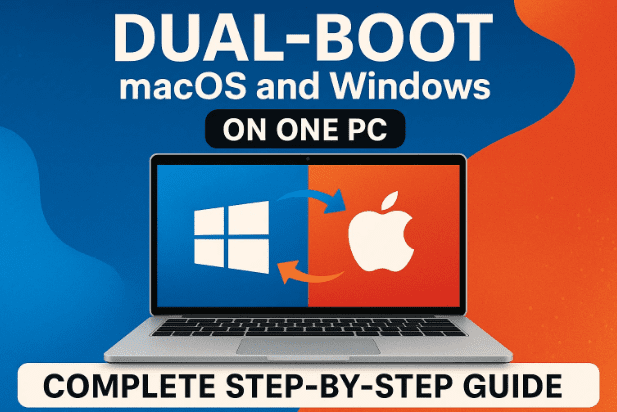
Want to run macOS and Windows on the same computer without touching your existing Windows installation? This guide walks you through—calmly and carefully—how to dual-boot macOS alongside Windows 10 or Windows 11 using OpenCore. We’ll prepare a bootable installer, build a tailored EFI, map USB ports, and finish with a clean dual-boot menu where you can choose macOS or Windows at startup.
Along the way, I’ll point out why we do each step (not just what to click), call out common pitfalls, and suggest safer alternatives whenever there’s ambiguity. Before we dive in, take a deep breath—this is absolutely doable if you go slowly and don’t skip steps.
Let’s get you set up.
1. What You’ll Need (Hardware, Apps, and Prep)
Before touching any settings, it helps to know exactly what we’re building—and why. OpenCore acts as a lightweight, highly configurable bootloader so your PC can boot macOS. We tailor it to your CPU, GPU, and motherboard so macOS sees a “Mac-like” environment.
You’ll need:
- A Windows 10/11 PC with UEFI firmware (almost all modern PCs).
- An 8 GB or larger USB drive (16 GB+ recommended).
- Free disk space for macOS (50 GB minimum; 80–120 GB gives breathing room).
- A stable internet connection (several downloads happen during the process).
- Time and patience—rushing is the fastest way to miss a tiny setting.
We’ll install or use these tools (links in Section 16):
- Python (from Microsoft Store)
- OpenCore Simplify (to generate a tailored EFI)
- USBToolBox + USBToolBox kext (for USB mapping)
- OC Auxiliary Tools (to edit
config.plistsafely) - Rufus (to prep the USB and format it)
- OpenCorePkg + macOS Recovery script (to fetch Apple’s recovery files)
Why this stack?
OpenCore Simplify creates a clean, hardware-aware EFI. USBToolBox ensures your keyboard/mouse/ports work reliably (macOS enforces USB limits). OC Auxiliary Tools lets you edit OpenCore settings safely. The OpenCorePkg recovery script pulls official Apple recovery assets.
2. Important Disclaimer & Notes About Legality
- Educational purpose only. Running macOS on non-Apple hardware may conflict with Apple’s End User License Agreement (EULA). This guide is intended to help you understand the process. Proceed at your own discretion.
- Back up your data first. Partitioning and firmware changes can be risky if done incorrectly.
- No paid promotions here. Links below are official project pages or vendor sites only.
Naming clarity: You may see “Mac OS,” “Mac OS X,” or “macOS.” Modern releases are “macOS.” Also, macOS 15 is Sequoia (sometimes misheard as “SEOA”); “Tahoe” is not an official name.
3. Back Up and Create Space for macOS
Let’s start safely. Even if you’ve done this a dozen times, taking a backup before changing partitions is simply good habit.
Back up suggestions (Windows):
- Use File History or simply copy important folders to another drive.
- If you have a spare disk, an image with Macrium Reflect or Veeam Agent Free gives you a restore point.
Create free space for macOS:



- Press Win + X → Disk Management.
- Right-click your main Windows partition (usually C:) → Shrink Volume.
- Enter the size to shrink. I recommend at least 50 GB; 100 GB is comfortable.
- You’ll see Unallocated space. Right-click it → New Simple Volume.
- Format as exFAT and give it a label like macOS.
Why exFAT?
The macOS installer can read exFAT during setup, and we’ll reformat it to APFS in Disk Utility before installing.
4. Install Python (Required by Tools)
Some helper scripts require Python. Installing from the Microsoft Store is painless.
- Open Microsoft Store → search Python → install the latest (3.x).
- Launch once so it completes path registration.
If a script isn’t recognized later, it’s often a PATH issue. Opening Python from Start once typically fixes it.
5. Generate a Tailored OpenCore EFI with “OpenCore Simplify”
This is where the magic starts. We’ll scan your hardware and let OpenCore Simplify assemble a matching EFI for your CPU/GPU/board.
- Download: OpenCore Simplify (GitHub link in Section 16).
- Extract the ZIP to a folder (avoid paths with spaces if possible).
- Run
OpenCore Simplify.bat. When prompted:- If it asks to skip update: type N (check once), then Y to skip future prompts.
- Press I to scan your hardware.
The tool identifies CPU, GPU, chipset, and other details. - Press E to view supported macOS versions for your hardware.
Example: it may list up to macOS 15 Sequoia (beta/stable) depending on your parts. - Choose your target macOS by number (e.g.,
24for macOS 15 Sequoia if listed). - The tool auto-selects patches, kexts/drivers, SMBIOS appropriate for your system.
- Type 6 to Build EFI.
It downloads required files and outputs a ready-to-use EFI folder.
When it finishes, copy the resulting EFI folder to your Desktop. This isolates it from the tool’s workspace and makes it easy to find.
Why not use a generic EFI someone uploaded?
Because USB controllers, NVRAM quirks, iGPU/dGPU combos, and ACPI tables vary wildly. A custom-generated EFI dramatically reduces mystery bugs later.
6. Map Your USB Ports (USBToolBox + Kexts)
macOS enforces a USB port limit, and mis-mapped ports can lead to non-working keyboards/mice during install or sleep/wake weirdness later. We’ll create a USB map kext that tells macOS exactly which ports you actually use.
- Download:
- USBToolBox utility
- USBToolBox Kexts
(Both links in Section 16.)
- Run USBToolBox.exe.
- Press D to scan controllers.
- One at a time, plug a USB device (e.g., a flash drive) into each physical port:
- Leave it plugged for ~5 seconds, then unplug and move to the next port.
- Do front USB and rear USB, and any case/top panel ports.
- When you’ve covered all ports, press B to go back, then S to view detected ports.
- Ports in green are good; red indicates issues (often a mapping/limit problem).
- Press K to generate a USB mapping kext (often saved as something like
USBMap.kextor the utility’s ownUTBMap.kext). - Copy the generated kext into your Desktop EFI at:
EFI\OC\Kexts\ - Also place USBToolBox.kext (from the Kexts repo) into the same
Kextsfolder.
Tip: Don’t worry if your filename is
UTBMap.kextorUSBMap.kext. The key is that it reflects your actual ports and it is referenced in yourconfig.plist(next section).
7. Edit config.plist with OC Auxiliary Tools (Add Kexts Properly)
Now we’ll tell OpenCore to load the USB kexts you just added.
- Download OC Auxiliary Tools (OCAuxiliaryTools).
- Launch it and open your Desktop
EFI\OC\config.plist. - Go to Kernel → Add.
- Click (+) and add entries for:
USBToolBox.kextUTBMap.kextorUSBMap.kext(your generated mapping kext)
- Make sure their
Enabledfields are checked (true) and theirBundlePathmatches the filenames exactly. - Save the
config.plist.
Why this matters:
If these kexts aren’t added to the config, macOS will ignore them. Then you’ll wonder why your keyboard or certain ports don’t work during installation.
8. Prepare the USB Installer (Rufus + Recovery Image)
We need a bootable USB with two things: the OpenCore EFI and Apple’s macOS Recovery assets. We’ll build the filesystem with Rufus and then drop in the files.
A. Format the USB (FAT32, GPT) with Rufus
- Download Rufus and run it.
- Select your USB drive.
- Boot selection: “Non-bootable” (we only need a clean FAT32 volume here).
- Partition scheme: GPT
- File system: FAT32
- Click Start → wait for completion.
B. Copy your tailor-made EFI
- From your Desktop, copy the entire
EFIfolder to the root of the USB.
C. Fetch the macOS Recovery files (OpenCorePkg’s script)
- Download OpenCorePkg (link in Section 16) and extract it.
- Inside, find the
macrecovery(or similarly named) folder. - Shift+Right-click in that folder background → Open PowerShell/Command here.
- You need the proper command for your macOS version. The Dortania guide maintains ready-to-run commands for fetching recovery:
- macOS Recovery Image Guide (Dortania):
https://dortania.github.io/OpenCore-Install-Guide/installer-guide/mac-install-recovery.html
- macOS Recovery Image Guide (Dortania):
- Copy the command for your chosen version (e.g., macOS 15 Sequoia) and run it.
- When it completes, you’ll see a folder named
com.apple.recovery.bootcontainingBaseSystem.dmgetc. - Copy
com.apple.recovery.bootto the USB root (next toEFI).
Your USB now has:
USB:\
 ├─ EFI\
 └─ com.apple.recovery.boot\
If you see errors while fetching recovery, double-check Python is installed and run the script from inside the correct folder path.
9. Create the macOS Partition in Windows (If You Haven’t Yet)
If you skipped earlier, do it now:
- Disk Management → Shrink Windows partition → create exFAT volume named macOS.
We’ll select this partition in Disk Utility and erase it to APFS during install.
10. BIOS/UEFI Setup (Secure Boot, Boot Order)
OpenCore won’t launch under Secure Boot.
- Reboot → Enter BIOS/UEFI (usually Del, F2, F10, F12 depending on vendor).
- Disable Secure Boot.
- Set Boot Priority so your USB drive is first.
- (Vendor-specific but helpful):
- SATA Mode should be AHCI (not RAID) for best compatibility.
- If present, disable Fast Boot (sometimes hides USB detection).
- If there’s CFG-Lock, ideally disable it (or patch later via OpenCore if necessary).
- Leave VT-x enabled; disable CSM on many boards for pure UEFI.
Save & Exit, and your PC should boot into the OpenCore picker on next start.
11. Install macOS (Erase to APFS, Run Installer)
You should now see OpenCore’s boot menu with entries for Windows and the macOS Installer.
- Choose macOS Installer and press Enter.
- When the recovery loads, open Disk Utility.
- Select your macOS partition (the exFAT one you created) → Erase:
- Name: macOS (or anything you like)
- Format: APFS
- Scheme: GUID Partition Map (if available)
- Quit Disk Utility.
- Click Install macOS and select the APFS volume you just created.
- The system will reboot multiple times—let it. Each time, choose the macOS installer/volume as needed until it finishes.
- Complete Setup Assistant (region, input, account).
- If Wi-Fi doesn’t work, Ethernet or USB tethering can get you online until the right kexts are in place.
At this point, macOS is installed—but you’re still booting via the USB’s OpenCore. Next, we’ll make your internal drive self-sufficient.
12. Post-Install: Move EFI to Internal Drive & Set OpenCore as Default
To boot without the USB, we’ll copy the USB’s EFI to your internal disk’s EFI partition.
- In macOS, download and open OC Auxiliary Tools (you can also use MountEFI or similar).
- Mount the internal disk’s EFI partition (the tool provides a mount button).
- In Finder, it often appears as NO NAME or simply EFI.
- Open your USB in Finder → go to its
EFIfolder. - Copy the
EFI\BOOTandEFI\OCfolders from the USB to the internal EFI partition:- If prompted, merge/replace so the internal partition has the same OpenCore structure as the USB.
You can now eject and remove the USB. The system is almost fully independent—one more step ensures the firmware launches OpenCore by default.
13. Make OpenCore the Default Boot Manager (Command Included)
Windows usually sets Windows Boot Manager as default. We’ll tell firmware to use OpenCore first, so you always see the dual-boot menu.
- Boot into Windows.
- Open Command Prompt (Admin).
- Run this command:
bcdedit /set {bootmgr} path \efi\boot\bootx64.efi - You should see “The operation completed successfully.”
- Reboot: you’ll now land in OpenCore first, and can choose macOS or Windows anytime.
If you ever want to revert, you can restore Windows Boot Manager or reorder entries in BIOS. Keeping a backup of your original EFI is wise.
14. Troubleshooting & Common Errors
Let’s anticipate problems so you spend less time guessing and more time using your new setup.
OpenCore menu doesn’t appear
- Check BIOS boot order and confirm Secure Boot is disabled.
- On some boards, USB ports initialize slowly—try a rear I/O USB 2.0 port.
- Recreate the USB with GPT + FAT32 and confirm the
EFIfolder is at the root.
Keyboard or mouse not working in installer
- Classic sign of USB mapping not being loaded. Revisit Section 6 & 7:
- Ensure
USBToolBox.kextand your mapping kext (UTBMap.kext/USBMap.kext) are present inEFI\OC\Kexts\. - Confirm both entries are added and Enabled in Kernel → Add within
config.plist.
- Ensure
Installer restarts to Windows mid-way
- Use the OpenCore picker to select either “Install macOS on …” or the target macOS volume each time until it fully completes.
- Ensure SATA mode is AHCI and CSM is disabled where necessary.
Black screen after Apple logo
- For iGPU/dGPU combos, you may need specific device properties or boot-args. OpenCore Simplify usually picks correct defaults, but older iGPUs or Navi cards sometimes need tweaks.
- Keep your system on a supported macOS version as reported by the OpenCore Simplify compatibility output.
Wi-Fi/Bluetooth missing
- Not all chipsets are supported. Many Intel Wi-Fi adapters work using itlwm/AirportItlwm; Broadcom chipsets often have native or near-native support. Add the appropriate kexts and load them via config.
Time mismatch between OSes
- Windows and macOS handle RTC differently. Set Windows to use UTC or apply the common registry fix to avoid time drift.
OpenCore default not sticking
- Re-run the
bcdeditcommand in Section 13. - Double-check that your internal EFI truly contains the copied
EFI\BOOTandEFI\OCfrom the USB.
15. Frequently Asked Questions (FAQ)
Q1) Will dual-booting delete my Windows files?
No—provided you shrink your Windows partition and install macOS to a separate APFS volume (as we do here). Still, always back up before partitioning.
Q2) Is macOS 15 “Sequoia” supported?
If OpenCore Simplify reports your hardware supports it, yes. Stick to stable releases for fewer surprises, and ensure kexts are current.
Q3) Why do we use exFAT first and then APFS?
Windows can’t create APFS directly. We create a staging partition Windows can see (exFAT), then in Disk Utility we erase it to APFS which macOS uses.
Q4) Can I use multiple macOS versions on separate volumes?
Yes. You can create multiple APFS volumes and install different versions, provided your hardware supports them. OpenCore will list each one at boot.
Q5) How do I update macOS or OpenCore later?
- macOS updates: use System Settings → Software Update.
- OpenCore updates: update the bootloader, kexts, and config.plist (matching versions). Tools like OC Auxiliary Tools help. Always keep a USB with a known-good EFI handy before updating.
Q6) My board has CFG-Lock—do I need to unlock it?
If you can disable it in BIOS, do so. If not, OpenCore has Quirks to work around it in many cases. Use the settings recommended by OpenCore Simplify.
Q7) Can I encrypt macOS (FileVault)?
Yes, but only after you have a stable boot. Read your motherboard/firmware community notes to avoid lockouts. Keep an unencrypted backup while testing.
Q8) Will iMessage/FaceTime work?
Often yes, but you must have valid, unique SMBIOS values and follow best practices (don’t clone others’ serials). Don’t log into Apple services until your identifiers are set correctly (OpenCore Simplify typically generates these).
Q9) Can I remove the USB once macOS is installed?
Yes—after you copy the USB’s EFI to the internal EFI partition (Section 12). Then set OpenCore as default (Section 13).
Q10) How big should the macOS partition be?
50 GB is a bare minimum. If you’ll install Xcode or creative tools, plan 100–200 GB or more.
16. Official Download Links (All Tools Used)
- Python (Microsoft Store) — official:
https://apps.microsoft.com/detail/9pnrbtzxmb4z?hl=en-US&gl=US - OpenCore Simplify — official GitHub:
https://github.com/lzhoang2801/OpCore-Simplify - USBToolBox (Utility) — official GitHub:
https://github.com/USBToolBox/tool - USBToolBox Kexts — official GitHub:
https://github.com/USBToolBox/kext - OC Auxiliary Tools — official GitHub:
https://github.com/ic005k/OCAuxiliaryTools - Rufus — official:
https://rufus.ie/en/ - OpenCorePkg — official GitHub (macOS recovery script inside):
https://github.com/acidanthera/OpenCorePkg - Dortania macOS Recovery Image Guide — official docs:
https://dortania.github.io/OpenCore-Install-Guide/installer-guide/mac-install-recovery.html
Final boot manager command (run in Windows as Admin):
bcdedit /set {bootmgr} path \efi\boot\bootx64.efi
Closing Thoughts
So far, you’ve done a great job—seriously. You’ve scanned your hardware, built a tailored OpenCore EFI, mapped your USB ports (a step many skip!), fetched an official Apple recovery, installed macOS safely to its own APFS volume, and finally set OpenCore as the default boot manager. From here on, your day-to-day experience should be smooth: pick macOS for creation, Windows for gaming (or vice versa), and enjoy the best of both worlds.
If anything feels unclear or your hardware shows behavior that isn’t covered here, don’t hesitate to pause and re-check: is your EFI exactly the one you generated? Are both USB kexts enabled? Is Secure Boot definitely off? Small details make big differences with Hackintosh-style setups, and catching them early keeps your system stable.
Stay safe, keep backups, and have fun exploring macOS and Windows side by side.
#DualBoot #OpenCore #macOS #Windows11 #Hackintosh #USBToolBox #Rufus #Sequoia








