In today’s digital age, downloading files from the internet has become a routine task. However, this convenience comes with serious risks. Whether it’s an optimization tool, a script, or a free application, every file you download can be a potential threat if not handled with caution. This guide is designed to help you understand why security warnings appear, what “false positives” really mean, and how to safely navigate suspicious files.
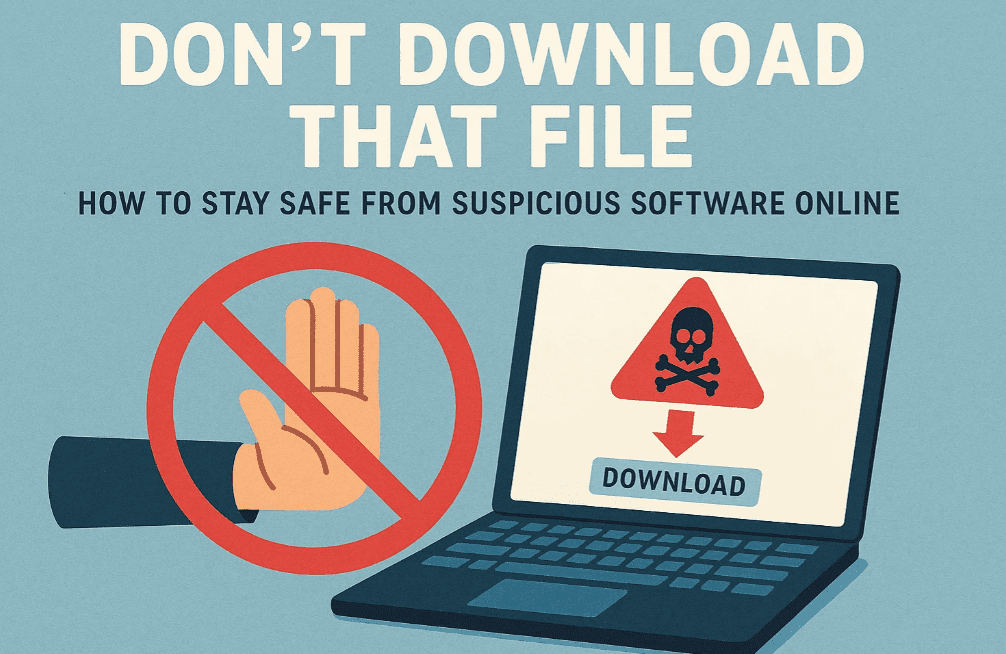
⚠️ Why Your Browser Warns You About Downloads
When you download a file such as et-optimizer.exe or similar tools from unfamiliar sources, your browser might flag it with a warning like:
“This file isn’t commonly downloaded. Make sure you trust the source.”
This alert, part of Microsoft Defender SmartScreen, is your first layer of protection. It indicates the file comes from an unknown publisher, and it could potentially be malicious software (malware).
🧪 What Is a False Positive?
A false positive occurs when a security tool (like your antivirus software) incorrectly flags a safe file as harmful. However, just because a website or developer claims their flagged file is a false positive doesn’t make it true.
Before trusting such claims:
- Do not disable your antivirus software.
- Do not add exclusions for the file.
- Do not download files with password-protected ZIPs (they prevent antivirus from scanning the contents).
Only trust a file after performing independent analysis.
🛠 How to Verify Suspicious Files
If you still want to verify whether a file is safe, here’s what you can do:
1. Upload the File to VirusTotal
This free service scans your file with 70+ antivirus engines. If multiple engines flag the file, it’s very likely unsafe.
Note: Even if VirusTotal flags the file, that doesn’t mean it’s 100% malicious, but it should raise a red flag.








2. Check Publisher Information
If a file’s publisher is listed as “unknown,” that’s a clear indication of risk. Trusted software will have a valid digital signature from a known developer or company.
3. Analyze with Sandboxing or Behavior Analysis Tools
If you’re tech-savvy, use sandboxing software or dynamic analysis tools to observe:
- Network activity
- System modifications
- File changes
Some recommended tools for this:
- Cuckoo Sandbox – https://cuckoosandbox.org/
- Any.Run – https://any.run/
🔒 Why You Should Never Disable Antivirus for a File
If a developer tells you to disable your antivirus, add an exclusion, or ignore warnings, that’s a huge red flag.
Common lines from risky developers:
“This is a false positive. Just disable your antivirus temporarily.”
Doing so opens your system to:
- Viruses – malware that replicates and infects other files.
- Worms – malware that spreads through networks.
- Trojans – disguised as useful programs but harmful.
- Ransomware – encrypts your data and demands a ransom.
- Spyware – silently collects personal data.
- Rootkits & Backdoors – allow remote control of your system.
🛡 General Safety Tips When Downloading Software
✅ Always:
- Verify the developer’s website and publisher.
- Upload the file to VirusTotal before executing.
- Use a reputable antivirus solution.
- Keep backups of your system and data.
❌ Never:
- Trust links from strangers or even friends (their accounts may be compromised).
- Download password-protected archives from unknown sources.
- Disable antivirus or firewall for any application.
- Assume a file is safe because “others are using it.”
🤔 FAQ: Understanding Suspicious Files & Safe Practices
❓ What is a “false positive”?
A false positive is when antivirus software incorrectly flags a legitimate file as malicious. However, many so-called “false positives” turn out to be actual threats, so thorough analysis is essential.
❓ How do I know if a file is safe?
Use tools like VirusTotal, verify the publisher, check digital signatures, and research reviews from trustworthy sources.
❓ Is it safe to run PowerShell or batch scripts from the internet?
Not unless you understand exactly what they do. These scripts can alter your system settings or download malware in the background.
❓ Can I trust tools that claim to optimize or debloat Windows?
Only if they’re from known and verified developers. Many such tools make significant changes to your system, and some are cleverly disguised malware.
📝 Final Thoughts
Downloading software from the internet can be risky. The key takeaway: trust no file blindly. Do your research, verify the source, and always put your system’s security first. Remember, no feature or tool is worth the cost of a compromised machine or stolen data.
Use at your own risk. Always verify before you trust. And never take someone else’s word when it comes to your system’s safety.
🔗 Useful Tools Mentioned:
Disclaimer:
This article is for educational purposes only. Always exercise extreme caution when downloading and running any files from the internet. The author is not responsible for any damages caused by user actions based on this article.
Tags:
cybersecurity, safe downloads, false positive antivirus, malware protection, VirusTotal, internet safety, suspicious files, how to avoid malware, Windows security, antivirus warnings
Hashtags:
#CyberSecurity #WindowsTips #VirusTotal #MalwareAlert #SafeDownloads #InternetSecurity #Antivirus #PCSafety #FalsePositive #SuspiciousFiles #OnlineSafety








