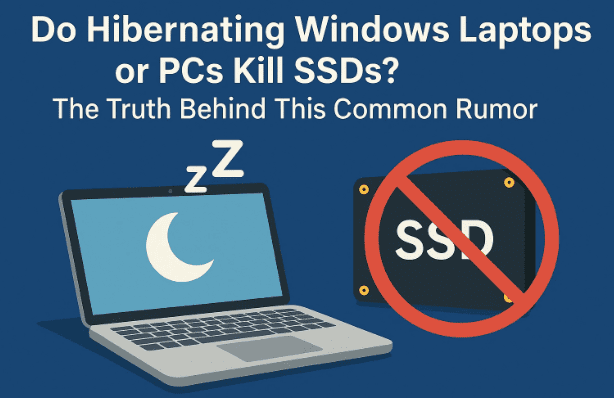
If you’ve ever heard someone say “Don’t use Hibernate — it damages your SSD!”, you’re not alone. This rumor has circulated across tech forums and YouTube comments for years. Many users genuinely believe that using the Hibernate feature in Windows can reduce an SSD’s lifespan because it writes large amounts of data to the drive every time it’s used.
But is there any truth to it? Does putting your laptop into Hibernate mode really kill your SSD?
Let’s find out by understanding what happens behind the scenes, exploring real-world data calculations, and separating myth from fact.
💭 1. Understanding the Rumor: Why People Think Hibernate Hurts SSDs
The fear stems from a simple technical observation: every time you hibernate your computer, Windows saves all the data stored in your RAM (Random Access Memory) to your SSD or hard drive in a file called hiberfil.sys.
Since this file can be quite large — anywhere from 6 GB to 20 GB or more, depending on your system’s memory — it means that each time you hibernate, that much data is written to your SSD.
Because SSDs have a finite write limit (measured in terabytes written, or TBW), users worry that frequent hibernation will quickly consume that limit and shorten the drive’s lifespan.
But as we’ll see, this fear is largely exaggerated.
⚙️ 2. How Hibernation Actually Works in Windows
When you click Hibernate in the Windows power menu, here’s what happens step by step:
- Windows takes a snapshot of everything in your system’s RAM — including open apps, tabs, and background data.
- It writes this snapshot into a special system file named
hiberfil.sys, located in your C:\ drive. - The computer then powers off completely (unlike Sleep mode, which keeps RAM active).
- When you turn it on again, Windows reads that file back into RAM, restoring your system exactly where you left off.
Essentially, Hibernate lets you “pause” your entire system — without consuming power.
Now that we know what’s happening, let’s see what that means for SSDs.
💽 3. Understanding SSD Lifespan and TBW Ratings
Every SSD comes with a TBW rating (Terabytes Written), which measures how much data can be written to the drive before the flash memory starts wearing out.
For example:









- A 512 GB SSD might have a TBW of 300–600 TB.
- A 1 TB SSD could have 600–1200 TBW, depending on model and manufacturer.
To put it simply:
If your SSD has a 600 TBW rating, it can safely handle writing 600 terabytes of data before any noticeable degradation occurs.
That’s equivalent to writing 164 GB every single day for 10 years straight — a lot more than most users will ever reach!
🧮 4. The Math: How Much Data Does Hibernate Really Write?
Let’s take an example to understand the data load:
Suppose your laptop has 32 GB of RAM. When you hibernate, not all of it is full — maybe around 50% is actually in use (open apps, browser tabs, etc.).
That means:
16 GB of data in RAM × 0.75 (average compression) = ~12 GB written to SSD
So, every time you hibernate your PC, around 12 GB of data is written to your SSD.
Now, let’s compare that to your SSD’s endurance.
If your drive’s TBW is 600 TB, that’s:
600,000 GB total endurance ÷ 12 GB per hibernate = 50,000 hibernation cycles
In other words — you could hibernate once a day for over 130 years before even approaching your SSD’s rated write limit!
🧑💻 5. A Real-World Example and Calculation
Let’s apply real data from an actual test.
A user with a 32 GB RAM system used Hibernate daily for around 2.5 years (880 days).
They checked their SSD health using CrystalDiskInfo, which showed:
- Total Data Written: 42 TB
- Daily Writes (Average): ~48 GB
- Hibernation Write Portion: ~12 GB (25%)
Now, if we extrapolate:
12 GB/day × 365 days = 4.3 TB/year
600 TB (drive TBW) ÷ 4.3 TB = ~139 years
That’s right — even if hibernation accounted for a quarter of all your daily writes, it would still take well over a century to wear out your SSD.
In reality, you’ll replace your laptop long before that happens due to new technology, not SSD failure.
📏 6. What Is “TBW” and Why It Matters?
TBW (Terabytes Written) defines the total data you can write to an SSD before its NAND flash memory starts wearing out.
Modern SSDs use wear-leveling and error correction algorithms, which distribute writes evenly across memory cells, preventing any single area from wearing out prematurely.
For example:
- Samsung 980 Pro 1TB → 600 TBW
- Crucial P5 Plus 1TB → 600 TBW
- WD Blue SN580 1TB → 600 TBW
Even budget SSDs can easily survive hundreds of terabytes of writes.
So writing 10–15 GB from hibernation daily is practically nothing.
🔬 7. Will Hibernating Daily Actually Wear Out Your SSD?
Let’s answer this once and for all — No, it won’t.
Here’s why:
- Modern SSDs are incredibly durable.
Even entry-level SSDs can handle more data than most users will ever write in their lifetime. - Hibernation data is compressed.
The actual file written (hiberfil.sys) is typically 50–75% of used RAM — not full memory. - You’re unlikely to hit TBW limits.
Daily hibernation writes are minuscule compared to the SSD’s total endurance. - Other activities write far more data.
Video editing, game installations, large file transfers, and Windows updates consume hundreds of gigabytes, not 10–15 GB.
So even if you hibernate twice a day, your SSD will be fine for decades.
⚡ 8. Comparing Hibernate, Sleep, and Shutdown Modes
It’s easy to get confused between these three modes — let’s clarify their behavior and storage impact.
| Mode | Power Usage | Data Storage Location | Resume Time | Battery Drain | SSD Writes | Best For |
|---|---|---|---|---|---|---|
| Sleep | Low | RAM | Instant | Small but continuous | None | Short breaks (1–3 hrs) |
| Hibernate | None | SSD (hiberfil.sys) | 10–15 sec | None | ~10–15 GB per use | Long breaks or travel |
| Shutdown | None | None | Cold boot | None | None | End of day or updates |
So, Hibernate provides the best of both worlds: you save your session without battery drain, and resume later almost instantly.
✅ 9. Should You Avoid Hibernate? The Practical Verdict
Absolutely not. The fear that hibernation “kills” SSDs is a myth from the HDD era when flash memory endurance was limited.
Today’s SSDs are built to handle petabytes of writes and come with advanced controllers that minimize cell wear.
Here’s a simple recommendation:
- Use Sleep if you’ll return within a few hours.
- Use Hibernate if you’re leaving your PC unused for a few days.
- Perform a Shutdown once a week to refresh Windows and clear temporary caches.
Unless you’re running a server or writing terabytes daily, hibernating will never damage your SSD.
🔍 10. How to Check SSD Health and TBW Using CrystalDiskInfo
If you’re curious about your SSD’s total writes, you can check it easily.
Step-by-Step:
- Download CrystalDiskInfo — a free SSD health monitoring tool.
- Launch the app after installation.
- Look for the fields:
- Total Host Writes — shows how much data has been written.
- Power-On Hours — tells you how long your SSD has been active.
- Health Status — should display Good (100%) for healthy drives.
If your total writes are under 50 TB after years of use, you’re doing perfectly fine — you’re nowhere near the danger zone.
❓ 11. Frequently Asked Questions (FAQ)
Q1. Does Hibernate slow down Windows startup?
A: Slightly, yes — it takes around 5–10 seconds longer than Sleep, but still faster than a full boot.
Q2. Can I disable Hibernate to save space?
A: Yes. The hiberfil.sys file can take up several GBs. Run powercfg -h off in Command Prompt (Admin) to disable it.
Q3. Can I delete hiberfil.sys manually?
A: Never delete it directly. Always disable Hibernate through the proper command as shown above.
Q4. How often can I safely use Hibernate?
A: Daily — even multiple times a day. It won’t meaningfully impact SSD lifespan.
Q5. What consumes more SSD writes — Hibernate or regular use?
A: Regular usage like browsing, installing updates, and saving large files easily outweighs hibernation writes.
🧠 12. Final Thoughts
The verdict is clear: Hibernating your PC does not harm your SSD.
While technically, every hibernation writes data to your drive, the amount is so small compared to the SSD’s total endurance that it’s statistically insignificant.
Modern SSDs are built to last decades under normal workloads — you’ll likely upgrade your computer long before your SSD shows any sign of wear.
So go ahead — use Hibernate confidently. It’s one of the most efficient ways to save power while keeping your workflow intact.
Disclaimer:
The calculations and examples provided here are based on average SSD endurance ratings and general usage assumptions. Actual results may vary based on drive type, workload, and system configuration. Always refer to your manufacturer’s official documentation for accurate TBW specifications.
Tags: hibernate mode, SSD life, TBW SSD, Windows power settings, laptop battery, hibernation vs sleep, SSD myths, computer maintenance, SSD lifespan, power management
Hashtags: #Windows11 #HibernateMode #SSDLife #TechGuide #LaptopTips #ComputerMyths #WindowsTips #PowerManagement








