If you’re like me and find Windows 11’s default interface limiting—especially the taskbar, Start menu, and right-click menu—you’ll be glad to know there are tools that allow deep customization. One such powerful tool is Windhawk, a modding interface that lets you tweak various aspects of Windows 11 to better suit your preferences.
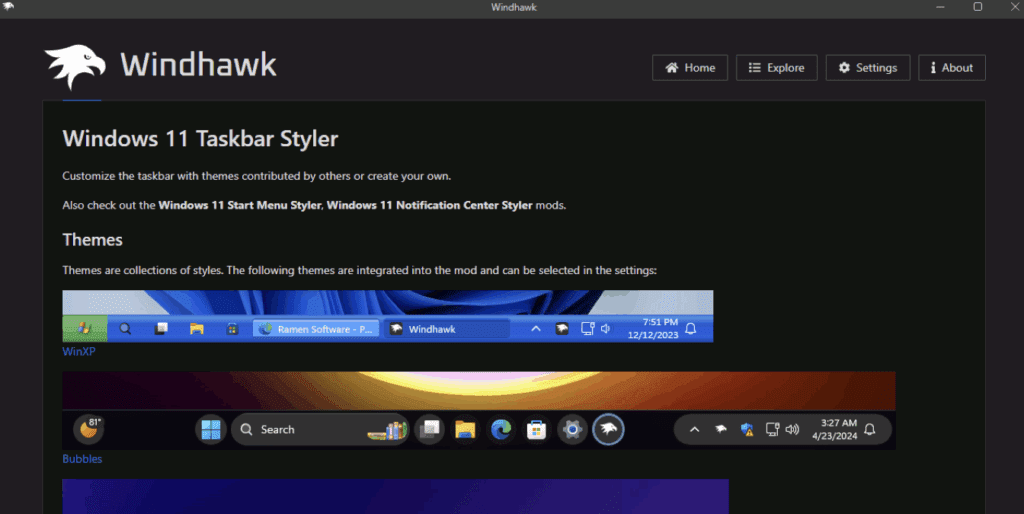
In this article, I’ll walk you through how to use Windhawk to enhance your Windows 11 experience, covering installation, key mods, and how to revert changes if needed.
Why Use Windhawk?
Windows 11 comes with several design choices that may not appeal to everyone, such as:
- A centered Start menu that can’t be easily moved.
- A bulky taskbar with limited customization.
- A right-click menu that hides advanced options.
Windhawk provides a library of open-source mods that allow you to tweak these elements without heavy modifications to your system.
How to Install Windhawk
- Download Windhawk
- Visit the official website: https://windhawk.net/
- Click on Download and save the installer.
- Run the Installer
- Choose between:
- Standard Installation (installs for all users)
- Portable Version (stores settings in the app folder, no registry changes)
- Follow the prompts to complete the installation.
- Launch Windhawk
- Once installed, Windhawk will open automatically.
Top Windhawk Mods to Enhance Windows 11
1. Taskbar Height & Icon Size Mod
Windows 11’s default taskbar is large and takes up unnecessary space. This mod lets you adjust:
- Taskbar height
- Icon size
- Taskbar button width
How to Use It:
- Install the mod from the Explore tab.
- Adjust settings (e.g., set icon size to 16 and taskbar height to 34 for a compact look).
- Click Save Settings and restart File Explorer if prompted.
Before & After:
- Default Taskbar: Large spacing, big icons.
- Customized Taskbar: Compact, efficient layout.
2. Taskbar Volume Control
A handy quality-of-life tweak:
- Hover over the taskbar and scroll to adjust volume (no need to click the sound icon).
Why It’s Useful:
- Faster volume adjustments without extra clicks.
3. Windows 11 Start Menu Styler
The default Start menu has a persistent Recommended section that can’t be fully removed. This mod offers multiple themes:
- No Recommended Section (clean, space-efficient)
- Side-by-Side Layout (Windows 10-style)
- Translucent Start Menu (sleek modern look)
How to Apply:





- Install the mod and select your preferred theme.
- Enjoy a clutter-free Start menu.
4. Classic Explorer Navigation Bar
If you miss Windows 10’s ribbon-style File Explorer, this mod brings it back:
- Replaces the simplified Windows 11 Explorer with the classic layout.
How to Enable:
- Install the mod and select Classic Ribbon in settings.
5. Taskbar & Notification Center Styler
Want a translucent taskbar or a Windows XP-style look? This mod lets you apply different themes:
- Translucent Taskbar (modern aesthetic)
- Windows XP Theme (nostalgic design)
FAQs About Windhawk
❓ Does Windhawk affect system performance?
No, Windhawk is lightweight and runs efficiently in the background (uses less than 3MB RAM).
❓ Can I revert changes made by Windhawk?
Yes, you can:
- Disable individual mods in the app.
- Uninstall Windhawk completely via Windows Settings.
❓ Is Windhawk safe to use?
Yes, mods are open-source and community-vetted. Always download from the official site.
❓ Does Windhawk work on Windows 10?
Some mods may work, but Windhawk is primarily designed for Windows 11.
❓ How do I uninstall Windhawk?
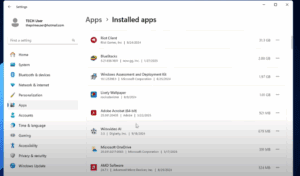
Go to Settings > Apps > Installed Apps, find Windhawk, and select Uninstall.
Final Thoughts
Windhawk is a fantastic tool for customizing Windows 11 without heavy modifications. Whether you want a smaller taskbar, a cleaner Start menu, or classic Explorer features, Windhawk provides an easy way to tweak your system.
Have you tried Windhawk? What’s your favorite mod? Let me know in the comments!
Tags:
Windows 11, customization, Windhawk, taskbar mods, Start menu tweaks, Windows optimization
Hashtags:
#Windows11 #Customization #Windhawk #TaskbarTweaks #StartMenu #TechTips








