If you love customizing the look and feel of your Windows desktop, especially the taskbar, you’ll be excited to know there’s a lightweight and powerful app that makes this easy — and best of all, it’s free (with optional premium features).
In this article, we’ll walk you through how to use Taskbar Plus, a nifty tool available on the Microsoft Store. Whether you’re aiming to give your taskbar a slick transparent look, apply blur or acrylic effects, or simply enjoy a cleaner appearance, this guide will help you get started with all the key steps explained.
🌟 What Is Taskbar Plus?
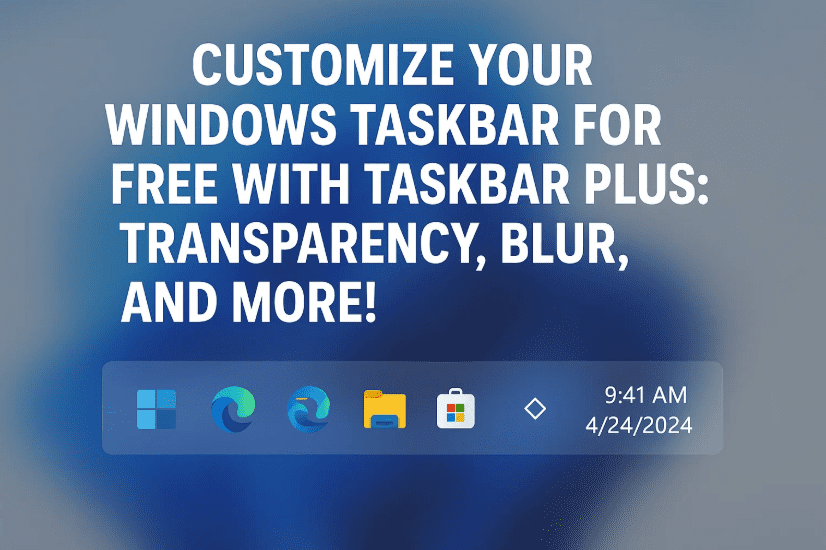
Taskbar Plus is a small utility developed by Perrow Software that lets users customize the Windows taskbar appearance with modes like transparency, acrylic blur, and more. While Windows itself has limited personalization features for the taskbar, Taskbar Plus fills that gap beautifully — and without overwhelming the user with complicated settings.
The app comes in two versions:
- Free Version: Includes 5 basic taskbar effects.
- Pro Version: Unlocks additional features for a one-time payment of $5 or $2.99/year.
Let’s explore everything this tool has to offer and how you can install and use it.
🛠️ Key Features of Taskbar Plus (Free Version)
So far, so good! Now let’s check out what the free version of Taskbar Plus lets you do.
Here are the customization modes available:
- Normal: The standard taskbar appearance.
- Opaque: Adds solid color to the taskbar — ideal for those who want contrast or uniformity.
- Clear (Transparent): Makes the taskbar fully transparent so you can show off that beautiful wallpaper behind.
- Blur: Adds a soft blur effect to the taskbar background, creating a subtle focus effect.
- Acrylic: Offers a semi-transparent, glossy look — similar to the Fluent Design acrylic look in modern Windows UIs.
💡 Tip: The Clear mode is particularly popular for minimalists or those who use dynamic or scenic wallpapers.
Additionally, there’s an option to hide or show the top border of the taskbar, which is great for extra clean visuals.
💎 What’s in the Pro Version?
Once you’ve explored the free features and want more control, you might consider upgrading. The Pro version unlocks advanced options like:
- Disable effects when the Start menu is opened
- More transition effects
- Dynamic behavior settings
- Integration with other visual utilities (like Live Wallpapers Plus)
All this for a one-time fee of just $5, or $2.99 per year if you prefer a yearly subscription.


✅ Best value tip: Go for the lifetime license — it’s just a couple of dollars more and gives you permanent access.
🔽 How to Install Taskbar Plus
Installing the app is as simple as installing any other Microsoft Store app. Let’s walk you through it.
Step-by-Step Installation:
- Open Microsoft Store on your Windows PC.
- In the search bar, type Taskbar Plus.
- Look for the version developed by Perrow Software (double-check the icon to be sure).
- Click Get or Install.
- Once installed, launch the app from your Start menu.
That’s it — you’re ready to start customizing!
🔗 Official link to download Taskbar Plus from Microsoft Store:
👉 https://apps.microsoft.com/store/detail/taskbar-plus/9N57BPMM5GH6
🧑💻 Is Taskbar Plus Safe to Use?
Yes, Taskbar Plus is published via the Microsoft Store, which enforces security checks on listed apps. It’s a lightweight app and doesn’t consume much system resources. Just make sure to download it from the official source to avoid third-party imitations.
❓Frequently Asked Questions (FAQs)
Q1: Will Taskbar Plus work on Windows 10 and Windows 11?
Yes, it works on both Windows 10 and 11. However, certain visual effects like Acrylic may appear more natural on Windows 11 due to native support for Fluent Design.
Q2: Can I uninstall Taskbar Plus easily if I don’t like it?
Absolutely. Just go to Settings → Apps → Installed Apps, find Taskbar Plus, and click Uninstall.
Q3: Does Taskbar Plus affect performance or battery life?
Not noticeably. It’s a lightweight utility with minimal background activity. Still, on low-end systems, using effects like blur or acrylic may consume a tiny bit more resources.
Q4: Can I combine it with third-party themes or Rainmeter?
Yes! Taskbar Plus works independently, so you can combine it with other customization tools for a fully personalized desktop.
👋 Final Thoughts
If you’ve been wanting to change the look of your taskbar beyond what Windows allows, Taskbar Plus is one of the easiest and most effective tools available — and it won’t cost you a penny unless you choose to go Pro.
Whether you’re a fan of a clean transparent look or love the glossy aesthetic of Acrylic, Taskbar Plus lets you do it all with just a few clicks. And for just $5, the premium version gives you even more power to tweak your desktop exactly how you like.
🔖 Tags:
windows customization, taskbar tweak, taskbar plus app, transparent taskbar, blur taskbar, acrylic taskbar, microsoft store tools, desktop personalization, windows tweaks, perrow software
📢 Hashtags:
#Windows11 #TaskbarPlus #WindowsCustomization #TransparentTaskbar #TechTools #WindowsTips #AcrylicEffect #MicrosoftStore #DesktopTweak #PerrowSoftware
Disclaimer: This article is for informational purposes only. Taskbar Plus is a third-party application available on the Microsoft Store. Always verify the publisher before installing any app. The author is not affiliated with Perrow Software.








