Windows 11 brings a refreshed interface and design—but not all users are fans of the default Start menu, taskbar, and right-click menu. If you’re looking for a way to tweak these elements and restore a more functional or visually pleasing experience, a powerful tool named Windhawk can help.
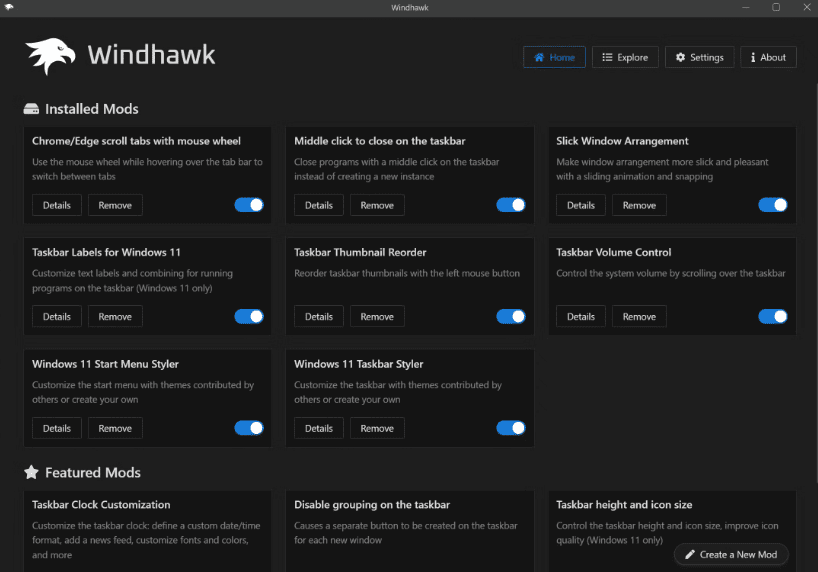
This article walks you through how to install Windhawk, explore its customizations, and enhance your Windows 11 experience—without needing to dig through complex registry edits or scripts.
✅ What is Windhawk?
Windhawk is a lightweight modding interface for Windows. It allows you to install and manage small mods that tweak various Windows UI elements. Unlike bulky shell replacements, Windhawk works as an overlay, giving you granular control over your system’s look and behavior.
Whether you want to shrink your taskbar, remove the “Recommended” section from the Start menu, or make the interface translucent—Windhawk can do it all, and more.
🧩 How to Install Windhawk
- Download Windhawk from its official website: https://windhawk.net.
- Click Download and allow the browser to keep the file if prompted.
- Open the file and choose between:
- Standard Installation (recommended for most users)
- Portable Mode (no registry edits; settings stored in the app folder)
- Proceed through the installation steps. Windhawk will automatically install required dependencies and launch when complete.
🛠️ Explore and Install Mods
Once Windhawk opens, go to the Explore tab to browse available mods. Mods are sorted by popularity, and many are open-source and verified.
Here are some of the most powerful mods you should try:
🎛️ Customize the Taskbar
📏 Taskbar Height and Icon Size
This mod lets you:
- Adjust the taskbar height
- Change icon sizes
- Set the button width
Example settings:
- Icon Size: 16
- Taskbar Height: 34
- Button Width: 20
Once applied, you’ll need to restart File Explorer to see the changes.
To revert:
- Disable the mod
- Restart Explorer again
- Or uninstall the mod from Windhawk
🔊 Taskbar Volume Control
With this mod:




- Scroll anywhere on the taskbar to change the volume (no need to hover over the volume icon)
- Offers faster, more intuitive volume control
🧩 Style the Start Menu
Windows 11 doesn’t allow full removal of the “Recommended” section in the Start menu via system settings. Windhawk fixes that.
⭐ Windows 11 Start Menu Styler
Choose from multiple themes:
- No Recommended Section: Maximizes space for pinned apps
- Side by Side / Minimal Layouts: Replicate Windows 10’s layout
- Translucent Theme: Adds a glass-like effect
- Windows 10 or Metro-inspired themes: Bring back familiarity
Each theme changes the layout and behavior, making your Start menu truly personal.
🎨 Additional UI Customizations
🧊 Taskbar Styler
Apply themes to the taskbar like:
- Translucent
- Windows XP-style
- Bubbles
While some themes may not suit all tastes, the translucent one pairs nicely with a similarly styled Start menu.
🕰️ Taskbar Clock & Labels
- Show seconds or custom formats in the clock
- Restore classic app labels on open windows
🖱️ Middle Click to Close
- Middle-click on a taskbar item to instantly close that app—a great productivity booster.
📁 Classic File Explorer Ribbon
Using the mod that enables the Windows 10-style command ribbon in File Explorer, you can:
- Replace the minimal Windows 11 toolbar
- Regain quick access to file and folder actions
🧼 Managing and Reverting Mods
From Windhawk’s Home tab, you can:
- View all active mods
- Enable/Disable them using toggles
- Remove them entirely
Changes may require restarting Windows Explorer. If you want to completely uninstall Windhawk, go to:
- Settings > Apps > Installed Apps, find “Windhawk”, and uninstall it.
- You’ll be given the option to remove all settings and mods.
📊 Performance Impact
Windhawk is very lightweight. It runs in the background and consumes minimal resources (less than 3 MB of RAM in most cases). It doesn’t interfere with system performance or stability.
⚠️ Disclaimer
Disclaimer: While Windhawk is safe and widely used, it’s still third-party software that modifies system behavior. Always download from the official website, and back up your system or important files before applying custom mods.
🏁 Final Thoughts
If you’re frustrated with Windows 11’s rigid UI, Windhawk offers an easy, flexible, and efficient way to customize your experience. From Start menu themes to taskbar behavior tweaks, it transforms how you interact with Windows—without requiring deep technical knowledge.
It’s a must-have tool for power users and casual tweakers alike.
📌 Tags:
Windows 11 customization, taskbar tweaks, start menu mods, Windhawk tutorial, Windows UI tweaks, registry tweaks alternative, shell mods for Windows, translucent taskbar Windows 11
📢 Hashtags:
#Windows11 #Windhawk #WindowsCustomization #TaskbarTweaks #StartMenuMods #WindowsMods #TranslucentUI #WindowsTips #PCTweaks #ProductivityHacks








