Are you frustrated with lag while using CapCut on your PC, or struggling due to a poor internet connection? If you’ve been searching for a powerful video editing alternative that works flawlessly offline and still offers AI-driven features — your wait ends here. In this article, we’re diving deep into a fantastic tool called HitPaw Edimakor, a professional video editing software designed to make high-quality video editing smooth, intuitive, and fast — even on modest hardware.
Let’s explore how this tool can replace CapCut on your PC and help you level up your content creation game!
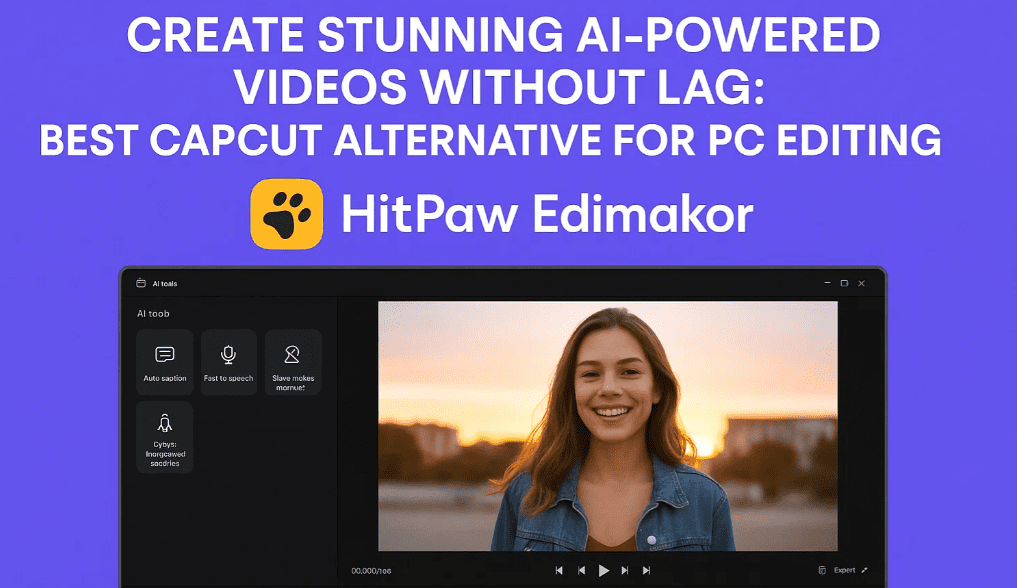
🖥️ What is HitPaw Edimakor?
HitPaw Edimakor is an all-in-one video editing software for Windows and macOS that provides everything from basic trimming to advanced AI video generation. Whether you’re making YouTube videos, travel vlogs, or business promos, it brings you modern features such as:
- AI Subtitle Generator
- AI Video Creator
- Screen Recorder
- Image Enhancer
- Pre-built Templates
- Built-in Media Library
All of this runs locally on your PC, without requiring constant internet access.
✨ Key Features Explained Step-by-Step
Let’s walk through the main features of HitPaw Edimakor and how to use them.
🚀 1. Launch and Interface Overview
Once you launch the software:
- Click on “Create a New Project”.
- You’ll enter a clean interface with clearly defined sections:
- Media Import Panel
- Timeline Editor
- Preview Window
- Text, Transitions, Audio, Effects Tabs
The experience is beginner-friendly, but powerful enough for professionals.
📂 2. Importing Media
You can import videos in two ways:
- From your local PC storage via the Import button.
- Or, use built-in libraries like Unsplash or Giphy to download background visuals directly — no browser needed.
This saves time and keeps your workflow uninterrupted.
🎞️ 3. Drag & Drop Timeline Editing
After importing, drag your clips to the timeline. You’ll find:
- Layered editing (like in Premiere Pro)
- Ratio adjustments (16:9, 9:16, 1:1, etc.)
- Zoom and pan controls to fit screen size
📝 4. Add Text & Lower Thirds
The Text panel is where the magic begins:












- Choose from pre-designed social media text styles
- Customize colors, animations, font, and size
- Use Lower Third Templates like name tags or YouTube subscribe banners with just one click
To edit text:
- Double-click the text box
- Modify content from the right-side panel
You can even create animated intro text like “Amazing Journey” with travel-themed fonts.
🎨 5. Transitions & Effects
HitPaw Edimakor offers a wide range of transitions:
- 3D, Slide, Zoom, Blur, Glitch
- Preview them by double-clicking before applying
Apply transitions between clips for smoother storytelling. It’s intuitive and fast.
🔊 6. Music and Sound Effects
Go to the Audio tab:
- Choose from royalty-free background music
- Browse sound effects like whooshes, beeps, ambient sounds
To manage audio:
- Use the scissor tool to trim
- Reduce volume with the volume slider above the preview panel
This makes voice clarity and background harmony seamless.
💥 7. Visual Effects
Add overlays, filters, and motion graphics easily:
- Subscribe animations
- Emoji reactions
- Cinematic flares
These enhance your content without needing third-party plugins.
📤 8. Export Options
After editing:
- Click Export
- Choose from presets like 4K, 2K, 1080p, etc.
- Select frame rate and format (MP4, MOV, etc.)
- You can also export directly for YouTube
The render speed is impressive — no lag or crashes.
🔁 How Does It Compare to CapCut?
| Feature | CapCut (PC) | HitPaw Edimakor |
|---|---|---|
| Internet Required | Yes | No |
| AI Subtitle Generation | Limited | Yes |
| Template Variety | Good | Excellent (YouTube-focused) |
| PC Performance | May lag | Optimized, smooth |
| Transitions & Lower Thirds | Decent | More professional templates |
| Direct Media Library Access | No | Yes (Unsplash, Giphy, etc.) |
| Export Flexibility | Basic | High (4K, frame rate, etc.) |
📌 You Might Be Interested in These Articles Too:
- How to Use Canva Video Editor: A Complete Beginner’s Guide to Creating Stunning Videos for Free
- Beginner’s Guide to VSDC Free Video Editor: Step-by-Step Video Editing Tutorial for 2025
- How to Convert Text into Video with AI in Just 1 Minute Using InVideo AI (Mobile Guide)
- How to Create Faceless AI YouTube Shorts That Can Earn Up to $360,000 Per Month
- How to Find Viral YouTube Keywords Using SEMrush (And Rank Long-Term)
❓ Frequently Asked Questions
Q1: Is HitPaw Edimakor free to use?
A: It offers a free version with limited features. To unlock all templates, AI tools, and export options, a premium license is available.
Q2: Does it work offline?
A: Yes! Unlike CapCut, Edimakor can be used without an internet connection after installation.
Q3: Can I use this for YouTube monetized content?
A: Absolutely. All media libraries inside (like Unsplash) are safe for commercial use. Still, always double-check licenses for specific assets.
🎬 Final Thoughts
HitPaw Edimakor is not just a CapCut alternative — it’s a powerhouse for creators. Whether you’re making reaction videos, tutorials, vlogs, or product reviews, this software can cut down your editing time and boost your production quality.
Its intuitive interface, professional-level templates, and AI-driven enhancements make it perfect for content creators of all levels — from beginners to full-time editors.
🔗 Download Link
You can download HitPaw Edimakor from their official site:
👉 https://www.hitpaw.com/video-editor.html
🏷️ Tags
capcut alternative, capcut pc lag fix, hitpaw edimakor, pc video editing, youtube video editing, ai video generator, video editor without internet
📢 Hashtags
#VideoEditing #CapCutAlternative #AIEditor #HitPawEdimakor #ContentCreation #YouTubeTips #LowerThirds #Transitions #EditingSoftware
Disclaimer: This article is based on personal usage experience and publicly available software features. Make sure to verify licensing and commercial usage rights for third-party media assets used inside your videos.








