Artificial Intelligence has revolutionized the world of content creation, making it possible for anyone to generate studio-quality videos without cameras, actors, or editing software. Whether you want to make an explainer video, animation, YouTube short, or even a cinematic movie — InVideo AI makes it possible.
This article provides a detailed walkthrough on how to use InVideo AI for generating high-quality videos using just your script or prompts.
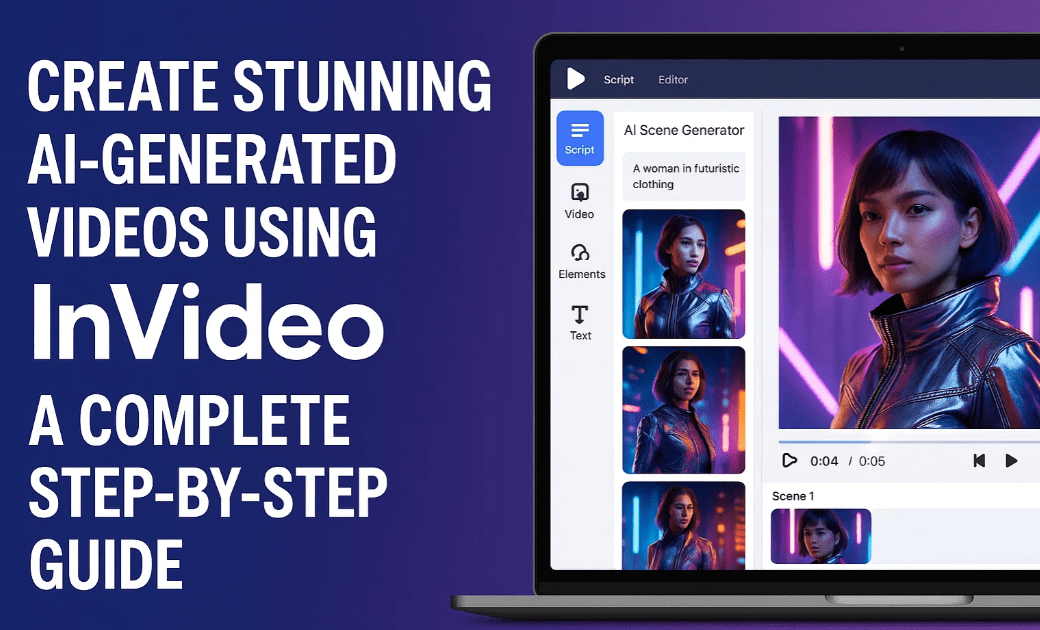
🚀 What is InVideo AI?
InVideo AI is a powerful tool that lets users create videos from text prompts. It supports features like:
- Text-to-video generation
- Voice cloning
- Realistic animations
- AI-scripted scenes
- Full editing suite for revisions
It’s suitable for marketers, educators, content creators, and anyone looking to create professional videos without technical skills.
🧭 Getting Started: Sign Up and Access InVideo
- Visit InVideo.io
- Click on Sign Up and create a free account using your email.
- After registration, you’ll be directed to the main dashboard.
Here you can:
- Generate new videos
- Explore plugins
- Access media library and history
- Edit and download past projects
🧠 Key Features and Plugins
1. Prompt-based Video Generation
Simply enter a detailed prompt describing your video. Example:
“Create a video on the 3 best ways to lose fat. Use a female voice, upbeat tone, realistic visuals, and motivational music.”
Then choose:
- Video duration (e.g., 1 minute)
- Platform format (YouTube, Shorts, Reels)
- Audience (e.g., fitness enthusiasts)
Click on Generate Video and InVideo will render the result in 5–15 minutes.
2. Plugins Overview
✅ Voices
- Clone your voice by uploading a 30-second clip.
- Use it in all future projects for branding consistency.
✅ Text to Clip
- Create short clips from specific text prompts.
- Select formats like 16:9 (YouTube) or 9:16 (TikTok).
✅ Text to Image
- Generate custom images using prompts.
✅ Photo to Clip
- Turn a still image into a dynamic animation (e.g., a squirrel eating ice cream or a floating goat).
✨ How to Create a Simple Video
- Go to Create New > Type Prompt: “Make a motivational video about fitness tips using ultra-realistic visuals and a woman’s voice.”
- Set video length and format.
- Click Continue and wait for rendering.
Once generated, you can:
- Watch the video
- Edit text, scenes, and narration
- Replace visuals with stock footage
- Add or change music and transitions
- Download the video in 1080p
🎬 Advanced Video: Creating a Movie with AI
To make something detailed like a mini movie (e.g., Blade vs. Castlevania), follow these steps:









Step 1: Use ChatGPT for Script
Before entering your prompt in InVideo, use ChatGPT to generate a detailed script. Example:
“Create a 4-paragraph movie script where Blade must fight Dracula’s son in a haunted castle using cinematic lighting and a Canon EOS R5 85mm lens.”
Make sure your script includes:
- Scene-by-scene visuals
- Background music suggestions
- Dialogue and narration
Step 2: Paste in InVideo Prompt Box
- Go to Create New
- Paste the full prompt
- Choose Animation, Realism, or Cinematic
- Set format (YouTube, Shorts, etc.)
- Click Generate
Result:
A detailed AI-generated movie with narration, music, lighting, and character animation.
✂️ Editing Videos in InVideo
After generating your video, click Edit to:
- Change scenes using stock footage or generative media
- Trim clips and rearrange sequences
- Modify music
- Edit the script and regenerate voice or visuals
- Add transitions and effects
Each section of the video is modular, so you’re in full control.
💸 Pricing Breakdown
InVideo offers tiered pricing based on:
- Generative credits
- AI generation usage
- Stock footage access
- Voice limits
- Storage
Important Note:
Creating and updating videos consumes credits. Use ChatGPT to finalize your prompt/script before generating a video in InVideo to save credits and money.
❓FAQs
Q1: Can I use my own voice in the video?
Yes, you can upload a voice sample under the “Voices” plugin.
Q2: Can I make TikTok or YouTube Shorts with this?
Absolutely! Just choose the 9:16 format before generating your video.
Q3: Can I use it for making animated stories or explainer videos?
Yes, InVideo supports animated, realistic, and cinematic styles.
Q4: How to avoid watermarks?
Upgrade to a paid plan to remove InVideo branding and unlock HD downloads.
Q5: Can I reuse my scripts for other videos?
Yes, you can modify scripts and visuals anytime from the history tab.
✅ Final Thoughts
InVideo AI is one of the most powerful and beginner-friendly tools for video creation in 2025. From basic animations to advanced cinematic storytelling, you can bring your ideas to life using only words.
Pro Tip: Always write and test your prompt/script in ChatGPT before using InVideo to avoid wasting credits and ensure high-quality output.
🔖 Tags:
ai video creation, invideo ai tutorial, text to video ai, cinematic video ai, ai storytelling tools, video marketing ai, ai movie maker, blade vs castlevania ai, content creation tools 2025
📣 Hashtags:
#AIVideo #InVideoAI #TextToVideo #AICreatorTools #AIMovieMaker #VideoEditing #ContentCreation #AIVideoTutorial #CinematicAI #StorytellingWithAI








