
If you’re a graphic designer or someone who frequently works with CorelDRAW, you’ve probably heard about CorelDRAW Macros. But what exactly are they, and how can they make your workflow faster and more efficient? In this article, we’ll walk you through everything you need to know about CorelDRAW macros — from what they are to how you can record, save, and reuse them to automate repetitive tasks.
What is a CorelDRAW Macro?
A CorelDRAW macro is a small program or script created using Visual Basic for Applications (VBA). Think of it as a recorder for your actions. When you perform a series of steps in CorelDRAW, you can save them as a macro. Later, you can run that macro to repeat the same actions — either on the same file or on a different one — automatically.
This feature is especially useful for tasks that you perform frequently, such as resizing objects, applying effects, converting shapes, or even exporting files.
Depending on the version of CorelDRAW you’re using, you can access the macro functionality from:
Tools Menu > Visual Basic
or
Tools Menu > Scripts
Benefits of Using Macros in CorelDRAW
- Saves time by automating repetitive tasks
- Reduces human error during manual execution
- Increases productivity for large batch projects
- Customizes workflows based on specific design needs
- Offers flexibility to extend functionality using VBA scripting
How to Record and Save a Macro in CorelDRAW
Recording and saving a macro in CorelDRAW is straightforward. Here’s a step-by-step guide:
Step 1: Start Recording a Macro
You can start recording a macro using one of the following methods:
- Go to Tools > Scripts > Start Recording
- Or click the Start Recording button on the Macros toolbar
- In the Scripts Docker, choose your macro project and click the Record button
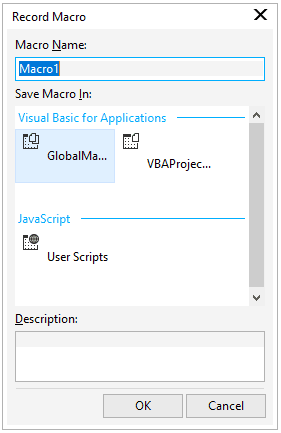
Step 2: Name and Describe Your Macro
The Record Macro dialog box will appear:
- In the Macro Name field, enter a unique name for your macro.
- Tip: Macro names must start with a letter. They can contain numbers and underscores (_), but no spaces or special characters.
- Optionally, add a description in the Description box to help you remember what the macro does.
Click OK to proceed.
Step 3: Perform the Actions You Want to Record
Now, CorelDRAW is recording your steps. Go ahead and do all the actions that you want to automate.
Step 4: Pause or Resume Recording (Optional)
If needed, you can pause the recording:
- Click Tools > Scripts > Pause Recording, or
- Click the Pause Recording button on the Macros toolbar or Scripts docker
To resume, just click the same button again.
Step 5: Stop Recording
Once you’re done, stop the recording using one of these methods:
- Go to Tools > Scripts > Stop Recording
- Click the Stop Recording button on the Macros toolbar or in the Scripts docker
- Press Ctrl + Shift + O
Where Are Macros Stored?
By default, your recorded macros are stored in the default macro project unless you choose a different project. You can later open and edit these macros using the Script Editor to expand or modify their functionality.
Final Thoughts
CorelDRAW macros are an incredibly powerful feature that can drastically enhance your productivity. Whether you’re a beginner or an advanced user, mastering macros will allow you to automate repetitive design tasks, streamline your workflow, and improve consistency across projects.
If you’re serious about efficiency in CorelDRAW, start exploring the macro functionality today.
Disclaimer
This article is intended for educational purposes only. Always back up your files before running macros or editing VBA scripts, as incorrect usage may lead to unexpected results.
📚 Discover More Helpful Resources
We work hard to bring you high-quality tutorials, how-to guides, software tips, tech solutions, and creative ideas. While you’re here, why not explore more of what we offer?
- 🔧 Top Troubleshooting Tips for Windows & Ubuntu
- 📥 Best Free Software & Tools Recommendations
- 📱 Gaming Tips & App Reviews
- 🧠 Indesign Graphic Designing Explained: Easy Guides for Everyone
- 💻 Boost Your PC Performance: Step-by-Step Guides
- 📥CorelDraw Macros Explained
Tags: coreldraw, macro, coreldraw macro tutorial, vba in coreldraw, automate design tasks, graphic design tools, coreldraw automation
Hashtags: #CorelDRAW #Macros #GraphicDesign #Automation #VBA #DesignTools #CorelDrawTips

On the link given below you can find a list of all CorelDraw Macros:
For those who have CorelDraw Macros and doesn’t know how to install a macro can go through the below post.