This macro is used to Convert All Text in Curves. Using this macro you can select which type of text… paragraph or artistic text … to be converted into text from a page, a selection or from a document. A very useful must have macro for a CorelDraw user.
Download Convert Text into Curves – CorelDraw MacroHow to use Convert Text into Curves Macro for CorelDraw
- Download this macro from the above given link and install.
- If you don’t know how to install a macro read this post.
- Now open document, you need to convert its text into curves.
- Run Convert Text into Curves Macro from Macro Manager or Scripts Panel depending upon the software you are using.
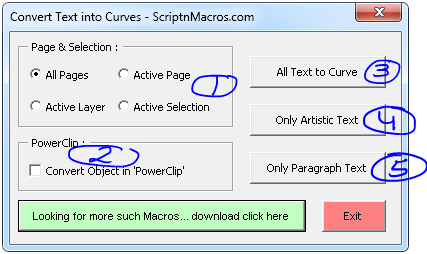
- Step 1: Make the selection first, where you want, this macro should work. From all layers to active selection 🙂
- Step 2: Do you want text from a powerclip should also be converted to curve, tick this check box.
- Step 3: Choose which type of text you want to convert into curves… a complete document, only artistic or paragraph text.
For visual steps watch this video below :
For any suggestion or any feature please use our forum section…
Hope this macro fullfills what you are looking for. Now, how about some more macros for CorelDraw, which will just not only enhance your productivity, but also makt things easier for you.
- Best Macro for Coreldraw Powerclip Editor – Crop and manage images easily
- QR Code Wizard Macro for CorelDraw
- Edit Bitmap Files from CorelDRAW 2024 to Photoshop Using VBA Macro
- Convert Text and Objects to Curve – CorelDraw Macro
- Guides and Crop Marks Maker – CorelDraw Macro
- Convert Text into Curves – CorelDraw Macro
Visited 429 times, 1 visit(s) today