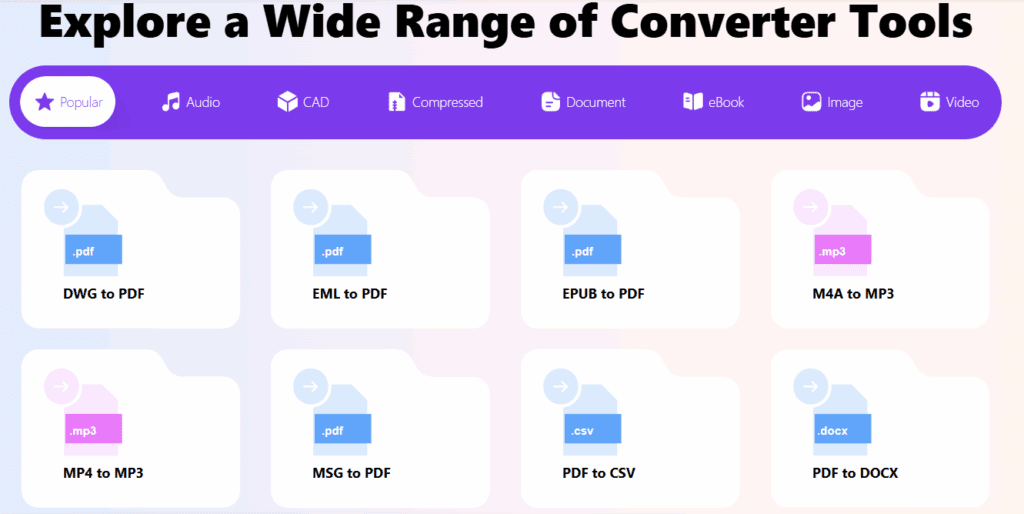
Converting files from one format to another is a common task — whether it’s changing a PDF into a JPG, an MP4 video into an MP3, or even a PNG image into a PDF. Most people search for such tools online and are overwhelmed by paid services and bloated software. But what if you could do all of this — and more — right from your right-click menu?
Here’s a 100% free, powerful, and easy-to-use tool that every Windows and macOS user should have on their system: File Converter.
🛠️ What is File Converter?
File Converter is a lightweight, open-source application that integrates directly into your Windows context menu. It allows you to convert dozens of file formats locally on your system, without uploading them online or using complicated tools.
- 🔁 Convert PDFs, images, documents, audio, and video files
- 🖱️ Just right-click on a file to start converting
- 💻 Available for Windows and macOS
- 🔐 100% local and secure (no internet needed after download)
- 💸 Completely free to use
Official Website: https://file-converter.org
📥 How to Download and Install File Converter
- Go to the official website
👉 https://file-converter.org - Click on “Download for Windows”
It supports Windows 10 and Windows 11. There’s also support for macOS. - Wait for the file to download (~121 MB).
If the download doesn’t start automatically, click the alternate link provided on the site. - Install the software
- Double-click the downloaded file
- Click Next, then Install
- Once completed, click Run File Converter
- Optionally, a tutorial will guide you through using the software. You can skip it if you prefer.
🧪 How to Use File Converter – With Real Examples
🎬 Example 1: Convert MP4 Video to MP3 or MOV
- Open File Explorer.
- Right-click on your
.mp4video file. - Select the new “Convert To” option in the context menu.
- Choose your desired format (e.g., MP3, MOV, AVI, iPad, etc.).
- The conversion begins instantly, and within seconds, your file will be ready in the selected format.
📄 Example 2: Convert PDF to JPG Image
- Right-click on a
.pdffile. - Click “Convert To” → choose JPG.
- The tool will extract all pages from the PDF as images.
- The JPG images will be saved in the same folder.
🖼️ Example 3: Convert Image (JPG) to PDF
- Right-click on a
.jpgimage file. - Select “Convert To” → choose PDF.
- The tool will instantly create a PDF version of the image.
You can also convert between other formats like:
- Images to HTML, AVIF, PNG, or DOC
- Audio and video to various device formats
- Office documents to images or PDFs
✅ Why You Should Install File Converter
- Works offline
- No watermark or ads
- Saves time by avoiding online converters
- Lightweight and easy to use
- Supports batch file conversions
🔒 Disclaimer
Disclaimer: File Converter is an open-source tool available for free. Always download from the official website https://file-converter.org to avoid third-party tampered versions. Although the software is widely trusted, please back up your important files before bulk conversions.
🧩 Final Thoughts
If you’ve been searching for a free, reliable, and feature-rich file conversion tool, File Converter is the best option out there. With one simple installation, you unlock the power to convert virtually any file type right from your desktop. Whether you’re a student, professional, or home user — this tool is a must-have for your productivity toolkit.
Tags:
file converter, free file converter for Windows, PDF to JPG converter, MP4 to MP3, image to PDF tool, offline file conversion, Windows tools, convert documents, open-source tools, productivity apps
Hashtags:
#FileConverter #FreeTools #ProductivityApps #PDFtoJPG #MP4toMP3 #Windows11 #Windows10Tools #OfflineConverter #OpenSourceSoftware