When filling out online forms for exams, jobs, or government services, one of the first and most common tasks is uploading a photo and a signature. But there’s always a catch — the platforms typically impose strict file size limits. You might have a crisp photo of 4MB, but the portal only accepts 100KB or less. What do you do?
Many people immediately think of downloading Photoshop or visiting paid websites to shrink their image size. But what if I told you that two powerful tools—completely free—can compress your images from 4MB to under 100KB in seconds, and even let you convert them into multiple formats?
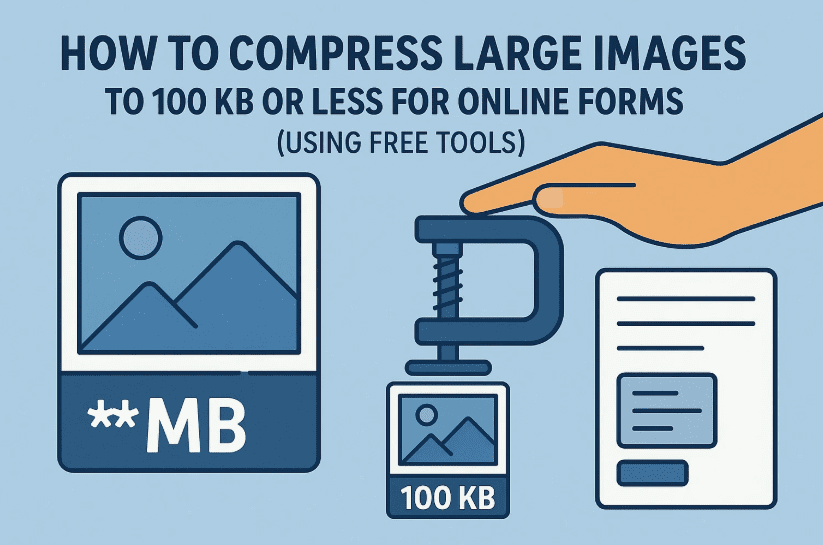
In this article, I’ll walk you through everything—step by step—using both an online and an offline tool. So, if you’ve ever struggled with image compression, this guide is your new best friend. Let’s dive in!
📌 Why Compressing Image Size is So Important?
Before we get into the tools, let’s understand the practical reasons why you may need to compress images:
- Online form restrictions often demand file sizes under 100KB.
- Faster website loading depends on lighter images.
- Email attachments have size limits.
- Storage efficiency — especially useful when dealing with thousands of images.
- Web optimization to rank better on search engines.
So now, let’s explore two tools that help you compress images without compromising too much on quality.
🛠️ Tool 1: Squoosh – Free Online Image Compressor
Website: https://squoosh.app/
Squoosh is a free web-based image compression and conversion tool by Google. It’s fast, simple, and gives you advanced control over quality and format. No sign-up required, and it works directly in your browser.
🧭 How to Use Squoosh to Compress Images
Let’s walk through the steps together. You’ll see just how user-friendly it is.
✅ Step 1: Open Squoosh
Go to squoosh.app. You’ll be greeted with a clean interface with a prompt to “Drop or Paste Image.”
✅ Step 2: Upload or Paste the Image
You have two options:
- Drag and drop your image file into the browser window.
- Copy and paste using Ctrl + C and Ctrl + V directly from a folder or clipboard.
Let’s say you have a random image of 4.23 MB size. As soon as you paste or drop it, Squoosh will instantly show a split-screen interface.







✅ Step 3: Understand the Interface
On the left:
- Original Image size and format, say 4.23 MB JPEG.
On the right:
- Compressed Preview, showing how your image will look and the new file size—e.g., reduced to 984 KB.
There’s a draggable slider in the middle to compare before-and-after quality in real-time. This gives you a visual comparison and control over the compression process.
✅ Step 4: Choose File Format
Now we move to format conversion, which is super helpful for bloggers and developers.
Click on the Compress section in the bottom-right, and choose from formats like:
- MozJPEG
- WebP
- AVIF
- PNG
For most use cases:
- WebP is best for web and blog images.
- MozJPEG is best when JPEG is required but at smaller sizes.
- PNG gives higher quality but larger file size.
✅ Step 5: Adjust Compression Settings
Depending on the format you selected, you can now tweak:
- Image quality (%)
- Resize dimensions (25%, 50%, 75%, etc.)
- Color palette reduction
⚠️ Tip: Reducing to 25% size might result in blurred text if the image includes fine text like signatures. So always preview.
✅ Step 6: Download the Compressed Image
Once you’re satisfied:
- Click the Download button.
- Choose the directory where you want to save it.
That’s it — your image is now compressed and ready to upload to any form or website. In our example, the original 4.23MB image got compressed to just 99KB. That’s a 97% reduction!
🧰 Tool 2: File Converter – Free Offline Windows App
Website: https://file-converter.org/
While Squoosh is amazing, sometimes we want to work without internet—especially for bulk conversions. That’s where File Converter comes in.
It’s a lightweight, offline image and file converter that integrates into your Windows right-click context menu.
🧭 How to Use File Converter to Reduce Image Size Offline
Let’s move to our next step-by-step tutorial.
✅ Step 1: Download File Converter
Visit https://file-converter.org/ and download the Windows installer.
Run the installer and complete the setup—it installs very quickly.
✅ Step 2: Right Click on an Image
Now go to any image on your PC, right-click it, and you’ll see a new option:
File Converter → Convert to…
Choose your desired format (JPG, PNG, PDF, etc.)
Let’s say we convert a PNG file to JPG using this tool.
✅ Step 3: Check Size After Conversion
For example:
- Original: 4.23 MB PNG
- After conversion: 844 KB JPG
Pretty efficient already. But we can go further.
✅ Step 4: Configure Compression Presets
To reduce the size even more:
- Right-click → File Converter → Configure Presets
- Select the output format (e.g., JPEG)
- Adjust the Quality Slider (e.g., set it to 30%)
Click Save.
Now again, convert the image using File Converter. This time:
- Final size: just 72 KB!
All offline, all in seconds.
✅ Bonus: Convert to Other Formats
File Converter also supports converting to:
- PNG
- ZIP (yes, for compression)
- BMP
- TIFF
- WEBP
You can even batch-convert images or other files together using the same method.
✅ Summary Comparison of Both Tools
| Feature | Squoosh (Online) | File Converter (Offline) |
|---|---|---|
| Internet Required | Yes | No |
| File Size Compression | High | Moderate to High (with presets) |
| Format Support | JPEG, PNG, WebP, AVIF | JPG, PNG, PDF, ZIP, BMP, TIFF |
| Editing Before Compression | Yes (resizing, quality, format) | No advanced editing |
| Batch Conversion | No | Yes |
| Cost | Free | Free |
💡 Real-World Use Cases
- Exam Forms & Govt Portals: Reduce image to <100KB without losing clarity.
- Bloggers & Web Developers: Compress to WebP or optimized JPEG for SEO.
- Students: Submit scanned homework or signatures under size limits.
- Freelancers: Prepare portfolios that load fast and look sharp.
- Digital Artists: Convert formats and maintain visual integrity.
❓ Frequently Asked Questions
Q1: Will compressing an image reduce its quality?
Yes, but slightly. Tools like Squoosh let you control the level of compression and preview before downloading so you can strike the right balance.
Q2: Is it safe to upload personal images to online tools?
Squoosh works locally in your browser—it doesn’t upload images to a server. Still, for highly confidential images, offline tools like File Converter are better.
Q3: Can I compress multiple images at once?
Squoosh doesn’t support batch compression, but File Converter allows you to select and convert multiple files together.
Q4: Will these tools work on mobile?
Squoosh works on mobile browsers. File Converter is Windows-only.
🚨 Disclaimer
This article is for educational purposes only. While both tools recommended here are safe and widely used, always download software from official websites and scan with antivirus software if needed.
✍️ Final Thoughts
We’ve all been there — deadline approaching, trying to upload a 4MB photo to a form that only accepts 100KB. With Squoosh and File Converter, you don’t need Photoshop or expensive subscriptions. You now have fast, reliable, and free ways to reduce image sizes—online and offline.
Whether you’re a student, job seeker, blogger, or freelancer, these tools are must-haves in your digital toolkit.
So the next time you face an upload size limit, you know exactly what to do.
✅ Tags:
image compression, free image tools, online image compressor, file size reducer, squoosh tutorial, file converter tool, image optimization, windows tools, web development, exam form photo resize, blog image optimization
✅ Hashtags:
#ImageCompression #FreeTools #Squoosh #FileConverter #ImageResize #OptimizeForWeb #WindowsTips #DigitalTools #ImageTo100KB #BloggingTips








