Starting your own WordPress website can feel overwhelming at first, but with the right guidance, you can have your site up and running in no time. In this detailed guide, we’ll walk you through everything you need to know as a WordPress beginner—from choosing the right hosting to customizing your theme, installing plugins, and optimizing for SEO.
Whether you’re launching a blog, business website, or online portfolio, this article will make sure you don’t repeat the common mistakes most beginners make.
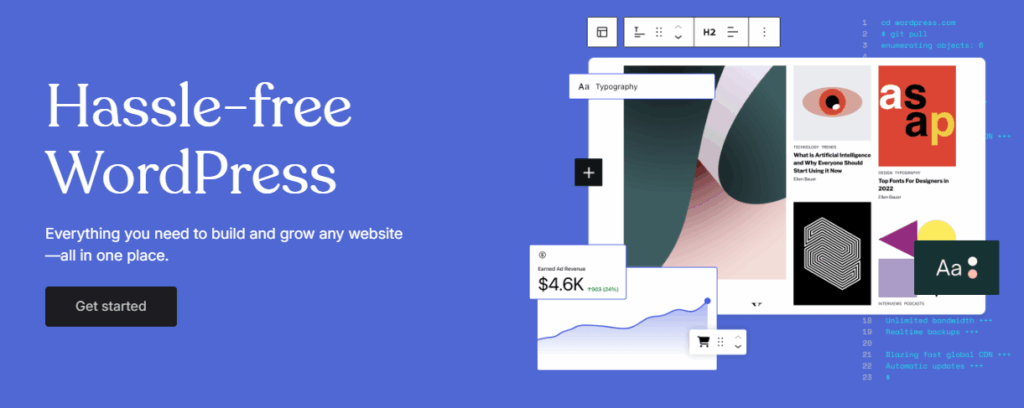
🏁 Step 1: Choose a Reliable and Affordable Hosting Provider
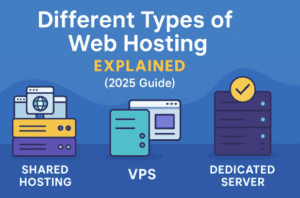
Before you can use WordPress, you need web hosting. Among many available hosting services, Hostinger is a solid choice due to its affordability, performance, and user-friendly dashboard (hPanel).
Why Hostinger?
- Affordable WordPress-optimized plans
- Easy cancellation and refund policies
- Comes with a free domain and SSL
- LiteSpeed server for enhanced performance
- 24/7 support and built-in cache plugin
Tip: Select the longest billing cycle to get the lowest monthly cost.
Use promo code CYBERNEWS if a discount isn’t automatically applied.
🔧 Step 2: Setup and Install WordPress via Hostinger hPanel
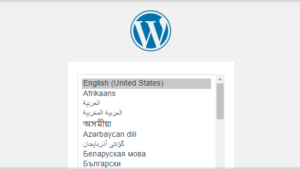
Once you purchase a hosting plan, you’ll go through an intuitive setup process:
- Choose WordPress as your website platform.
- Set a site title, username, and password.
- Select a basic Astra template.
- Skip unnecessary plugin recommendations.
- Choose to:
- Register a .com domain (recommended for professionalism)
- Use a temporary subdomain (for testing)
Choose the data center closest to your target audience to ensure faster load times.
🎨 Step 3: Manage and Customize WordPress Themes
Your site’s design is managed through themes.
How to Change Your Theme:
- Go to Appearance → Themes.
- Keep one default theme (like Twenty Twenty-Four) for safety.
- Click Add New to explore more themes.
- Use filters and check:
- Last update date
- User reviews
- Feature availability (Free vs Pro)
Want something premium? Check out ThemeForest for advanced, professional themes starting around $50.
✍️ Step 4: Create and Manage Posts & Pages
WordPress uses Posts for blog entries and Pages for static content like “About Us.”
Creating a Post:
- Go to Posts → Add New.
- Use the Gutenberg Block Editor:
- Click the + button to add elements like text, images, buttons, or galleries.
- Use the right panel to manage categories, tags, and featured images.
You can switch to Distraction-Free Mode or even use the Code Editor if you’re more advanced.




Creating a Page:
- Go to Pages → Add New.
- Build a layout using blocks or select a pre-made layout.
- Add a blog post grid by searching for “post” in the blocks.
- Assign parent pages for better site structure (great for SEO and navigation).
🧭 Step 5: Customize Menus for Navigation
- Go to Appearance → Menus.
- Drag and drop items to rearrange or nest them.
- Add:
- Pages
- Posts
- Categories
- Custom URLs
Always click Save Menu when done!
🔌 Step 6: Install Essential Plugins
Plugins add functionality to your WordPress site.
Must-Know Plugin Tips:
- Don’t install too many—more plugins = slower site.
- Check ratings, last update, and number of installations.
- Avoid plugin conflicts, especially with caching or security plugins.
Recommended Plugins:
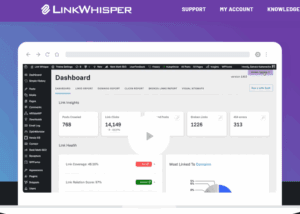
- Yoast SEO – for content optimization
Yoast SEO Plugin - Wordfence Security – for firewall and login security
Wordfence - LiteSpeed Cache – built into Hostinger servers
LiteSpeed Cache
⚡ Step 7: Optimize Performance & Speed
Speed is critical for both user experience and SEO.
Do the following:
- Use LiteSpeed Cache to control page and object caching.
- Compress images before uploading (keep under 2 MB).
- Minimize plugins to only essential ones.
- Choose a light theme if possible.
🔒 Step 8: Secure Your Website
Even with Hostinger’s built-in AI Malware Scanner, it’s good practice to add your own protection.
- Use Wordfence to monitor attacks.
- Limit login attempts.
- Monitor where attacks are coming from and block regions if needed.
📈 Step 9: Improve SEO with Yoast SEO
Yoast SEO helps your pages and posts rank higher in search engines.
Key SEO Actions:
- Install and configure Yoast SEO.
- Assign a target keyword per post/page.
- Follow the on-page suggestions until the icon turns green.
- Avoid keyword stuffing—Yoast will alert you if you overuse it.
Example keywords:
- “Best Photographer in Mumbai”
- “Affordable Web Design in Texas”
💬 Frequently Asked Questions (FAQs)
❓ Q: Is Hostinger suitable for beginners?
A: Yes. It has an intuitive dashboard (hPanel), helpful customer support, and tools like auto-installers for WordPress.
❓ Q: How many plugins should I install?
A: Only install plugins that are essential. Too many can slow down your site or cause conflicts.
❓ Q: Can I switch WordPress themes later?
A: Absolutely. Just note that some formatting or layout tweaks might be needed.
❓ Q: Is SEO hard for beginners?
A: Not with plugins like Yoast SEO. They simplify on-page SEO, helping you rank better without expert knowledge.
📝 Final Thoughts
This WordPress beginner’s tutorial has taken you from selecting hosting all the way to optimizing your site for speed and search engines. Tools like Hostinger, Astra themes, Yoast SEO, and Wordfence make the process easier and safer.
With consistent content creation and the right optimizations, your WordPress website will be well on its way to success.
🔖 Tags
WordPress tutorial, WordPress beginners guide, Hostinger setup, WordPress themes, WordPress plugins, SEO for WordPress, website optimization, WordPress speed tips, Gutenberg editor, WordPress hosting
📢 Hashtags
#WordPressTutorial #BeginnerWebsiteGuide #HostingerHosting #WordPressSEO #YoastSEO #WordfenceSecurity #WebsiteSpeedOptimization #LiteSpeedCache #WordPressThemes #BuildWithWordPress