Windows 11 offers a modern, sleek, and secure computing experience with improved performance and several user-friendly features. Whether you’re upgrading from Windows 10 or performing a clean installation, this comprehensive guide will walk you through every step—from system requirements to post-installation driver updates.
🖥️ What You’ll Learn in This Guide
- Minimum system requirements for Windows 11
- Key features of Windows 11
- How to upgrade from Windows 10 to Windows 11
- How to perform a clean install using bootable media
- How to install or update drivers after installation
⚙️ Minimum System Requirements for Windows 11
Before you start, make sure your device meets the official minimum system requirements for Windows 11:
- Processor: 1 GHz or faster with at least 2 cores (64-bit)
- RAM: 4 GB
- Storage: 64 GB minimum
- System Firmware: UEFI, Secure Boot capable
- TPM: Trusted Platform Module (TPM) version 2.0
- Display: >9” with HD resolution (720p)
- Graphics Card: Compatible with DirectX 12 or later with WDDM 2.0 driver
You can check the full list of compatible CPUs on Microsoft’s official site.
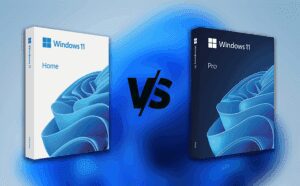
💡 Physical Memory Limits:
- Windows 11 Home: Supports up to 128 GB RAM
- Windows 11 Pro: Supports up to 2 TB RAM
🌟 Noteworthy Features in Windows 11
Windows 11 introduces several advanced features aimed at both performance and security:
- Application Control: Blocks unauthorized applications from executing.
- Device Encryption: Helps protect your data by encrypting your storage.
- Find My Device: Locate your PC if it’s lost or stolen.
- Windows Security Antivirus: A built-in, free antivirus solution.
🔄 How to Upgrade from Windows 10 to Windows 11
Upgrading is the simplest method to experience Windows 11 while keeping your files and apps intact.
Step-by-Step Process:
- Run PC Health Check Tool:
Download the tool from the official Microsoft PC Health Check page to verify system compatibility. - Download Windows 11 Installation Assistant:
Visit the official Microsoft page to download the Installation Assistant. - Launch the Installation Assistant:
Follow the on-screen instructions, accept the terms, and begin the upgrade.
The process may take around 30 minutes, depending on internet speed. - Restart When Prompted:
Your device will restart several times during the upgrade. - Check for Updates Post-Installation:
After the upgrade, go to Settings > Windows Update and install any available updates to ensure all drivers are up to date.
💽 How to Perform a Clean Install of Windows 11
For a fresh start or on a new device, a clean installation is the best option.
Requirements:
- A USB or DVD with at least 8 GB of storage
- A device that meets Windows 11 requirements
Steps:
- Download Windows 11 ISO using Media Creation Tool:
Get the Windows Media Creation Tool to create bootable media. - Create Bootable USB/DVD:
The tool will download the image and set up the bootable USB drive automatically. - Boot from USB/DVD:
Insert the media into your device.
Restart and enter the Boot Menu (usually by pressing F2, F12, Del, or Esc).
Select the USB drive and press Enter. - Windows Setup:
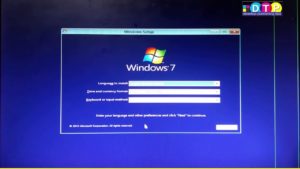
- Choose language, time, and keyboard layout
- Click Install Now
- If prompted for a product key, click I don’t have a product key
- Select Windows edition (Home or Pro)
- Choose the drive and partition settings
- Install Windows 11:
Follow the remaining steps and let the installer complete the process. The system may restart multiple times. - Initial Setup:
- Choose your country and keyboard layout
- Create a username and password
- Set up privacy settings
- Check for updates through Windows Update
🔧 Install and Update Drivers
After installation, it’s essential to ensure that all hardware drivers are up to date:
- Use Windows Update: Often installs the latest drivers automatically.
- Visit Manufacturer’s Website: Most brands (e.g., Dell, HP, Lenovo) provide Driver Installation Assistants that automate the update process.
📌 Summary of What You’ve Learned
- Windows 11 system requirements
- Differences between Home and Pro editions
- How to upgrade from Windows 10
- How to create a bootable USB
- How to perform a clean install
- Importance of updating drivers
🔗 Tags:
windows 11 installation, upgrade windows 10 to windows 11, windows 11 system requirements, clean install windows 11, windows 11 features, bootable usb windows 11, windows 11 driver update
#Hashtags:
#Windows11 #CleanInstall #WindowsUpgrade #Microsoft #WindowsTips #TechGuide #PCSetup #DriverUpdate