If you’ve ever right-clicked your Start menu in Windows and noticed several confusing options — Command Prompt, PowerShell, or Terminal — you’re not alone. At first glance, all three look similar: black (or blue) windows where you type mysterious text commands. But behind the scenes, each serves a different purpose and offers unique capabilities.
In this guide, we’ll go step-by-step through what these tools are, how to open them, their differences, and when to use which one — whether you’re a beginner experimenting with commands or a developer managing Windows systems professionally.
💡 A Quick Summary Before We Dive Deeper
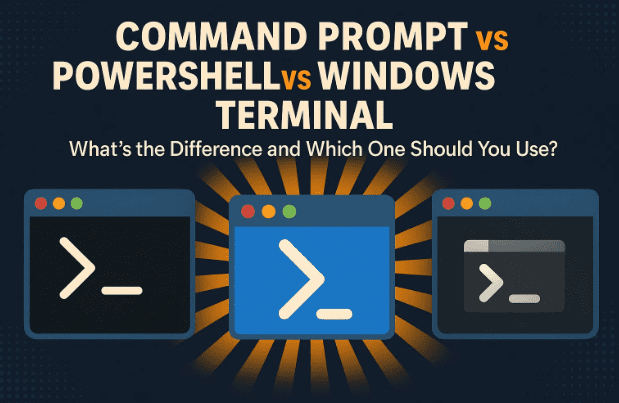
- Command Prompt (CMD) — The classic command-line tool that’s been around since the early days of DOS.
- PowerShell — A modern, more powerful scripting shell designed for automation and administration.
- Windows Terminal — A unified interface that can host CMD, PowerShell, and more, in one elegant window.
But that’s just the short version — now, let’s unpack everything step-by-step.
1️⃣ Understanding the Command Line Concept
Before comparing these tools, it’s worth understanding what the command line actually is.
When you open CMD, PowerShell, or Terminal, you’re interacting with Windows without using your mouse or graphical menus. Instead, you type commands directly to tell the system what to do — from listing files to running programs, changing settings, or even automating entire tasks.
This interface is called a CLI (Command Line Interface) — and while it looks old-fashioned, it’s extremely powerful once you get the hang of it. Developers, administrators, and power users rely on it because it’s faster, scriptable, and often more flexible than clicking through multiple windows.
2️⃣ Command Prompt (CMD): The Classic Command Line Tool
Let’s start with the oldest and most recognizable member of the family — Command Prompt.
What is Command Prompt?
Command Prompt, often called CMD, is the oldest command-line interface in Windows. It traces its roots back to MS-DOS (Microsoft Disk Operating System), which powered early PCs long before Windows became graphical.
Despite its age, CMD is still a core part of Windows today. Many legacy scripts, tools, and troubleshooting steps rely on it.
How to Open Command Prompt
There are several ways to launch CMD:
- Search method:
- Click on the Start menu
- Type
cmd - Hit Enter to open it.
- Run dialog method:
- Press Windows + R
- Type
cmd - Press Enter
- From Start menu (older versions):
- Right-click the Start button and select Command Prompt or Command Prompt (Admin).
If you’re using Windows 11, the right-click menu might show Terminal instead, but don’t worry — we’ll fix that later.




What You See Inside CMD
When you open it, you’ll see something like this:
C:\Users\YourName>
This is called the prompt.
It tells you the current directory (folder) where CMD is operating. You can now type a command like:
dir
…and press Enter. The dir command lists all files and folders in the current directory — a simple but useful start.
Common Commands
Here are a few basic CMD commands that still work today:
| Command | Description |
|---|---|
dir | Lists files and folders |
cd | Changes directory |
cls | Clears the screen |
copy | Copies files |
del | Deletes files |
ping | Tests network connectivity |
Each command can be followed by switches (options) to modify its behavior, like /s or /p. For example:
dir /p
This lists one page at a time, perfect for large directories.
Why CMD Still Matters
Even in 2025, CMD remains a favorite among many users. It’s simple, lightweight, and doesn’t require learning programming syntax like PowerShell does. For quick file operations, network tests, or older batch scripts, CMD does the job perfectly.
Let’s move to the next step — the more advanced and powerful sibling: PowerShell.
3️⃣ PowerShell: The Modern Command and Automation Engine
When Microsoft realized CMD was too limited for modern system management, they created PowerShell — a hybrid between a command shell and a full programming language.
What Is PowerShell?
PowerShell is a task automation and configuration management framework built on the .NET platform. It goes far beyond what CMD can do, letting administrators automate almost anything in Windows — from creating users to managing updates, configuring services, or connecting to remote servers.
In short:
CMD runs commands.
PowerShell runs commands and scripts (with deep access to Windows internals).
How to Open PowerShell
You can launch PowerShell using any of these methods:
- Start Menu Search:
- Type “PowerShell” in Start and press Enter.
- Run Command:
- Press Windows + R, type
powershell, then press Enter.
- Press Windows + R, type
- Right-Click Start Menu:
- On Windows 10, the right-click (Win+X) menu usually shows “Windows PowerShell.”
Once opened, you’ll notice the prompt looks like:
PS C:\Users\YourName>
The PS prefix is the key indicator that you’re inside PowerShell, not CMD.
Key Difference from Command Prompt
PowerShell can do everything CMD does — and much more.
It supports cmdlets, which are small built-in commands that follow a verb-noun format, such as:
Get-Process
Get-Service
Stop-Computer
These cmdlets can be combined with pipes (|) to pass data between commands — something CMD can’t do efficiently.
Example:
Get-Process | Sort-Object CPU -Descending
This command lists all running processes and sorts them by CPU usage, highest first.
PowerShell Scripts
PowerShell also supports .ps1 script files. These allow you to write entire automation routines — for example, backing up files, monitoring servers, or cleaning temp folders — and run them with a single command.
Administrators often use PowerShell for:
- Network management
- Bulk user operations in Active Directory
- Automating repetitive Windows tasks
- Interacting with Microsoft 365, Azure, and cloud APIs
The Power (and Risk) of PowerShell
Because it gives deep system access, PowerShell can also cause harm if misused. Running untrusted scripts can compromise your system. That’s why Windows includes execution policies to control what scripts can run.
You can check your current setting with:
Get-ExecutionPolicy
And change it (carefully) with:
Set-ExecutionPolicy RemoteSigned
⚠️ Disclaimer:
Never run PowerShell scripts from unknown sources. Always read and verify the code before execution.
4️⃣ Windows Terminal: The Unified Modern Shell
So far, we’ve seen CMD and PowerShell as separate programs. Now comes Windows Terminal, Microsoft’s modern take on how we use command-line tools.
What Is Windows Terminal?
Windows Terminal is a multi-tabbed, customizable application that acts as a host for multiple shells — including CMD, PowerShell, Azure Cloud Shell, and even Linux (via WSL). It doesn’t replace CMD or PowerShell — it organizes them.
You can download it free from the Microsoft Store.
Why It’s Better
Think of Terminal as a web browser for command lines:
- Each shell (CMD, PowerShell, etc.) can open in its own tab.
- You can switch between them instantly.
- You can customize fonts, colors, transparency, and keyboard shortcuts.
- It supports GPU acceleration for smoother text rendering.
When you first open it, you’ll see a PowerShell tab by default — but that can be changed easily.
How to Change Default Shell in Windows Terminal
- Open Windows Terminal.
- Click the dropdown arrow (˅) next to the tabs.
- Choose Settings.
- In the sidebar, select Startup or Default Profile.
- From the dropdown, choose Command Prompt, PowerShell, or any other installed shell.
- Click Save and close Settings.
Now, whenever you start Terminal, it will automatically open your chosen shell.
Extra Features
Windows Terminal includes advanced features like:
- Split panes: Run multiple shells side-by-side.
- JSON-based settings file: Full control for power users.
- Keyboard shortcuts: Quickly open new tabs or change themes.
If you love multitasking, Terminal will instantly feel more modern and flexible than running separate CMD or PowerShell windows.
5️⃣ Changing Default Shell in Windows 10
Before Windows Terminal became the standard, Windows 10 users could switch between CMD and PowerShell in the right-click (Win+X) menu.
To toggle between them:
- Open Settings → Personalization → Taskbar.
- Scroll down and find:
“Replace Command Prompt with Windows PowerShell in the menu when I right-click the Start button.” - Turn it ON or OFF depending on your preference.
Turning it off brings back Command Prompt. Turning it on switches to PowerShell.
This small setting helps you pick whichever feels more comfortable.
6️⃣ When to Use CMD, PowerShell, or Terminal
Let’s make this simple with a quick comparison table:
| Feature | Command Prompt (CMD) | PowerShell | Windows Terminal |
|---|---|---|---|
| Purpose | Basic commands and scripts | Advanced automation and system management | Multi-shell host and modern interface |
| Command Format | Legacy (DOS-style) | Verb-Noun cmdlets | Depends on shell |
| Scripting Support | Batch files (.bat) | PowerShell scripts (.ps1) | Supports both |
| Customization | Minimal | Moderate | Extensive (themes, tabs, split panes) |
| Admin Access | Available via CMD (Admin) | Available via PowerShell (Admin) | Choose either shell with elevated privileges |
| Default in Windows 11 | ❌ | ❌ | ✅ |
| Best For | Simple tasks, legacy tools | Power users, automation | Modern workflows, multitasking |
7️⃣ Switching Between CMD and PowerShell Instantly
Here’s a little-known trick — you can switch between CMD and PowerShell without closing the window.
If you’re in Command Prompt, just type:
powershell
…and you’ll instantly be in PowerShell.
To go back, type:
cmd
This doesn’t open a new window; it just changes the shell environment inside the same window.
If you go too deep (CMD inside PowerShell inside CMD!), just type:
exit
to step back up each level.
8️⃣ Admin vs Non-Admin Mode
When you open any of these tools, you’ll often see two options:
- Command Prompt
- Command Prompt (Admin)
What’s the difference?
- Normal mode: Runs with your current user’s permissions.
- Admin mode: Runs with full system privileges.
If you’re doing anything that affects system files, network adapters, or services, you’ll need to run the tool as Administrator.
To do that:
- Right-click the program and select Run as Administrator.
- You’ll get a UAC (User Account Control) prompt — click Yes.
⚠️ Caution:
Avoid running admin mode unnecessarily. You can cause serious damage if you delete or modify system files accidentally.
9️⃣ So, Which One Should You Use?
Now that you understand all three, here’s the practical takeaway:
- Use Command Prompt (CMD) for simple commands, network tests, or quick tasks.
- Use PowerShell for automation, scripting, or advanced management.
- Use Windows Terminal if you want a unified, modern interface with multiple tabs.
In short:
CMD = Classic simplicity.
PowerShell = Modern power.
Terminal = All-in-one command center.
If you’re a beginner, start with CMD — it’s easier. Once comfortable, gradually move to PowerShell. And when you want the best workflow, install Terminal and make it your daily driver.
🔍 Frequently Asked Questions (FAQ)
Q1: Is PowerShell replacing Command Prompt?
Not exactly. PowerShell is more capable, but CMD remains for backward compatibility with older scripts and software.
Q2: Is Windows Terminal safe to install?
Yes. It’s developed by Microsoft and available free on the Microsoft Store.
Q3: Can I use Linux commands in Windows Terminal?
Yes, if you have WSL (Windows Subsystem for Linux) installed. You can open Ubuntu, Debian, or other distros right inside Terminal tabs.
Q4: What is Azure Cloud Shell shown in Terminal?
That’s a special environment for managing Microsoft Azure services. Unless you use Azure, you can ignore it.
Q5: Why do some commands not work in PowerShell but work in CMD?
PowerShell has its own syntax and rules. To run CMD-style commands inside PowerShell, you may need to prefix them with cmd /c.
🧩 Final Thoughts
Microsoft’s journey from CMD → PowerShell → Terminal shows how command-line tools have evolved from simple DOS boxes to powerful modern environments.
If you’re just starting out:
- Learn a few CMD basics to get comfortable.
- Explore PowerShell to automate tasks.
- Finally, use Terminal to bring it all together in one clean interface.
With these tools, you can unlock a level of Windows control that’s simply impossible with just a mouse and menus.
⚠️ Disclaimer
This article is for educational purposes only.
Executing system commands — especially in PowerShell (Admin) mode — can modify critical settings or delete important files if misused. Always read and understand a command before running it.
#WindowsTips #PowerShell #CommandPrompt #WindowsTerminal #TechGuide #SystemAdmin #DTPTips







