Introduction: What Is Comet Browser?
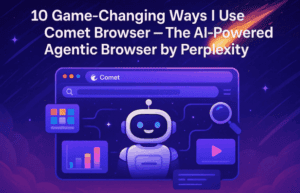
Imagine a browser that doesn’t just passively display web pages but actively assists you—summarizing articles, managing your tabs, researching for you, even booking appointments. That’s Comet Browser, Perplexity AI’s new agentic browser powered by AI—and it’s already available for Windows and macOS.
The idea is bold: your browser becomes a thinking partner, anticipating what you want next instead of doubling the tabs and hunting for answers yourself.
Currently, access is limited to Perplexity Max subscribers (around $200/month), with broader rollouts planned via invites.

So if you’ve ever wished your browser could think with you—this is the one to try.
Step 1: Getting Comet Browser
Download & Access Options
- Visit the official Comet page on Perplexity’s site: Get Comet.
- Access is currently invite-only or available to subscribers of the Perplexity Max plan. The webpage may prompt you to:
- Join a waitlist, or
- Sign in if you’re already a subscriber.
- Once eligible, you’ll be able to download the Comet installer for Windows (or macOS, depending on your system).
Step 2: Installing Comet (GUI Steps)
Let’s set it up, one friendly click at a time:
- Run the downloaded installer (usually
.exefor Windows). - When prompted, click “Install” or “Start Install” to have Comet set up on your system.
- Once finished, click “Launch Comet”.
Nice work—you’ve just installed the next-gen AI browser! At this point, a welcome screen should appear, guiding you further.
Step 3: Initial Setup – Make It Yours
Once you open Comet for the first time:
- Click “Get Started” to begin the setup.
- You’ll have the option to import your bookmarks, history, and passwords from any Chromium-based browser like Chrome or Edge.
- Customize the browser with your username, avatar, and make Comet your default browser, pin it to the taskbar, or set it to launch at startup—do as much or as little as you’d like.
Step 4: Explore Key Features
Now the fun part: what can Comet do for you?
- AI Assistant Sidebar: Ask anything—summarize articles, compare products, or even draft emails—all without switching tabs.
- Tab-Aware Queries: Use the
@tabfeature to reference what’s in your open tabs, so Comet tailors responses to your current context. - Research Helpers: Group tabs into collections, track unread content, keep reminders, and highlight documents across sessions.
- Automated Tasks: From shopping to scheduling, Comet can handle actions once reserved for human fingers.
In essence, browsing with Comet means less searching and more smart assistance—without losing focus.
Step 5: Privacy & Safety Considerations
You deserve clarity on what the AI might see or do:
- Comet stores your data locally and doesn’t train its models on your personal activity—privacy is a core commitment.
- However, agentic features can be tricked into interacting with malicious sites, as shown in tests where browsers were deceived into clicking unsafe links automatically.
So it’s wise to:








- Review privacy settings carefully.
- Avoid invoking agentic tasks on unfamiliar or suspicious websites.
Q&A: Common Questions About Comet
Q: Can I try Comet for free?
A: Currently no—Comet is available to Perplexity Max subscribers only, or via limited invites. Check the official page to join the waitlist.
Q: Which platforms does Comet support?
A: Comet runs on Windows and macOS. Versions for Linux and mobile (iOS/Android) are expected soon.
Q: How does Comet differ from regular browsers with AI add-ons?
A: Unlike Chrome with Copilot or Edge’s sidebar, Comet embeds AI deeply using agentic browsing—it can actually complete tasks for you, not just show summaries.
Q: Can I reverse its local AI settings?
A: Some users report not seeing the advertised “strict” local processing mode—Perplexity’s UI might not expose it clearly. Always feedback through Comet’s support if needed.
Final Thoughts & Human Touch
Let’s pause for a moment—so far, we’ve walked the full path: from download to AI-powered browsing. Comet isn’t just another browser—it’s a taste of what the future might feel like: a friendly, intelligent web companion. It’s not perfect, and it’s behind a paywall now, but it’s undeniably exciting.
Once your curiosity is piqued, keep exploring what Comet can do—ask it to summarize your email, research while you’re reading, or compare product specs in real time. Let it become an extension of your thinking process.
Tags & Hashtags
Tags: Comet Browser, Perplexity AI, AI browser, agentic browsing, install Comet, Chromium browser AI, Comet review
Hashtags: #CometBrowser #AIBrowser #Perplexity #FutureOfBrowsing #AgenticAI #ProductivityTools







