There are moments in tech where a small visual detail becomes surprisingly meaningful. The marker effect in Google Chrome is one of those little touches that many users grew fond of without even realizing it. It added a soft, dynamic color shift to the browser’s title bar, picking up tones from your desktop wallpaper and blending Chrome into your overall Windows aesthetic.
Earlier today, Chrome quietly rolled out version 143, and with it came a subtle change that caught many users off-guard: the familiar experimental flag that enabled the marker effect simply disappeared. No warning. No migration note. Just gone. And for anyone who enjoyed that stylish opaque tint following their wallpaper’s colors, this sudden absence feels a bit abrupt.
But here’s the reassuring part — while the flag has disappeared, the effect itself hasn’t been removed from Chrome. It still exists inside the browser. You just need a different way to switch it back on.
Let’s walk through what changed, why this happened, and how you can restore the marker effect using a simple command-line method.
Understanding What Changed in Chrome 143
Before diving into the workaround, it helps to understand what exactly happened. Chrome previously allowed users to enable the marker effect through the experimental features page using a flag called:
Windows 11 Marker Title Bar
The moment users upgraded to build 113.0.5672.x (Chrome 143), that flag vanished entirely. Searching for “marker” inside chrome://flags now shows nothing. This tells us two things:
- Google intentionally removed user-level access to the feature.
- The underlying functionality is still active — just temporarily hidden.
This shift usually happens when a feature is either being rewritten, transferred to a new system, or being debated internally. Google has done this many times with UI-related experiments. Removing the flag doesn’t always mean removing the feature; sometimes it simply means Google doesn’t want public users toggling it for now.
And that is exactly the case here.
A Closer Look at How the Marker Effect Works
Before restoring it, let’s pause for a moment and understand what this effect actually does — because it’s easy to underestimate how subtly impressive it is.
Windows 11 uses a design language built around translucency, material blending, and color context. The marker effect follows this pattern by sampling the dominant color from your wallpaper and applying a soft opaque tint to Chrome’s title bar.






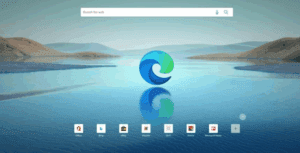
For example, if your wallpaper has a bright blue area, moving Chrome across that area makes the title bar gently shift toward that tint. Switch your wallpaper, and the effect adapts instantly.
To make this easier to observe, switching Chrome’s theme to Light Mode often helps because the color transitions stand out more clearly against a brighter UI background.
Even after Chrome 143, this behavior still works — but only if we manually enable the relevant system parameter.
Restoring the Marker Effect Using a Command-Line Flag
When an experimental flag disappears, the next best place to look is Chrome’s startup parameters. These allow you to toggle hidden or internal features by adding a small command after Chrome’s executable path.
Google removed the visible toggle but kept the backend switch alive — meaning we can still access it manually.
Here’s how to bring the marker effect back.
1. Copy the Required Command-Line Flag
You will need to add the following flag:
--enable-features=Windows11Marker
(If this flag ever changes, Chrome developers usually note it inside Chromium issue trackers, but for now this is the working parameter.)
2. Add the Flag to Your Chrome Shortcut
Before modifying anything, it’s important to follow the correct method so Chrome recognizes the command.
- Right-click any Chrome shortcut — taskbar, start menu, or desktop.
- Select Properties.
- Under the Target field, look for the complete path to
chrome.exe. - Move to the end of that line, leave one blank space, and paste the flag.
Your entry will look something like this:
"C:\Program Files\Google\Chrome\Application\chrome.exe" --enable-features=Windows11Marker
- Click Apply, then OK.
This step hooks the marker effect directly into Chrome’s startup configuration.
Restarting Chrome (And Why a Full Reboot Helps)
Many users expect Chrome to immediately adopt the change after closing and reopening the browser. While it often works, system-level UI flags sometimes require a complete Windows session refresh to activate correctly.
If you restart Chrome and don’t see the effect, reboot the system entirely. Doing so resets Chrome’s compositor layer, allowing the marker effect to initialize properly.
Once your PC restarts, open Chrome again and drag the window around your screen. The title bar should instantly respond to the colors behind it — confirming that the effect is working again.
Why Google Removed the Flag (And What Might Happen Next)
This part is where things get interesting. Removing a finished feature is one thing, but removing only the toggle while leaving the internal function intact usually indicates a strategic change.
Reports circulating in Chromium development discussions suggest:
- A Chrome developer is actively pushing to keep marker alive.
- The feature may be undergoing redesign for future integration.
- Google might be revisiting how Chrome adapts Windows 11’s Mica, Acrylic, and blended UI materials.
So while the flag is gone today, the feature’s future is not necessarily dim. We may see the marker effect return as a polished, official setting later — or it may be pulled behind another system experiment for now.
Either way, the workaround ensures you don’t have to wait.
A Few Important Notes & Disclaimer
Because this tutorial involves manipulating Chrome’s startup commands, it’s worth including a gentle but necessary caution.
Disclaimer:
Command-line flags are unsupported overrides. While safe for normal users, they may occasionally conflict with future Chrome updates or experimental features. If you notice unexpected behavior, simply remove the added flag from the shortcut and Chrome will return to its default configuration.
The method described here does not modify system files or Chrome binaries — it only changes how Chrome initializes features — so it is generally safe to use.
Final Thoughts
It’s always fascinating how a small visual upgrade can quietly become a favorite part of our workflow. The marker effect brought a sense of softness and personality to Chrome’s otherwise minimal design, letting the browser feel more integrated with Windows 11’s environment.
Although Chrome 143 removed the official toggle, the effect lives on — hidden, but fully functional. And with a single command-line flag, you can continue enjoying that fluid color-changing title bar across your desktop.
If Google decides to bring it back officially in the future, that will be even better. But until then, this workaround restores the experience beautifully.
If you want, I can also create a more detailed step-by-step illustrated version or a troubleshooting section for users whose marker effect does not activate even after the reboot.
#GoogleChrome #Windows11Tips #ChromeUpdate #dtptips