Before we dive in, a tiny clarification: the game’s correct title is Hollow Knight: Silksong (not “Silkong”). If you actually meant the original Hollow Knight (2017), don’t worry—I’ve included a short section near the end explaining language options for that game too. Also, Silksong is now officially available across major platforms; links to the official pages are included below for convenience.
If you’re here because your menus are in the wrong language—or you want to switch to a language you’re more comfortable with—this guide will walk you through all the common ways to change language inside the game, through your platform settings (Steam, PlayStation, Xbox, Nintendo Switch), and what to do if the option doesn’t seem to stick. I’ll keep things friendly and practical, adding quick “why this matters” notes so you always know what’s going on behind the scenes.
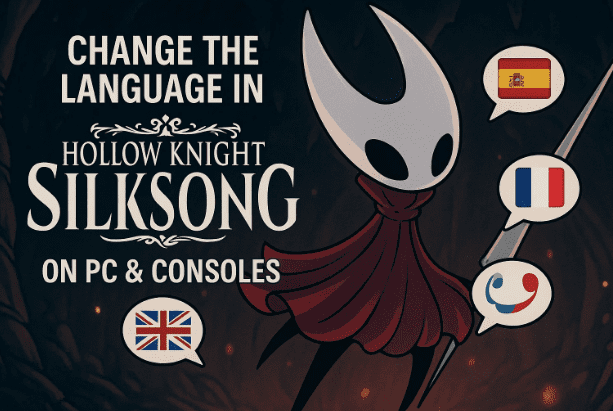
1. What You Can Expect When Changing Language in Silksong
Before touching any settings, it helps to set expectations. Silksong, like many modern games, supports multiple languages and typically applies a language setting across menus, UI, and subtitles. In some games, voiceover and text can be chosen independently; in others, a single language toggle drives everything. Silksong’s language picker is straightforward: you’ll choose your preferred language and the game’s interface reflects that choice.
Two important notes before we start:
- Platform influence: On consoles (and sometimes on PC launchers), your system language can override or suggest the in-game default. That means if you change your console’s system language, Silksong may follow suit.
- Save profile awareness: Some games attach language to your profile or save slot. If you see inconsistent behavior, try switching the language from the title screen first (before loading a save), then load a save and confirm it persists.
That’s the mindset. Now let’s switch it quickly, then we’ll go deeper.
2. Quick Start: The Fastest In-Game Path
Let’s get the fastest path out of the way—great when you just want to fix it and play. After this, we’ll add the platform-specific routes and all the what-ifs.
- Launch Silksong and wait for the main menu (don’t load a save yet).
- Open Options (sometimes shown as a gear icon).
- Go to the Game tab (or Gameplay/General, depending on your build).
- Find Language.
- Use the left/right arrows (or the appropriate buttons) to cycle available languages.
- Press Back/Apply/Confirm to save.
- Return to the main menu and ensure the interface is now in your chosen language.
If that worked—amazing. If not, don’t worry; it’s often a platform setting or a cached config. Let’s go step-by-step and add all the context so you won’t get stuck again.
3. Step-by-Step: Change Language Inside Silksong (All Platforms)
We’ve done a quick pass. Now let’s slow down and make this crystal clear. A couple of extra seconds here can save minutes of head-scratching later.
Why this matters: Changing language from within the game ensures Silksong writes its own config the way it expects. Platform-only changes sometimes don’t propagate if the game already stored a preference.
Steps
- From the Title Screen: When Silksong opens, stay at the main menu (before loading a save).
This is the cleanest place to make global changes. - Enter Options: Choose Options/Settings.
You’ll see multiple tabs; one will be Game, Gameplay, or General. - Locate Language: Find Language and highlight it.
Use left/right arrows (keyboard/controller) or the on-screen arrows. - Choose Your Language: Cycle through until your preferred language appears.
If you’re switching to a language with a different script (e.g., Japanese, Korean, Chinese), don’t worry—the menus will update immediately so you can confirm visually. - Confirm/Apply: Some builds auto-apply; others show Apply/Save on Back.
If you see a confirmation prompt, accept it. - Verify: Return to the title screen. The UI should now be in your chosen language.
Load a save and confirm the language sticks across screens.
Tip: If you’re on a controller and the option seems “greyed-out,” use the d-pad (not the analog stick) to move between sub-tabs, or try pressing the button shown at the bottom of the screen to switch tabs.
4. Change Language via Steam (PC)
Sometimes Steam’s language preference can drive or override a game’s default text language—especially the first time you launch. If changing the language inside the game doesn’t “stick,” setting it in Steam is a reliable alternative.









Why use Steam’s route? Steam provides a global and per-game language setting. The per-game override is perfect when you want Silksong in one language but keep Steam (and other games) in another.
Per-Game Language in Steam
- Open Steam → Library.
- Right-click Hollow Knight: Silksong → Properties…
- Click Language in the left sidebar.
- Choose your preferred language from the dropdown.
- Close the properties window and launch the game.
If the game downloads a small language pack, let it complete.
Global Steam Language (Optional)
- Steam → Settings → Interface → Language.
- Switch to your preferred language and restart Steam.
- This affects the client and often suggests a default language for new games.
Reference: Silksong’s Steam page (for platform details and supported languages list if you want to double-check) is here.
5. Change Language via PlayStation
On PlayStation, many games follow the system language. You can either switch inside Silksong or adjust your console’s language so new games pick it up automatically.
Why change system language? If you want all your games and the console UI in the same language, changing it at the platform level keeps things consistent.
Steps (PS5/PS4)
- Settings → System (PS5) or Language (PS4).
- Choose System Language and select your preferred language.
- Restart if prompted.
- Launch Silksong and confirm the text matches your choice.
- If not, open Options inside Silksong and set the language there too.
Silksong is available on PlayStation (among other platforms) following its release; if you’re installing fresh, the console may auto-select a matching language.
6. Change Language via Xbox
Xbox works similarly: a system-level language setting plus in-game overrides.
Why this route? If you’re playing Silksong via Game Pass or have multiple Xbox profiles, the system language ensures a consistent default across apps and games.
Steps (Xbox Series X|S / Xbox One)
- Settings → System → Language & location.
- Pick your preferred Language (and Region if necessary).
- Restart your console if prompted.
- Launch Silksong. If needed, finalize your choice under Options → Game → Language.
Platform availability and storefront details vary by region, but Silksong launched across Xbox and other platforms on September 4, 2025.
7. Change Language via Nintendo Switch
Switch typically applies the system language to games that support it. If you’re switching languages mainly for Silksong, decide whether you want the whole console UI to change too.
Why Switch at the system level? It’s the most reliable way to ensure language consistency for every game you play on your Switch (and Switch 2 when relevant).
Steps (Nintendo Switch)
- System Settings (gear icon on the Home screen).
- Scroll to System → Language.
- Choose your language and confirm. The console may restart.
- Open Silksong; it should now display in the selected language.
- Still off? Use Options inside Silksong to override.
For platform info and official game details, check Team Cherry’s pages and the dedicated Silksong site.
8. If the Language Won’t Change (8 Reliable Fixes)
You’ve done everything right and the game still refuses to behave? Don’t worry—these small roadblocks have simple fixes. Let’s work through them one by one.
Before the list, a quick thought: Sometimes the “fix” is just forcing the first-time setup path to re-detect language—either by deleting a local config (PC only; see Section 9) or switching the platform language and launching fresh.
1) Confirm You Saved/Applied the Setting
Some builds auto-apply; others ask for confirmation when you back out of Options. Navigate back to the title screen and re-enter Options to verify the selection stuck.
2) Try From the Title Screen (Before Loading)
If you changed language while a save was loaded, exit to the main menu and set it there. Then load your save and check.
3) Reboot the Game (and Console/PC)
A full quit and relaunch clears in-memory states. On consoles, closing the software and reopening resolves a surprising number of “not sticking” issues.
4) On Steam: Set a Per-Game Language
Follow Section 4 to force a language under Properties → Language. This overrides client defaults and prompts any needed language files to download.
5) Check for Updates
Ensure Silksong and your platform firmware are fully updated. Patch notes often mention localization tweaks right after launch periods.
6) Clear/Repair PC Config (Advanced)
If you’re on PC and the game still loads the wrong language, see Section 9 for where config files typically live and how to safely reset them.
7) Controller Navigation Quirk
If the arrows don’t seem to change anything, try the d-pad or keyboard arrows. Some menu tabs expect d-pad navigation rather than analog stick.
8) Verify the Build Supports Your Language
Double-check your language is listed as supported for your platform. The Steam page lists supported languages and their interface/subtitle status.
9. Optional: Where Settings Usually Live on PC (Advanced)
This section is for you if you love peeking under the hood—or your setting keeps resetting and you want to nuke and rebuild the local config.
Important caution: Always back up any folder you plan to tweak or delete. If you’re not sure, skip this section and use Steam’s per-game language instead.
Silksong is made by Team Cherry. Like many Unity-based titles, settings for Team Cherry’s games are often stored per-user under AppData. While the exact path can vary by build and store, a typical location looks like:
C:\Users\<YourUser>\AppData\LocalLow\Team Cherry\Hollow Knight Silksong\(example)
If you find a settings, prefs, or config file here (the name can vary), you can:
- Close the game.
- Back up the folder (copy it somewhere safe).
- Temporarily rename the original folder (e.g., add
_OLD). - Launch the game so it recreates a fresh config.
- Re-set your language via Options at the main menu.
If that fixes it, your previous config was likely corrupted. If not, restore your backup and try the platform-level methods again.
Note: The precise folder name can differ per platform/store (Steam, GOG, etc.). If you’re unsure, search your user profile for “Team Cherry” after launching the game once.
10. Bonus: Language Tips for the Original Hollow Knight (2017)
If you actually intended the original Hollow Knight instead of Silksong, the steps are very similar:
- In-game: From the title screen, go to Options → Game (or Language) → pick your language → Apply/Back to save.
- Steam: Right-click Hollow Knight → Properties → Language → choose your preference → launch the game.
- Consoles: Follow your platform’s system language instructions (Sections 5–7), then verify in-game.
You can visit the original Hollow Knight official site if you need any references or links.
11. Frequently Asked Questions
Q1) I changed the language but only some menus updated. Why?
Some elements cache text until you return to the title screen. Exit to the main menu after changing the language, then re-enter your save.
Q2) Can I set different languages for text and subtitles?
Silksong’s language control is designed to keep text/subtitles consistent. If future patches add separate toggles for audio/text, you’ll likely see them under Options. For now, expect a single language toggle to drive the UI and subtitles together.
Q3) My keyboard/controller won’t move the language arrows.
Use the d-pad on controllers or the arrow keys on keyboard. If there are tabs, switch tabs first (often shown at the bottom of the screen).
Q4) Does Steam’s language override the in-game setting?
It can affect the default language or trigger a language pack download, but the in-game setting should take priority once you pick it. If you see conflicts, force the language in Steam → Properties → Language for Silksong (Section 4).
Q5) I share a PC with someone who uses a different language. What’s the best setup?
Use Steam per-game language (Section 4). It keeps Silksong in your language while leaving the Steam client and other games alone.
Q6) Will changing the console language affect other games?
Yes. PlayStation/Xbox/Switch system languages are global preferences. If you only want Silksong to change, try the in-game method first.
Q7) I don’t see my language listed. Will it be added later?
Localization is often expanded post-launch. Keep an eye on patch notes or the Steam page for updates on supported languages.
Q8) The game switched to a language I don’t understand and I can’t find the menu.
From the title screen, look for a gear icon (Options). The Language row usually shows a small left/right arrow control; press the right arrow several times until you recognize your language. If stuck, change your system language (Sections 5–7) and relaunch.
Q9) Is there a way to reset all settings?
On PC, you can reset by renaming/deleting the config folder (see Section 9). On consoles, deleting local save data or reinstalling can also reset settings—but back up cloud saves first if applicable.
Q10) Where can I verify official info about Silksong and supported platforms?
Check Team Cherry’s official pages and the dedicated Silksong site. The Steam page lists supported platforms and languages for the PC release.
13. Disclaimer
This article is a user-friendly how-to for changing language in Hollow Knight: Silksong across platforms. Menu labels and steps can vary slightly by platform, region, or post-launch updates. Always rely on official sources for the latest details, and apply any game/console updates before troubleshooting. I’m not affiliated with Team Cherry or any platform holder.
Gentle Recap (So You Can Play Now)
- The fastest route is in-game: Options → Game → Language → pick → confirm.
- If it won’t stick, set a per-game language under Steam → Properties → Language (PC) or adjust your system language on PlayStation/Xbox/Switch.
- Still stuck? Reboot, update, and—on PC—reset the config folder (Section 9).
- Double-check supported languages on the Steam page if you’re unsure.
Enjoy exploring Hollow Knight: Silksong in the language you love. If you meant the original Hollow Knight, the steps are almost identical—see Section 10 for quick pointers. Happy adventuring!
Tags: Hollow Knight Silksong, change language, localization, Steam language, PlayStation language, Xbox language, Nintendo Switch language, PC settings, game options, troubleshooting
Hashtags: #HollowKnightSilksong #Localization #GamingTips #Steam #PlayStation #Xbox #NintendoSwitch #PCGaming #HowTo #Troubleshooting








