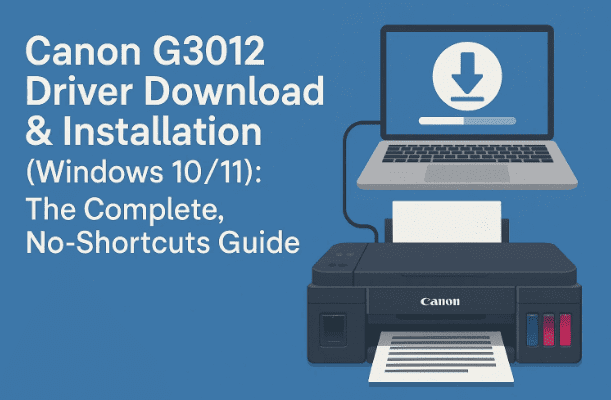
Getting a printer to cooperate can feel like a mini-project—especially when a driver refuses to install or Windows can’t “see” the device. If you’re setting up the Canon PIXMA G3012 (popular in the G-series ink tank family), this article walks you through every step: where to download the official driver, how to install it via USB or Wi-Fi, what to do if the installer throws errors (looking at you, Print Spooler), and how to confirm everything works at the end. I’ll add practical tips, small “why this matters” explanations, and a Q&A so you’re not left guessing.
So far we’ve set the scene; now let’s dig in slowly and methodically. No rushing, no shortcuts—just a clean, successful setup.
What you’ll achieve by the end
Before we dive into the how-to, it helps to visualise the finish line:
- You’ll download the correct official Canon G3012 driver package.
- You’ll install the printer on Windows 10/11 via USB or Wi-Fi (your choice).
- You’ll fix common issues (e.g., Print Spooler errors, “printer not detected,” port problems).
- You’ll run a test print and confirm the device is visible under Printers & Scanners.
- Optional: you’ll know how to install the scanner utility, change the default printer, and set up WPS or standard wireless configuration.
Let’s move to the next step—preparing your PC and gathering what you need.
Prerequisites & preparation (don’t skip)
It’s tempting to jump straight to the download button, but a few minutes of prep prevents the most common headaches.
- Stable internet connection: You’ll download the official Canon driver package.
- An available USB port and the USB cable that came with your G3012 (for USB setup and even for some Wi-Fi setups the first time).
- Windows 10 or Windows 11 machine with admin access (you’ll need permission to install drivers).
- Disable S Mode (if applicable): Windows in S Mode blocks third-party drivers. If your PC is in S Mode, switch out of it through Microsoft’s instructions before continuing.
- A working power outlet near where your printer will live—avoid trailing cables, they disconnect too easily during setup.
So far so good. With the basics ready, let’s go download the driver from the right place.
Step 1 — Download the official Canon G3012 driver
There are many “driver download” sites out there; most are unnecessary at best and unsafe at worst. Always use Canon’s own support pages.
- Open your web browser (Chrome, Edge, or Firefox).
- Go to Canon’s official support page for this model:
Canon India – G3012 support: https://in.canon/en/support/0100913112 - The page will present drivers/software for your operating system. If the OS shown isn’t correct, use the OS selector on the page to choose Windows 10 or Windows 11 (64-bit for most modern PCs).
- Look for the full driver & software package (often listed under “Driver” or “Driver & Downloads”). This bundle typically includes the print driver and Canon utilities required for setup.
- Click Download and save the file in your Downloads folder.
Why this matters: The “full” package tends to include extras (like connection utilities) that smooth out the first-time install. If you only grab a bare driver, you might miss helpful tools that fix or prevent issues.
Alright, the package is on your disk. Let’s move on and prepare it for installation.
Step 2 — Extract the file (if zipped) and review the contents
Sometimes Canon ships an executable (.exe) that extracts itself during install; sometimes you’ll get a compressed file you must unzip first. Either way, here’s the safe route:
- Open File Explorer → Downloads.
- If the download is a .zip, right-click → Extract All…. Choose an easy location (Desktop is fine).
- If it’s a .exe, you can run it directly (we’ll do that in Step 3). If you prefer to “peek inside” first, you can still right-click → Properties → make sure the Digital Signatures tab shows Canon and that Windows doesn’t warn you about the publisher.
Now that the installer is ready, we’ll start the setup using Canon’s guided installer. We’ll do USB first (it’s the most foolproof), then Wi-Fi.




Step 3 — Install the G3012 via USB (recommended path for first-time setup)
Let’s take it slow. We’ll begin with a direct USB connection so Windows recognises the device, and then, if you prefer, we can add Wi-Fi later.
- Disconnect the USB cable from the PC. (Yes—disconnect. Many Canon installers want you to plug the cable only when asked. Doing it early can confuse the sequence.)
- Double-click the downloaded Canon setup file.
- Choose your language if prompted, and click Start Setup.
- Read and agree to the license terms.
- When the installer asks for a connection method, select USB.
- When prompted, connect the USB cable between the G3012 and your PC, and power on the printer.
- The installer will now detect the device and proceed to install the driver.
If the installer throws an error (“checking the printer…” or “printer not found”):
Don’t panic. Cancel the detection screen, unplug the USB, wait 10 seconds, and re-try. If it still fails, skip ahead to the Print Spooler fix section below, then come back here and run the installer again.
- Once Windows finishes installing, you’ll be offered options like Set as Default Printer, Print Head Alignment, etc. Keep the defaults for now. You can always change them later.
Great—USB installation covers most users. If you plan to keep the printer near the PC, you’re basically done. But if you want the freedom to print wirelessly, let’s move on.
Step 4 — Set up Wi-Fi (two methods: WPS or standard wireless)
The G3012 supports wireless printing. You can either use WPS (if your router has a WPS button) or the standard method (using Canon’s utility or Wi-Fi setup mode). I’ll outline both so you can pick what fits your home network.
4A) WPS (Wi-Fi Protected Setup)
WPS pairs the printer to your router with a push-button handshake—no typing Wi-Fi passwords on a tiny panel.
- Check your router for a WPS button.
- On the G3012, put the printer into WPS mode (refer to the on-printer button combo in your Canon quick start guide; many G-series use a Wi-Fi button press and hold until the indicator blinks).
- Press the WPS button on the router within the required time window (usually 2 minutes).
- Wait for the Wi-Fi light on the printer to stabilise (solid or slow blink to indicate success).
- Back on your PC, open Settings → Bluetooth & devices → Printers & scanners → Add device. Windows should find the G3012 (Network). Add it.
Note: If your router hides the 2.4 GHz SSID, temporarily unhide it or ensure WPS is enabled. Many Pixma models connect over 2.4 GHz only.
4B) Standard wireless setup (without WPS)
If your router lacks WPS, use Canon’s software method:
- Re-run the Canon setup package you downloaded.
- Choose Start Setup → Wireless Connection (or “Wi-Fi”).
- When prompted, select Standard Setup (you may be asked to connect a USB cable temporarily so the installer can pass your Wi-Fi credentials to the printer).
- Enter your Wi-Fi SSID and password when asked.
- Let the wizard finish. It will configure the printer and add a network printer to Windows automatically.
Now your PC can print over Wi-Fi. If you want to keep both the USB and wireless options, that’s fine—Windows can hold multiple queues for the same device.
Step 5 — Fixing the common “Print Spooler” error (service not running)
In the script you provided, the installer complained about the Print Spooler. That Windows service is essential—if it’s stopped, printing fails and installs can get stuck. Here’s how to restart it cleanly:
- Right-click Start → Run → type
services.msc→ Enter.
(Or right-click This PC → Manage → Services and Applications → Services.) - Scroll down to Print Spooler.
- Double-click it. If Service status is Stopped, click Start.
- Startup type should be Automatic. If not, change it to Automatic → Apply.
- Click OK to close, then close Services.
- Re-run the Canon installer (USB or Wireless) from Step 3 or Step 4.
Pro tip: If the Spooler refuses to start, you may have a stuck print job or corrupted queue. Open C:\Windows\System32\spool\PRINTERS and delete the contents (admin rights required), then start the Spooler again.
With Spooler running, installations and printing usually resume immediately. So far we’ve handled the biggest roadblock—nice work.
Step 6 — Manually add the printer (alternate path if auto-install fails)
Sometimes Windows doesn’t pick the right driver automatically even after you install the package. In those cases, point Windows to the installed driver manually.
- Start → Settings → Bluetooth & devices → Printers & scanners → Add device.
If your G3012 appears, add it. If not: - Click The printer that I want isn’t listed.
- Choose Add a local printer or network printer with manual settings → Next.
- Under Use an existing port, pick USB001 (or the USB00x where your printer is attached). For a network setup, you can choose Create a new port → Standard TCP/IP and enter the printer’s IP.
- Click Have Disk… → Browse to the folder where Canon’s driver installed/extracted (often in
C:\Program Files\Canonor the extracted folder on your Desktop). Select the .INF file if you see one, then confirm. - From the model list, pick Canon G3012 (or Canon G3000 series if that’s how Canon labels it) → Next.
- Name the printer (e.g., Canon G3012) → Next, and decide whether to share it (home users usually select Do not share).
- Click Print a test page to confirm.
That’s the manual route—especially useful on stubborn systems or when migrating from older drivers.
Step 7 — Install/verify Canon scanning utilities (if you plan to scan)
Your G3012 can print and scan. To scan reliably, install the Canon IJ Scan Utility (it’s typically included in the full package; sometimes Canon lists it separately on the support page).
- Return to Canon’s support page for G3012: https://in.canon/en/support/0100913112
- Download and install IJ Scan Utility (or the scan component listed for your OS).
- After installation, search “IJ Scan Utility” from the Start menu and open it.
- Place a page on the scanner, choose Document or Photo, and click Scan.
Why this matters: Windows can scan generically, but Canon’s utility supports model-specific features (like scan resolutions, formats, and shortcuts) that make everyday use easier.
Step 8 — Post-install checks: test page, defaults, queues
We’re almost at the finish line. Let’s confirm your setup is tight and tidy:
- Print test page:
Settings → Bluetooth & devices → Printers & scanners → Canon G3012 → Printer properties → Print Test Page. - Set default printer:
If this is your primary printer, toggle Set as default so apps don’t pick the wrong device. - Check the port:
Under Printer properties → Ports, confirm USB001 (for USB) or Standard TCP/IP (for Wi-Fi with a valid IP) is selected. - Document stuck?
If jobs won’t clear, open the queue (See what’s printing) and Cancel all documents, then restart the Print Spooler service again.
So far we’ve done a thorough job—from download to test print. If something feels off, the next section collects the most frequent issues and their fixes.
Troubleshooting: common problems and proven fixes
Let’s run through problems people most often encounter and how to resolve them quickly.
1) Installer says “Connect USB” but nothing happens
- Use a different USB port (preferably on the back of the PC).
- Try a different USB cable (faulty cables are more common than you’d think).
- Ensure the printer is powered ON and not showing error lights (paper/ink).
- Restart the Print Spooler (Step 5) and re-run the installer.
2) Windows 11 can’t find a driver
- Install the full Canon package from the official link instead of a minimal driver.
- If detection fails, use the manual add method (Step 6) with Have Disk.
3) Wireless setup fails (wrong Wi-Fi band)
- Many PIXMA models connect over 2.4 GHz only. Ensure your router’s 2.4 GHz network is enabled and broadcasting the SSID.
- If your SSID is hidden, unhide it temporarily during setup.
4) Spooler starts and then stops
- Clear the queue folder: delete files in
C:\Windows\System32\spool\PRINTERS(admin rights required). - Run sfc /scannow in an elevated Command Prompt to fix system file issues if the problem recurs.
5) Print looks faded or streaky
- Run Nozzle Check / Cleaning from Canon’s maintenance menu in Printer Properties or the IJ Printer Assistant Tool.
- Ensure genuine or high-quality ink and that the ink tanks are filled per Canon’s guidelines.
6) The printer shows twice (USB and Network)
- That’s normal if you installed both. You may remove the one you don’t use: Settings → Printers & scanners → Select printer → Remove.
7) Mac user?
- This article focuses on Windows. For macOS, use the same support page and choose macOS under OS selector, then follow Canon’s macOS installer. (Wi-Fi setups are similar, often using USB temporarily to pass credentials.)
Frequently Asked Questions (Q&A)
Q1: Where do I download the official G3012 driver?
From Canon’s official support page for this model: https://in.canon/en/support/0100913112
Q2: Will the Windows 10 driver work on Windows 11?
Yes. Canon’s Windows 10 packages for the G-series commonly work on Windows 11. Use the full package for best results.
Q3: The installer asks me to disconnect the printer. Why?
Many Canon installers prefer to detect the printer only when they’re ready to install the driver. Plugging in early can lead to “unknown device” or mis-binding to a generic driver.
Q4: Do I need Internet during installation?
Only to download the package. Installation can be done offline once you have the files.
Q5: How do I switch from USB to Wi-Fi later?
Re-run the Canon setup package → choose Wireless Connection → Standard Setup or WPS and follow the on-screen steps. You can keep both USB and Wi-Fi queues if you want.
Q6: My router doesn’t have WPS. Can I still do wireless?
Yes. Use Standard Setup in the Canon installer. It will ask for your SSID and password and configure the printer accordingly (often via a temporary USB link).
Q7: The printer appears as “Offline.” What now?
Right-click the printer in Printers & Scanners → See what’s printing → Printer menu → uncheck Use Printer Offline. Also ensure it’s powered on and connected to the right network/USB port.
Q8: Where’s the scanner software?
Install the IJ Scan Utility from the same Canon support page (if not included in your full package). It provides model-specific options and reliable scanning.
Q9: Can I share this printer with other PCs at home?
Yes. On the main PC, enable Share this printer in Printer properties → Sharing. Other PCs on the same network can then add it as a network printer.
Good practices after installation (a little maintenance goes a long way)
We’ve done the heavy lifting. Here are tiny habits that keep things smooth:
- Set as Default if it’s your primary printer—prevents apps from choosing the wrong device.
- Occasional restart of your PC and printer refreshes the driver stack and queue.
- Keep installers in a folder (e.g.,
C:\Installers\CanonG3012) for future use. - Check inks visually (G-series tanks are transparent). Don’t run the printer dry; it invites clogging.
- Update firmware/driver periodically from Canon’s page—especially after major Windows updates.
Disclaimer
This article is for educational and step-by-step guidance purposes. Always download drivers and utilities from Canon’s official website to ensure authenticity and security. Product names, logos, and software mentioned are the property of their respective owners. Features and menus can vary slightly by region or driver version; if something looks different on your screen, use the closest equivalent option or consult Canon’s official documentation on the support page: https://in.canon/en/support/0100913112.
Hashtags: #CanonG3012 #CanonPrinter #PrinterDriver #Windows11 #Windows10 #IJScanUtility #PrintSpooler #WirelessPrinting #WPS #CanonSupport








