Installing the correct printer driver is the most important step to get your Canon F166 400 printer working smoothly. Without it, your system may fail to detect the printer, or certain functions like scanning or duplex printing might not work.
In this article, we’ll cover everything — from where to find the official Canon F166 400 printer driver, to downloading, extracting, installing, and testing it properly on Windows 10 and Windows 11. The process may look long, but if you follow each step carefully, you’ll have your printer ready within minutes.
Let’s begin with where to get the genuine Canon driver.
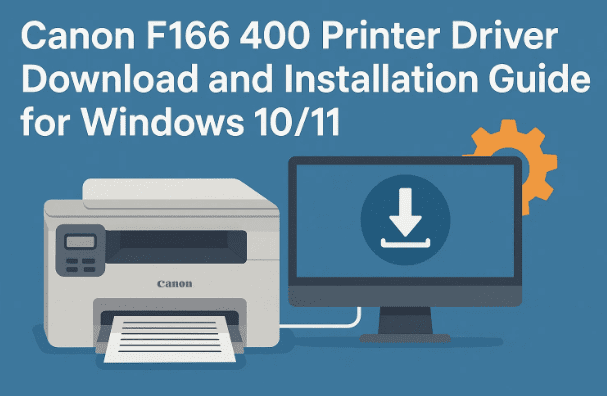
1. Download the Canon F166 400 Printer Driver
Before starting any installation, ensure you are downloading drivers only from Canon’s official website. This avoids security risks, malware, and compatibility issues.
Steps to download:
- Open your preferred web browser (Google Chrome, Edge, or Firefox).
- Visit the official Canon India support page:
🔗 Canon India Support – F166 400 Printer Driver - Once on the page, you’ll see driver and software options listed for different operating systems.
- Select your OS — Windows 10 or Windows 11 (choose the correct bit version if shown: 32-bit or 64-bit).
- Click on “Download” next to the printer driver.
- Save the file to your Downloads folder.
🟢 Tip: Avoid using third-party websites for drivers. Canon’s official site automatically detects your OS and provides the latest verified version.
2. Locate and Extract the Downloaded File
After downloading, you’ll find the driver file in your Downloads folder. It’s usually a compressed (.zip or .exe) file.
Let’s move to the next step — extracting it properly.
Here’s what to do:
- Open your Downloads folder from File Explorer.
- Locate the file you just downloaded (its name usually starts with “Canon_F166_400_…”).
- Right-click on it and choose Extract All…
- Select the location where you want to extract it (the default folder is fine).
- Once extracted, a new folder will appear with setup files inside.
So far, we’ve prepared the installation files. Now comes the actual driver setup.
3. Install the Canon F166 400 Driver via Control Panel
You can install the printer driver either through Canon’s setup executable or manually via Control Panel. We’ll use the manual method — it’s reliable and helps even when automatic setup fails.






Follow these steps carefully:
- Press Windows + S and type Control Panel, then open it.
- Click on View devices and printers under Hardware and Sound.
- On the top bar, click Add a printer.
- Windows will start searching for available devices.
- If your Canon printer appears, select it and proceed.
- If not, click “The printer that I want isn’t listed.”
- Now select Add a local printer or network printer with manual settings, and click Next.
- Under the port selection, choose USB001 (Virtual printer port for USB) — this works for most USB-connected printers.
- Click Next again.
Now comes the point where you’ll manually load the Canon driver files.
4. Load the Driver Manually (Have Disk Method)
If your printer model doesn’t appear in the Windows driver list, you’ll have to manually point Windows to the driver you extracted.
Steps to do that:
- On the Install the Printer Driver window, click Have Disk…
- Choose Browse and navigate to the folder where you extracted the driver earlier.
- Inside that folder, open Drivers → Win or x64 (depending on your OS).
- Look for a file with the extension
.inf(for example, “CNAB###.inf”). - Select it and click Open, then OK.
- Windows will now list the correct Canon F166 400 printer model.
- Click Next to begin installation.
5. Complete the Installation
Once the files are loaded, Windows will install the printer driver. It might take a minute or two.
- If prompted, you can choose whether to share the printer on the network or keep it local.
- For home use, select “Do not share this printer.”
- Click Next to continue.
- Once installation is complete, you’ll see an option to print a Test Page.
Click Print Test Page — if the paper comes out correctly, congratulations! Your Canon printer is ready to use.
6. Optional: Troubleshooting Tips
Sometimes, even after following every step, the printer may not respond immediately. Here are some possible fixes:
- Check the USB connection:
Ensure the cable is securely connected to both the printer and computer. Try a different USB port if needed. - Restart both devices:
A simple restart of the PC and printer often resolves unrecognized connections. - Use Windows Update:
If Windows doesn’t find the driver, open Settings → Windows Update → Optional updates → Drivers to check for Canon entries. - Run the setup as Administrator:
Right-click the driver setup file and select Run as Administrator to prevent permission issues. - Update your system:
Make sure Windows is fully updated, especially printer and USB components.
7. Frequently Asked Questions (FAQ)
Q: Where can I get the official Canon F166 400 driver?
A: Always download from the official Canon India website: https://in.canon/en/support/0100592301. Never use unofficial driver download sites.
Q: Is the Canon F166 400 compatible with Windows 11?
A: Yes, the latest drivers support Windows 10 and Windows 11. Ensure you select the correct OS version before downloading.
Q: What if my printer still doesn’t print after installation?
A: Check if the printer is set as default in Control Panel → Devices and Printers. If not, right-click it and select Set as default printer.
Q: Can I install the driver without internet access?
A: Yes. You can download the driver file on another computer and copy it using a USB drive. Once you have the file, installation can be completed offline.
Q: Do I need to uninstall old Canon drivers first?
A: If you’ve previously installed a conflicting or outdated Canon driver, uninstall it first from Control Panel → Programs and Features before installing the new one.
8. Additional Notes & Best Practices
- Always use original Canon software and cables for better performance.
- Keep your printer firmware updated by checking Canon’s website occasionally.
- After installation, restart your PC once so that Windows can fully integrate the printer driver.
- If you’re using a multi-function printer (print + scan), download the scanner driver or utility as well from the same Canon support page.
Disclaimer
This article is for educational and instructional purposes only. Always download printer drivers from Canon’s official website to ensure authenticity and security. Canon, Windows, and other mentioned names are trademarks of their respective owners.
#CanonPrinter #PrinterDriver #CanonF166400 #Windows11 #Windows10 #PrinterSetup #CanonSupport #TechGuide







