When your Windows installation starts acting up — maybe it’s freezing, throwing random errors, or slowing down beyond reason — the most practical solution often seems to be a clean install. But that brings up an important question:
“Where should I back up my files before reinstalling Windows?”
Many users, facing limited storage options, think of creating a new partition on the same drive and copying their files there temporarily. At first glance, this seems like a clever workaround. After all, the data is on the same disk — it’s quick, it’s easy, and you don’t need an external hard drive.
But here’s the harsh truth: it’s a trap.
Let’s dive deep into why backing up files to a partition on the same physical drive is not a true backup, what risks it carries, and what safer alternatives you can use instead.
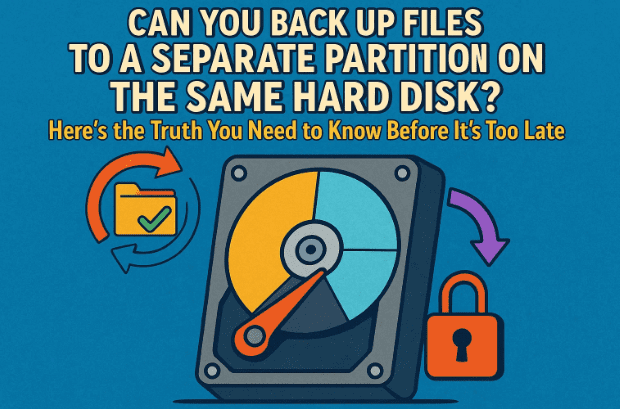
Understanding What a Backup Actually Is
Before we move to the technical steps, it’s crucial to understand what “backup” really means.
A backup is not just copying files from one place to another. It’s about creating a separate, independent copy of your important data that remains safe even if your main system fails completely.
When you move files from one folder (or partition) to another on the same disk, you’re not creating a backup — you’re just rearranging the same data inside the same physical container.
It’s like putting your money from one pocket of your jeans into another pocket of the same pair — if the jeans go into the washing machine, you lose both.
The User’s Idea: Two Partitions on One Drive
Here’s the scenario:
You have a 1TB hard drive, and you want to reinstall Windows. To avoid losing data, you plan to:






- Shrink your main Windows partition.
- Create a new secondary partition, maybe labeled “Backup.”
- Move all personal files (Documents, Pictures, etc.) into that new partition.
- Perform a clean installation of Windows on the main partition.
- Move your files back afterward and delete the “Backup” partition.
Technically, yes — this process will work.
You’ll successfully reinstall Windows, your data might remain intact, and you’ll likely get away with it once or twice.
But should you do it?
Absolutely not — and here’s why.
Why This Isn’t a Real Backup
Let’s take a closer look at what’s really happening behind the scenes.
Both your partitions — the original Windows partition and the new “Backup” partition — exist on the same physical hard drive. That means they rely on the same disk controller, the same spinning platter (or NAND cells, if it’s an SSD), and the same mechanical or electrical integrity.
If that drive fails, everything on it fails — every partition, every byte, every photo, every document.
You’ve essentially placed your “backup” in the same burning building you’re trying to escape from.
Here are the major risks:
- 🧨 Disk Failure: Hard drives and SSDs can fail suddenly without warning. If the disk’s controller dies, both partitions become unreadable.
- ⚡ Power Surges: A voltage spike or short circuit can destroy the entire drive’s circuitry, wiping both your “original” and “backup.”
- 🔥 Physical Damage: Fire, flood, or even accidental drops affect the whole disk, not just one partition.
- 🧩 Software Corruption: A Windows installer error, malware, or partition table corruption can destroy the structure of all partitions simultaneously.
So while this partitioning trick might help you temporarily move files during a reinstall, it’s not a true safeguard.
When a Partition “Backup” Can Be Useful
Let’s be fair — there are a few limited cases where creating another partition on the same disk is partially useful.
If your goal is simply to reinstall Windows without formatting the entire drive, having your personal files on another partition can make things easier.
For example:
- If you accidentally delete files from the main partition, the secondary partition might still have them.
- If a Windows update corrupts your C: drive, the other partition may remain accessible.
But this only protects you from software-level issues, not hardware failures. It’s like wearing a seatbelt but not closing the car door — better than nothing, but not really safe.
The Right Way to Back Up Your Data
Now that we’ve established why partition backups are risky, let’s move on to what actually works.
Let’s go step by step through safer, smarter backup options that every user should consider before reinstalling Windows.
1. Back Up to a Second Internal Drive
If your desktop has space for another hard drive or SSD, use it.
Backing up your files to a different physical drive (not partition) ensures that if your main drive fails, your backup remains untouched.
Here’s how to do it:
- Install the second drive in your system (SATA or NVMe).
- Copy your personal files manually, or use Windows’ built-in File History or Backup and Restore tools.
- After reinstalling Windows, reconnect the second drive and copy your data back.
This is fast, reliable, and cost-effective — especially if you already have an unused spare drive.
2. Back Up to an External Hard Drive
If you don’t want to mess with your PC’s internal setup, this is the most popular method.
External drives connect via USB and act as a fully independent storage unit. If your main drive dies, the backup remains safe in your drawer.
You can buy an external HDD or SSD from brands like Seagate, Western Digital, or Crucial and use Windows’ backup utilities or software like Macrium Reflect or EaseUS Todo Backup for automated protection.
👉 Official Macrium Reflect Website
👉 EaseUS Todo Backup
3. Back Up to the Cloud
Cloud storage is one of the safest backup solutions available today.
Even if your entire computer is destroyed, your files will still be accessible from any other device.
You can use:
- Microsoft OneDrive (built into Windows)
- Google Drive
- Dropbox
- iCloud Drive (for Apple users)
For large collections of data (like photos or documents), cloud sync ensures that changes are continuously backed up in real time.
💡 Tip: If you’re reinstalling Windows, signing into your Microsoft account automatically re-syncs your OneDrive files afterward.
4. Use Automated Backup Software
Manually copying files works, but automation ensures consistency and reliability.
Tools like:
- Acronis Cyber Protect Home
- MiniTool ShadowMaker
- Macrium Reflect
- EaseUS Todo Backup
…can clone your system drive or schedule daily incremental backups.
This means even if you forget, your files are still being copied securely.
So, What Should You Do Before Reinstalling Windows?
Let’s summarize what a safe reinstall process should look like:
- Create a complete backup to an external drive or cloud storage.
- Verify your backup — open it and check that your important files are readable.
- Disconnect the backup drive from your PC before starting the reinstall.
- Perform the clean installation of Windows.
- Reconnect your external drive and restore your data once everything’s stable.
Only after completing all these steps can you confidently say your data is safe.
The Bottom Line
Let’s be clear once more — backing up files to a separate partition on the same hard disk isn’t a real backup.
It’s a convenient shortcut that might work temporarily but offers zero protection against the very thing backups are meant for: drive failure.
If the drive dies, all partitions die together. And if your “backup” lives on the same hardware, it’s no safer than your original data.
Real backup means separation — either on another drive, on an external device, or in the cloud.
As Leo Notenboom famously puts it:
“If your data is in only one place, it’s not backed up.”
So before you reinstall Windows or make any big system change, take the time to back up properly. It’s not just about convenience — it’s about peace of mind.
Disclaimer:
Always verify your backups before performing a Windows reinstallation. Storing backups on the same drive doesn’t protect against hardware failure, power surges, or catastrophic loss. For long-term data safety, maintain at least two copies of important data — one local (external drive) and one cloud-based (off-site).
#WindowsBackup #DataSafety #CloudStorage #SystemRecovery #WindowsTips #HardDrive #PCMaintenance #BackupStrategy








