Imagine having a 24/7 employee who never takes breaks, replies to emails instantly, and handles customer inquiries with perfect accuracy. With AI automation, this is now possible—and you can build it yourself without writing a single line of code.
At Kevin Cookie Company, we receive countless customer questions daily—about flavors, store hours, pricing, and more. Instead of manually responding to each one, we built an AI-powered customer service agent that handles inquiries automatically.
In this guide, we’ll walk through how to:
✅ Set up an AI agent using Make (formerly Integromat)
✅ Train it with company FAQs (stored in Google Docs)
✅ Automate email responses for instant customer support
✅ Connect it to a form (Tally) for real-time question handling
Best of all? It’s completely free to get started.
Step 1: Create Your AI Agent
1. Sign Up for Make
- Visit Make’s website and create a free account.
- You’ll get 10,000 free operations (more than enough for testing).
2. Choose an AI Model
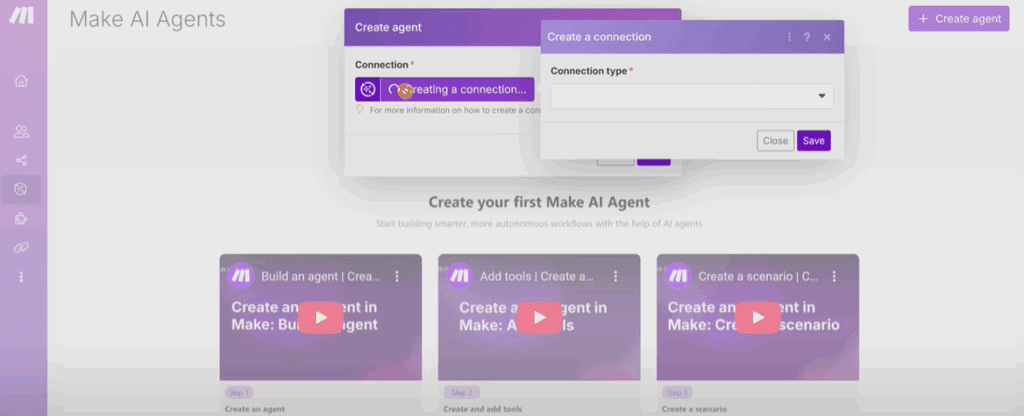
- Go to AI Agents in the left sidebar.
- Click “Create Agent” and select a connection type (e.g., OpenAI, Anthropic, or Grok for free open-source models like Llama-3).
- Why Grok? It’s fast, free, and supports powerful models like Llama-3-70b.
3. Set Up the AI Connection
- Enter your API key (get one from Grok’s developer console).
- Name your agent (e.g., “Customer Service Agent”).
- Select a model (we recommend Llama-3-70b for balance between speed and accuracy).
4. Define the Agent’s Role (System Prompt)
This is where you train your AI on how to respond. Example:
“You are a friendly and helpful customer service agent for Kevin Cookie Company. Respond to questions about cookie flavors, store hours, shipping, and pricing. Keep responses warm, professional, and concise. If you don’t know an answer, politely suggest contacting support.”
📌 Pro Tip: Adjust the tone (casual, formal, humorous) based on your brand voice.
Step 2: Give Your AI Agent Tools
An AI agent is only as good as the data it can access. Here’s how to connect it to your business knowledge:
1. Add Your FAQ (Google Docs Integration)
- Go to Scenarios > Create New Scenario.
- Add a Google Docs module → “Get Content of a Document”.
- Link your FAQ document (e.g., a Google Doc with answers to common questions).
- Set the scenario to run “On Demand” (so the AI fetches info when needed).
2. Enable Email Responses
- Create another scenario for sending emails.
- Connect to Gmail/Outlook → “Send an Email”.
- Map required fields:
- Customer Email (from form submissions)
- Subject (e.g., “Re: Your Cookie Question”)
- Body (AI-generated response)
Step 3: Connect to a Customer Inquiry Form (Tally)
To automate responses, we’ll link the AI to a Tally form (a free alternative to Google Forms).
1. Set Up the Trigger
- In Make, create a new scenario.
- Add Tally → “Watch for New Responses”.
- Configure the webhook to detect submissions.
2. Route Questions to the AI Agent
- Add the Make AI Agent module → “Run Agent”.
- Select your Customer Service Agent.
- Feed in:
- Customer Name
- Their Question
- Email Address (for replies)
3. Personalize Responses
- Add custom instructions (e.g., “Greet the customer by name and sign off with ‘Cheers, Kevin Cookie Company.’”)
- Test with a sample submission (e.g., “What are your Saturday hours?”).
✅ Result: The AI fetches the answer from your FAQ and emails it instantly!
Step 4: Deploy & Scale
- Activate the scenario to go live.
- Expand functionality by connecting to:
- Slack/WhatsApp (for messaging support)
- CRM systems (to log customer interactions)
- Payment portals (for order updates)
💡 Pro Tip: Use Make’s templates to automate other workflows (marketing, sales, operations).










Why This Works for Any Business
✔ No coding needed – Drag-and-drop automation.
✔ Cost-effective – Free to start, scales affordably.
✔ 24/7 customer support – Reduce response times from hours to seconds.
🚀 Ready to Build Your AI Agent?
👉 Get started with Make for free
Tags & Hashtags
Tags: AI, CustomerService, NoCode, Automation, Make, Chatbot, BusinessTools
Hashtags: #AIAgent #NoCodeAutomation #CustomerSupport #MakePlatform #SmallBusinessTech
Have questions? Drop them in the comments—we’d love to help! 🤖✨








