Designing books in Adobe InDesign can be time-consuming, especially when dealing with complex manuscripts. However, by leveraging paragraph styles, automation, and the Book function, you can significantly speed up your workflow. In this guide, we’ll explore how to efficiently format an entire book using automation techniques.
Step 1: Setting Up Your Workspace
Before diving into book formatting, ensure you’re working in the Essentials Classic workspace in InDesign. This setup provides easy access to essential panels like Paragraph Styles, Character Styles, and Pages, making the process smoother.
Step 2: Creating a Book Document
If your manuscript is already divided into multiple chapters (e.g., separate Word files), using InDesign’s Book function is ideal.
How to Create a Book Document:
- Go to File > New > Book.
- Click the + (plus) button to add InDesign files (chapters).
- Arrange them in the correct order.
Pro Tip: Enable Automatic Page Numbering to ensure seamless pagination across chapters.
Step 3: Importing and Formatting Text
When placing a Word manuscript into InDesign:
- File > Place your Word document.
- Retain author formatting (italics, bold, etc.) by converting Word styles to InDesign Character Styles.
Automating Character Style Application
Instead of manually applying styles, use Find/Change (Ctrl+F) in the GREP tab:
- Search for: Italic formatting
- Replace with: A predefined Italic Character Style
This ensures all italicized text retains formatting even if the font changes.
Step 4: Cleaning Up Double Spaces & Carriage Returns
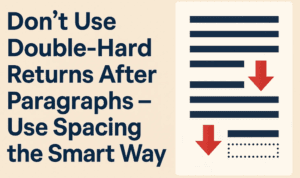
Authors often use double spaces, extra tabs, or multiple carriage returns—these need cleanup for professional typesetting.
Using a Script for Automation
Install the Clean Space script (by Peter Carrell) to automatically remove:
- Double spaces
- Unnecessary tabs
- Extra carriage returns
How to Install the Script:
- Download the .jsx file from Peter’s website.
- Place it in:
C:\Program Files\Adobe\Adobe InDesign\[Version]\Scripts\Scripts Panel\samples\JavaScript - Run it via Window > Utilities > Scripts.
This script saves hours of manual cleanup!
Step 5: Preventing Widows & Orphans
Widows (single lines at the top of a page) and orphans (single words at the end of a paragraph) disrupt readability.





Automated Fixes:
- Grep Styles:
- Apply a No Break Character Style to the last 12 characters of a paragraph.
- Code:
.{12}$
- Keep Options:
- Set “Keep at least 2 lines together” in Paragraph Styles to prevent widows.
Step 6: Justification & Spacing Adjustments
To avoid awkward spacing in justified text:
- Open Paragraph Style Options > Justification.
- Use these settings for balanced spacing:
- Word Spacing: 95% | 100% | 105%
- Letter Spacing: -2% | 0% | 2%
- Glyph Scaling: 98% | 100% | 102%
This ensures even text flow without large gaps.
Step 7: Dynamic Running Headers & Page Numbers
Instead of manually updating chapter titles in headers:
- Create a Text Variable:
- Type > Text Variables > Define > New
- Set source to “Chapter Title” Paragraph Style
- Insert variable into the header (Type > Insert Special Character > Marker > Running Header)
Now, headers auto-update based on chapter names!
Step 8: Synchronizing Styles Across Chapters
To apply changes universally:
- Set a Style Source (e.g., Chapter 2).
- Select all chapters > Synchronize (choose Paragraph Styles, Text Variables, Parent Pages).
This ensures consistency without manual updates.
Final Export & Quality Check
Before exporting:
- Ensure each chapter starts on an odd (right-facing) page.
- Remove headers from blank pages using “None” Parent Page.
- Export as PDF (High-Quality Print).
Conclusion
By automating paragraph styles, text variables, and scripts, you can format a 100+ page book in under an hour—saving time while maintaining professional quality.
Tags:
InDesign, Book Design, Typography, Publishing, Automation, Paragraph Styles, Book Formatting,
Hashtags:
#GraphicDesign #EfficiencyHacks #Typesetting #AdobeInDesign #BookFormatting
Software Mentioned:
Disclaimer: Some scripts may require administrator permissions. Always back up files before running automation scripts.
By following these steps, you’ll streamline your book design process and focus more on creativity rather than manual adjustments. Happy designing! 🚀