If you’re a Windows user looking to streamline your workflow and supercharge your productivity without compromising system performance, ShareX is the tool you need. Completely free and open-source, ShareX offers an impressive array of features that typically require multiple separate apps or browser extensions.
What is ShareX?
ShareX is a versatile screen capture and productivity tool designed specifically for Windows. Despite being lightweight, it packs powerful capabilities for:
- Taking advanced screenshots
- Recording your screen (including GIFs)
- Uploading and sharing files
- Editing images
- Using productivity tools like Color Picker, OCR, QR code generator, and more
This isn’t a new tool — it’s been around for years — but many users still aren’t aware of its full potential.
Getting Started
You can download ShareX in several ways:
- From the official website: getsharex.com
- Through the Microsoft Store
- Or via Steam
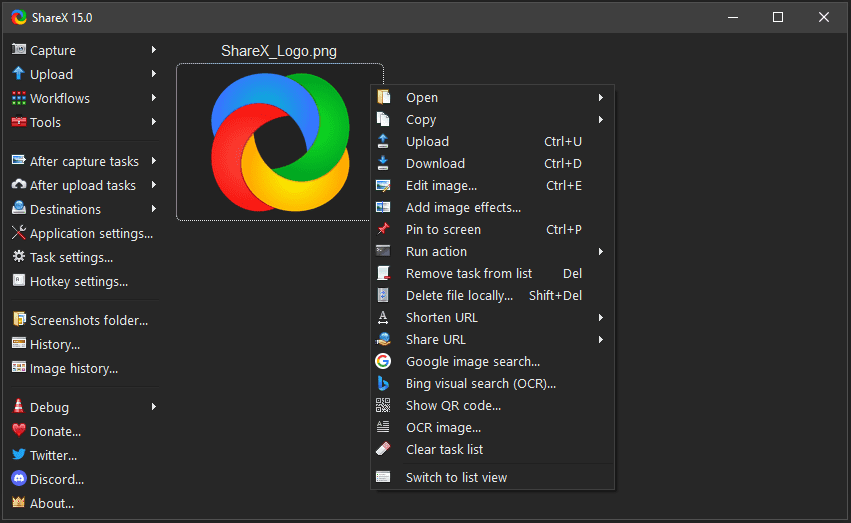
Once installed, launching ShareX presents you with a dashboard loaded with features, neatly organized in a sidebar.
Key Features of ShareX
🎯 Screen Capture Options
Under the Capture tab, you can:
- Take full-screen screenshots
- Capture a specific window or monitor
- Select a custom region (including transparent regions)
- Record your screen as a video or GIF
- Set a delay timer, show the cursor, or configure automatic capture
📤 File Upload & Sharing
ShareX lets you upload:
- Individual files or entire folders
- Clipboard content (like copied images)
Once uploaded, ShareX generates a shareable URL. You can right-click the uploaded item to:
- Open it
- Copy the link
- Share via email or social media
- Use tools like Bing Visual Search or OCR
🎨 Image Editing Tools
Open an image in ShareX’s Image Editor to access:
- Drawing tools (rectangle, ellipse, arrows)
- Text insertion with styling and backgrounds
- Freehand drawing
- Speech balloons and magnifiers
- Undo/redo options (Ctrl + Z)
Whether you want to annotate, highlight, or beautify an image, ShareX provides everything you need in one interface.






🧰 Utility Tools
Under the Tools section, you’ll find an array of helpful utilities:
- Color Picker: Click anywhere on your screen to pick a color and get its hex/RGB values.
- Ruler: Measure screen elements with precision.
- Image Combiner & Effects: Merge images or apply visual effects.
- Video Converter: Convert videos to other formats.
- Image Thumbnailer: Generate thumbnails easily.
- QR Code Generator: Create QR codes for any text or URL.
- OCR (Optical Character Recognition): Extract text from images.
- DNS Changer: Automatically choose the best DNS for faster connectivity.
- Clipboard Viewer, Hash Checker, Window Inspector, and more.
⚙️ Customization & Automation
ShareX also supports:
- After-capture tasks like beautifying, pinning, or printing images
- After-upload actions like URL shortening or automatic sharing
- Theme switching (dark mode, light mode, etc.)
- Custom workflows and hotkeys
- Automatic file naming rules
- Watch folders for automatic processing
Why You Should Use ShareX
ShareX is a must-have if you:
- Frequently capture or annotate screenshots
- Need a free image editor without installing bloatware
- Share files or images online
- Record short screen tutorials or create GIFs
- Want advanced tools like Color Picker or OCR in one app
Despite its vast features, ShareX is extremely lightweight and does not affect your system’s performance — making it perfect even for low-end PCs or laptops.
Final Thoughts
If you deal with screenshots, screen recordings, file sharing, or any kind of image editing, ShareX is a no-brainer. It’s free, open-source, powerful, and incredibly efficient.
Tags:ShareX, Windows,Tools, Productivity Apps, Free Software, Screen Recording, Screen shot Tool, Image Editor, OpenSource
Hashtags for Social Sharing:
#ShareX #WindowsTips #FreeTools #Productivity #OpenSourceTools #ScreenCapture #TechTools







