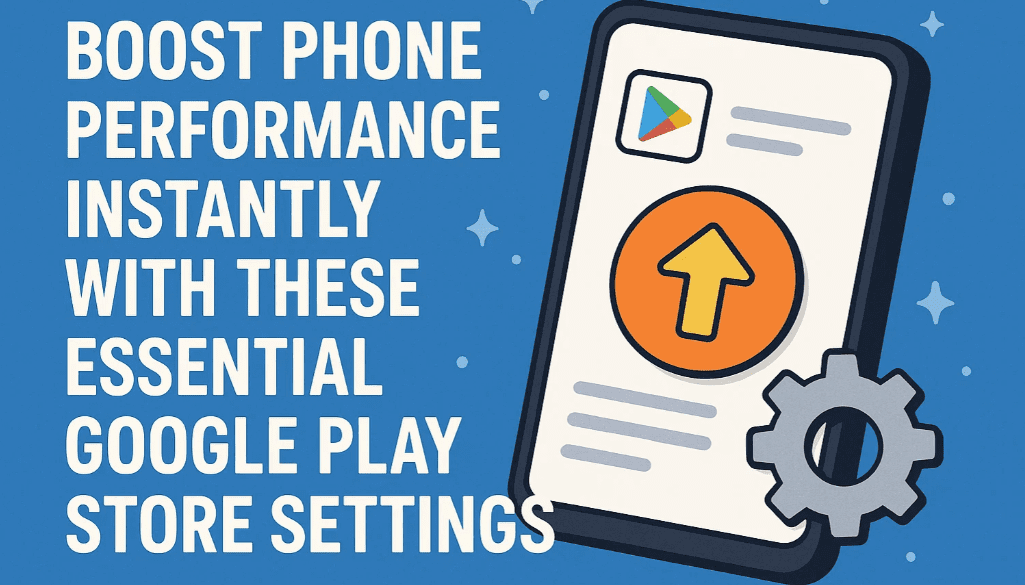
If your phone frequently hangs, runs out of battery quickly, or suffers from low storage space, the issue may not always be with the hardware. Often, poor Play Store settings can affect your phone’s performance more than you think. In this article, we will guide you through simple yet powerful settings within the Google Play Store that can significantly improve battery life, reduce data consumption, free up storage, and speed up your device.
All these tips are beginner-friendly and require no external apps or technical knowledge. Let’s dive into it step-by-step.
Step-by-Step Guide to Optimize Play Store Settings
Step 1: Open the Play Store and Access Settings
- Launch the Google Play Store on your Android phone.
- Tap on your profile icon at the top-right corner.
- Select Settings from the menu.
1. Stop Auto-Updating Apps
Why?
Auto-updates consume battery and mobile data in the background. They can also cause your phone to heat up and lag.
How to Do It:
- In Settings, go to Network Preferences.
- Tap on Auto-update apps.
- Choose Don’t auto-update apps.
Benefits:
- Saves mobile data and battery.
- Reduces background activity.
- Improves phone performance.
2. Set App Download Preference to Ask Every Time
Why?
Pre-selecting download over Wi-Fi or mobile data can lead to apps downloading without your permission.
How to Do It:
- Go to App download preference.
- Select Ask me every time.
Benefits:
- Prevents unintentional app downloads.
- Gives you full control over data usage.
3. Manage and Clear Unused App Data
Why?
Even after uninstalling apps, their data remains in your Play Store account history and can clog up storage.
How to Do It:
- Go back to the profile icon and tap Manage apps & device.
- Tap on the Manage tab.
- Use the filter to find Not installed apps.
- Select and delete these apps permanently.
Benefits:
- Frees up storage space.
- Reduces clutter in Play Store data.
- Enhances phone performance.
4. Use Play Protect to Prevent Harmful Apps
Why?
Malware or harmful apps can slow your phone, drain battery, or even compromise your privacy.
How to Enable:
- Tap on your profile icon → Play Protect.
- Tap Scan to check for harmful apps.
- Tap the Settings icon and enable:
- Scan apps with Play Protect
- Improve harmful app detection
Benefits:
- Keeps your phone safe from malicious apps.
- Protects privacy and personal data.
- Prevents phone from hanging due to malware.
🔁 Useful Resources
- How to Change Your Google Play Store Country on Your Mobile Phone
- How to Install Google Play Store on Windows 11 (No Emulator Needed)
- How to Install Windows 11 on Unsupported PCs: Bypass CPU, TPM, and Secure Boot Restrictions
- The Complete Guide to Installing Windows Without a USB Drive (Windows 10/11)
- Customizing Windows 11 with Windhawk: A Complete Guide
5. Disable Unnecessary Notifications
Why?
Constant app notifications wake your screen, use resources, and drain the battery.









How to Disable:
- Go to phone Settings → Notifications.
- Turn off notifications for apps that are not important.
Benefits:
- Saves battery.
- Reduces distractions.
- Keeps your phone running efficiently.
6. Enable Dark Mode
Why?
Dark mode reduces eye strain and can save battery on OLED/AMOLED displays.
How to Enable:
- Go to phone Settings → Display → Dark Mode.
- Turn on the dark theme.
Benefits:
- Saves up to 50% battery.
- Looks better at night.
- Easier on the eyes.
FAQs
Q1: Will disabling auto-updates affect app security?
A: No, but you should manually update your essential apps like browsers and financial apps to stay secure.
Q2: Can I re-download the apps deleted from ‘Not Installed’ list?
A: Yes. You can re-download any app from the Play Store whenever you need it.
Q3: Is Play Protect enough to secure my phone?
A: For most users, yes. However, also avoid downloading apps from unknown sources and keep your phone updated.
Final Thoughts
With just a few tweaks in the Google Play Store settings, you can drastically improve your Android phone’s speed, battery life, and storage efficiency. These settings not only make your phone run smoother but also help you save data and protect your device from unwanted apps.
Take five minutes to apply these changes today—your phone will thank you for it!
Tags:
Google Play Store, Android tips, phone battery, free up storage, Play Protect, mobile optimization, auto update apps, dark mode, app settings
Hashtags:
#AndroidTips #GooglePlayStore #PhoneOptimization #SaveBattery #FreeUpStorage #TechGuide #AppSettings #PlayProtect #DarkMode #SpeedUpPhone
Disclaimer:
This guide is intended for educational purposes only. Actual settings may vary slightly depending on your device model and Android version. Always review any warning messages before deleting apps or changing system settings.






