Are you experiencing low FPS in games despite having decent hardware? While internet speed and system specs play a role, certain Windows settings—like Hyper-V, Memory Integrity, and Nagle’s Algorithm—can silently throttle your gaming performance.
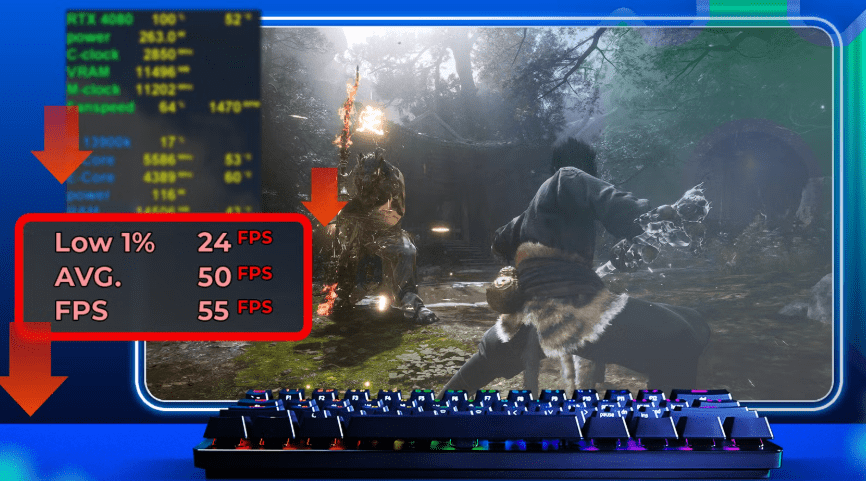
In this guide, we’ll show you three critical Windows settings to disable for higher FPS, reduced input lag, and smoother gameplay.
1. Disable Memory Integrity & Virtual Machine Platform
What They Do:
- Memory Integrity (Core Isolation) – Protects against malware by isolating critical processes.
- Virtual Machine Platform (VMP) – Enables virtualization for running multiple OS instances.
Why Disable Them?
✔ 4-7% FPS boost in some games (e.g., Cyberpunk 2077, Shadow of the Tomb Raider).
✔ Reduces CPU overhead for better gaming performance.
How to Disable:
Memory Integrity:
- Open Settings (
Win + I) → Privacy & Security → Windows Security. - Click Device Security → Core Isolation Details.
- Toggle off “Memory Integrity” → Restart PC.
Virtual Machine Platform:
- Search “Turn Windows features on or off” in Start.
- Uncheck “Virtual Machine Platform” → Click OK → Restart.
⚠ Warning: Disabling these weakens security. Only do this if gaming performance is critical.
2. Turn Off Hyper-V (For Older/Low-End PCs)
What It Does:
- Hyper-V is Microsoft’s virtualization tool (useful for developers).
- Can reduce gaming performance by reserving system resources.
How to Disable Hyper-V:
- Search “Turn Windows features on or off”.
- Uncheck “Hyper-V” → Click OK → Restart.
✅ Result: Frees up RAM & CPU for gaming.
3. Disable Nagle’s Algorithm (For Online Gaming)
What It Does:
- Nagle’s Algorithm combines small network packets to reduce congestion.
- Increases latency in fast-paced online games (e.g., FPS, MOBA).
How to Disable (Registry Edit):
- Open Command Prompt (Admin) → Run:
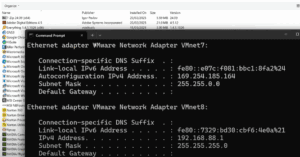
ipconfig
Note your IPv4 Address (e.g., 192.168.1.5).
- Open Registry Editor (
Win + R→regedit). - Navigate to:
HKEY_LOCAL_MACHINE\SYSTEM\CurrentControlSet\Services\Tcpip\Parameters\Interfaces- Find the subkey matching your IP (check
DhcpIPAddress). - Inside that key, create two DWORD (32-bit) values:
TcpAckFrequency→ Set to1TcpNoDelay→ Set to1
- Restart your PC.
✅ Result: Reduces network latency in online games.
Performance Impact (Before vs. After)
| Setting | FPS Boost | Best For |
|---|---|---|
| Memory Integrity + VMP | 4-7% | Single-player & competitive games |
| Hyper-V | 5-10% (Low-end PCs) | Older systems with limited RAM |
| Nagle’s Algorithm | Lower ping | Online multiplayer (Valorant, CS2, Fortnite) |
Final Thoughts
Optimizing these three Windows settings can significantly improve gaming performance, especially if you’re struggling with:










- Low FPS
- Input lag
- Network stuttering
🔗 More Gaming Optimizations:
Tags:
Gaming Optimization, Boost FPS, Windows 10/11 Tweaks, Reduce Input Lag, PC Gaming
Hashtags:
#GamingPC #BoostFPS #WindowsTweaks #LowLatency #TechTips








