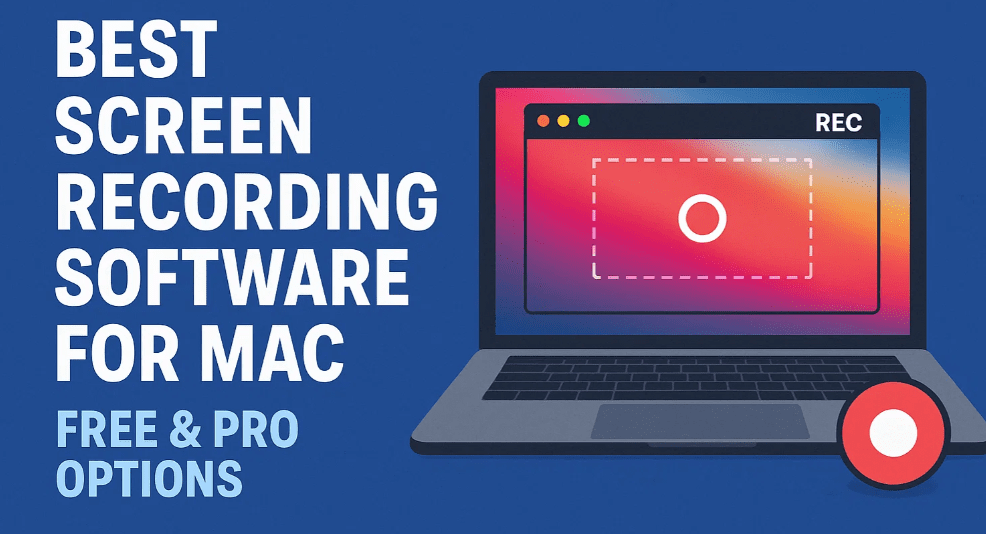
Screen recording on a Mac can be useful for various purposes—whether you’re creating tutorials, recording gameplay, making social media content, or producing online courses. In this guide, we’ll explore three of the best screen recording options for Mac, from the built-in free tool to advanced third-party software with AI-powered editing.
1. QuickTime Player (Free & Built-In)
How to Record Your Screen with QuickTime
QuickTime Player comes pre-installed on every Mac, making it the easiest way to start screen recording without installing additional software.
Steps to Record:
- Open QuickTime Player (located in the Applications folder).
- Go to File > New Screen Recording.
- A control bar will appear with recording options:
- Record Entire Screen – Captures everything on your display.
- Record Selected Portion – Lets you drag a custom area to record.
- Click the Options dropdown to adjust settings:
- Microphone Audio – Choose an external mic or use “None” for silent recording.
- Show Mouse Clicks – Highlights clicks for better tutorial clarity.
- Timer – Adds a countdown before recording starts.
- Click the Record button (or press Command + Shift + 5 for quick access).
- To stop, click the Stop button in the menu bar or press Command + Control + Esc.
Editing in QuickTime
- Trim Clips: Go to Edit > Trim to cut unwanted sections.
- Export Quality: QuickTime records in high quality (up to 60fps).
Limitations:
- ❌ No system audio recording (only microphone).
- ❌ No webcam overlay.
- ❌ Limited editing features.
Best for: Quick, simple recordings without extra software.
2. Tella (Pro-Level Screen Recording with AI Editing)
Tella is a powerful Mac and cloud-based screen recorder with advanced customization and AI-powered editing.
How to Record with Tella
- Download & Install the Tella app (recommended for better quality).
- Set Up Recording Preferences:
- Choose recording quality (up to 4K).
- Enable system audio if needed.
- Adjust webcam settings (resolution, position).
- Start Recording:
- Select full screen or a custom area.
- Use the countdown timer before recording begins.
- Record in multiple clips (useful for segmented tutorials).
- Edit & Enhance:
- Change layouts (resize screen/webcam).
- Add backgrounds & borders.
- Auto-generate subtitles.
- AI-powered trimming (removes filler words and silences).
- Export & Share:
- Download as an MP4.
- Share via a viewable link (like Loom).
Pricing:
- Free Trial available.
- Pro Plan: $12/month (billed annually) – 4K exports, advanced editing.
- Premium Plan: Custom branding & domains.
Best for: Creators who need polished, professional recordings with minimal editing effort.
3. Descript (All-in-One Screen Recording & AI Editing)
Descript is a top-tier tool for screen recording, video editing, and AI-powered enhancements.
How to Record with Descript
- Download the Desktop App (or use the web version).
- Start a New Recording:
- Choose Screen + Camera, Screen Only, or Audio Only.
- Select microphone & system audio preferences.
- Edit Like a Document:
- Edit text to edit video (delete words to remove clips).
- AI-powered enhancements:
- Remove filler words (“um,” “uh”).
- Fix eye contact (AI adjusts gaze).
- Auto-generate clips for social media.
- Custom layouts & captions.
- Export Options:
- Direct upload to YouTube, Google Drive.
- Share via Descript link (similar to Tella).
Pricing:
- Free Plan (limited features).
- Creator Plan ($24/month billed annually) – 4K exports, AI tools, stock media.
- Pro Plan – Advanced collaboration features.
Best for: YouTubers, podcasters, and professionals who need AI-powered editing.
Final Thoughts: Which One Should You Use?
| Tool | Best For | Price |
|---|---|---|
| QuickTime | Quick, simple recordings | Free |
| Tella | Polished, branded content | $12+/month |
| Descript | AI-powered editing & podcasts | $24+/month |
FAQ
Q: Can I record system audio with QuickTime?
A: No, QuickTime only records microphone audio. Use Tella or Descript for system audio.
Q: Which tool is best for YouTube tutorials?
A: Descript (for AI editing) or Tella (for branded, professional recordings).
Q: Is there a free alternative to these tools?
A: QuickTime is free, but for advanced features, try the free trials of Tella or Descript.
Tags:
screen recording, Mac screen recorder, QuickTime, Tella, Descript, video editing, AI video tools, tutorial creation





Hashtags:
#ScreenRecording #MacTips #VideoEditing #ContentCreation #AITools
Disclaimer: Some links in this article may be affiliate links, which help support our content at no extra cost to you. We only recommend tools we’ve tested and trust.
Which screen recording tool do you prefer? Let us know in the comments! 🚀






