If you’ve grown up in the Apple ecosystem like many of us—typing away on a MacBook, editing in iMovie, and browsing in Safari—then switching to a Chromebook might feel like learning a new language. But it doesn’t have to be daunting.
This article is a reflection of one such transition—a college professor and longtime Mac user who took the leap to explore a Chromebook Plus, seeking clarity on how Chrome OS works, what it can and can’t do, and whether it’s a serious tool or just a toy.
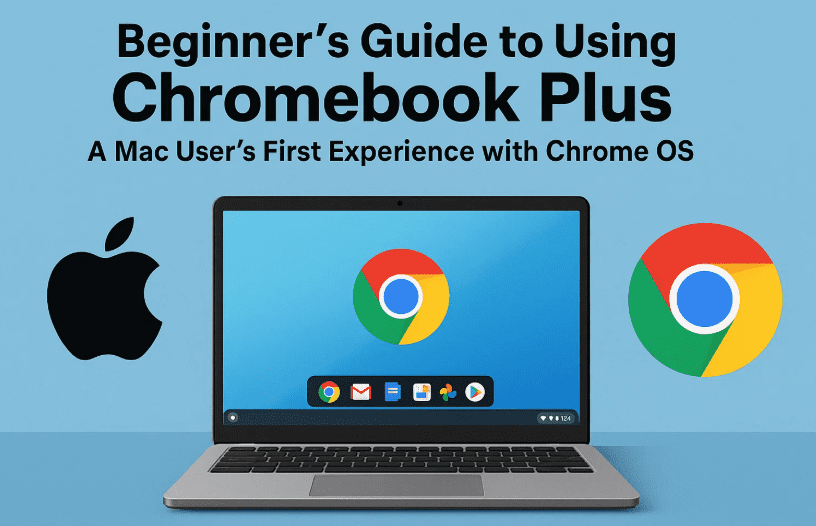
Let’s walk through the beginner journey into the Google ecosystem, from understanding the core OS to dealing with privacy concerns and hardware differences.
🧑💻 What is a Chromebook, Really?
At its core, a Chromebook is a lightweight laptop that runs on Chrome OS, a fast and secure operating system created by Google. Unlike Windows or macOS, Chrome OS is primarily designed for online, cloud-based work.
That means:
- You don’t install traditional apps like Microsoft Word or Adobe Photoshop (desktop versions).
- You work inside your browser using web apps or Android apps via the Google Play Store.
- It’s very secure, with sandboxing, verified boot, and Google account-level protection.
For those who just need to check emails, write documents, hold meetings, and browse the internet—it just works. It’s also perfect for people who want a device that doesn’t break or get cluttered with background apps and updates.
🟢 Who Is It For?
- Students who mostly need a browser, Google Docs, and YouTube.
- Remote workers managing emails, spreadsheets, and cloud platforms.
- Business owners who rely on Google Workspace (Gmail, Drive, Meet, Docs).
- Seniors or beginners who want a foolproof machine.
If you’re a content creator or developer, a Chromebook can still be useful—but you’ll need to understand its limits (more on that below).
🔄 macOS vs Chrome OS – A Different Mindset
As a Mac user, you’re used to:
- A robust file system.
- Apps like Final Cut, Safari, and iCloud.
- Beautiful hardware and seamless UI.
In contrast:
- Chrome OS leans on Google Docs, Sheets, Slides, Gmail, and Chrome.
- Your files live in Google Drive instead of Finder.
- Apps come from the Play Store or the web—sometimes both.
It’s a shift, but once you embrace it, you’ll appreciate the simplicity.
📁 Can You Work Offline?
Yes, but with limitations.



Offline capabilities in Chrome OS include:
- Google Docs/Sheets/Slides – Enable offline mode in Google Drive settings.
- Gmail Offline – View and respond to emails offline. Messages will sync when you’re back online.
- Open PDFs, videos, or images from a USB drive using the built-in file manager.
Just right-click a Google Doc and choose “Make available offline”. That’s it.
You’ll be surprised how much you can get done even without Wi-Fi—especially if you’ve prepared for it.
💾 What About RAM & Storage? Isn’t 4GB Too Low?
If you’re coming from a Mac with 32GB RAM and 1TB SSD, 4GB RAM and 64–128GB storage on a Chromebook may sound laughable—but remember:
- Chrome OS is lightweight. It doesn’t need as much power to run smoothly.
- Most apps run in the browser or cloud.
- Storage is expandable with SD cards or cloud storage via Google One.
That said:
- 4GB RAM is fine for basic use (email, 3–5 Chrome tabs, docs).
- 8GB RAM is recommended for multitasking or Google Meet usage.
- Storage can be limited, so syncing with Google Drive is essential.
If you’re a business user or content creator, go with 8GB RAM minimum.
🛡 Is It Safe? What About Privacy?
Chrome OS is very secure, but it does come with some trade-offs.
- Google does track user behavior on free consumer accounts to serve ads.
- Your browsing, location, and activity data may be used unless you change settings in your Google Account Privacy Dashboard.
Key privacy tips:
- Use Incognito Mode when needed.
- Turn off Web & App Activity under your account settings.
- Store sensitive files in end-to-end encrypted platforms like Proton Drive.
If privacy is crucial for your work (e.g. legal, journalism, or activism), consider combining Chromebook use with a VPN and secure email (e.g., ProtonMail).
🛑 Disclaimer: For users who are highly sensitive about data privacy or subject to strict data regulations (GDPR, HIPAA), Chrome OS may require additional configuration or may not be the ideal standalone solution.
🎥 Can You Screen Record or Capture?
Yes, absolutely.
You can:
- Take screenshots using the Screen Capture Tool built into Chrome OS.
- Record video tutorials using tools like Loom (web or Android app).
- Store your recordings directly in Google Drive or locally.
It’s perfect for teachers, creators, or anyone making presentations.
💡 So Is Chromebook Plus a Toy or a Real Business Tool?
It depends on your workflow.
Chromebook Plus is not a toy. For those who:
- Work in the Google Workspace ecosystem
- Don’t need heavy video editing or legacy desktop apps
- Prefer speed, security, and simplicity
…it’s a fantastic productivity device.
But if you’re into:
- Professional video production
- DAW-based music production
- Complex app development
- Large datasets and resource-heavy multitasking
…you’ll hit limitations quickly.
📌 FAQs: New User Chromebook Questions
Q. Can I edit videos or images on a Chromebook?
A. Yes, using tools like Canva, Pixlr, or Clipchamp. For pro-level editing, you’ll need a Mac/PC.
Q. Are Android apps the same as desktop apps?
A. Not always. They may work differently or be buggy on larger screens.
Q. Can I run SPSS, R, or advanced software?
A. Not natively. But you can use remote desktop or a Linux container to run statistical tools in limited form.
Q. Is my data safe on Google Drive?
A. It’s encrypted in transit and at rest. For added privacy, use two-factor authentication and consider zero-knowledge cloud services for sensitive data.
✅ Final Verdict: Should You Buy a Chromebook Plus?
If you’re:
- Already using Google Docs, Sheets, Gmail, and Drive
- Looking for a lightweight, affordable laptop for school, business, or travel
- Not reliant on traditional desktop apps
…then Chromebook Plus is 100% worth considering.
You’ll love the simplicity, speed, and deep integration with Google services.
💡 Pro Tip: For the best long-term experience, opt for at least 8GB RAM and consider adding cloud storage with Google One.
🎮 Looking for a Chromebook? Check here for price comparison https://amzn.to/3Ig4xgN [Affiliate Link]
🔖 Tags & Hashtags
Tags: Chromebook Plus for beginners, Chrome OS vs macOS, Chromebook for teachers, privacy in Google Drive, switching from Mac to Chromebook, Chromebook storage, Google ecosystem explained
Hashtags:
#ChromebookPlus #ChromeOS #GoogleWorkspace #PrivacyMatters #TechForTeachers #MacToChromebook #CloudComputing #DigitalOrganization #BeginnerTechTips
Have you recently switched to a Chromebook? Share your experience in the comments!