Are you considering cutting the cord and switching to streaming? Roku is one of the most popular platforms out there—and for good reason. Whether you’ve just purchased a Roku device or are still weighing your options, this detailed guide will walk you through everything you need to know about Roku players and Roku TVs, including features, setup, apps, content availability, and tips to get the most from your device.
What Is Roku?
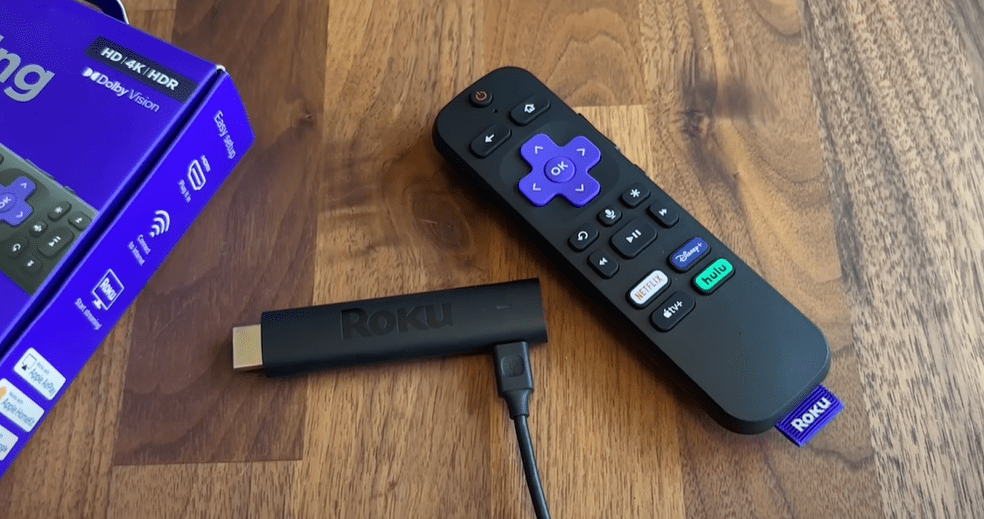
Roku is a media streaming platform that brings internet-based content to your television. Think of it as a smartphone for your TV. Just like an iPhone or Android device allows you to download apps, Roku provides access to a wide range of streaming apps—Netflix, Hulu, Amazon Prime Video, Disney+, and many more—all from one central dashboard.
You can choose between two types of Roku devices:
- Roku Players: External streaming devices (such as sticks or boxes) that plug into your TV via HDMI. These are ideal if you already have a working TV and want to upgrade it with smart features.
- Roku TVs: Televisions with the Roku operating system built in. These eliminate the need for an external streaming stick or player.
Roku Devices at a Glance
- Roku devices are affordable. You can find a basic HD Roku player for around $30, or step up to a 4K model for under $50.
- If you want wired internet, the Roku Ultra offers an Ethernet port for added stability.
- Roku TVs are available from major brands like TCL, Hisense, and Sharp, giving you a variety of display sizes and price points.
✅ Visit the official Roku website for device options: https://www.roku.com
How to Use Roku: Features and Navigation
Once your Roku device is connected to your TV (or if you’re using a Roku TV), you’ll be greeted with a clean and intuitive home screen. From here, you can:
- Browse Streaming Channels (Roku’s version of an app store)
- Access installed apps like Netflix, Amazon Prime Video, Hulu, YouTube TV, and more
- Use the Search function to find apps, movies, TV shows, or even actors
- Access Settings to customize your Roku experience
Roku offers thousands of apps in categories like movies, TV shows, live news, kids content, sports, and more. While many apps are free, some (like Hulu, Netflix, or YouTube TV) require a paid subscription. However, Roku also offers a wealth of free content.
Free Streaming Apps on Roku
There’s no shortage of free options on Roku. Here are some popular ones:
- The Roku Channel – Exclusive to Roku with free movies, shows, and live TV.
- Pluto TV – 100s of live channels and on-demand content.
- Crackle, Tubi, Xumo – More ad-supported platforms with a vast selection of free titles.
- CW App – Watch CW shows without a subscription.
These apps do include ads, but they offer a great way to watch TV and movies without spending extra money.
Live and Local News
Roku is also a great tool for staying informed. You can access:
- CBS News, ABC News, NBC News
- Haystack News – Aggregates local and global news from multiple providers.
- NewsON – Stream live and on-demand news from local stations across the country.
If your local TV stations have dedicated Roku apps (like FOX Local), you can use those too.
Watching Live TV with Antenna on Roku TV
One of the best features exclusive to Roku TVs is the integration of over-the-air (OTA) antenna channels into a unified TV guide.





By plugging an antenna into a Roku TV:
- Roku will scan for local channels (like FOX, NBC, CBS, ABC, CW)
- All available channels will be added to your guide
- You can access these alongside streaming content with ease
This makes it incredibly simple to toggle between your antenna channels and streaming apps like YouTube TV or Netflix.
Do You Need Fast Internet for Roku?
No, you don’t need the most expensive internet plan to stream smoothly. In fact:
- Most Roku devices perform well with average broadband speeds.
- HD streaming requires about 5 Mbps; 4K content may require around 15–25 Mbps.
- If you’re facing lag or buffering, consider upgrading only after testing your current internet.
Don’t fall for the pressure from ISPs trying to upsell faster (and often unnecessary) internet speeds.
How Easy Is Roku Setup?
Setting up Roku is straightforward:
- Plug it in – Connect your Roku player to your TV via HDMI, or turn on your Roku TV.
- Power up and connect to Wi-Fi – Most Roku devices connect via Wi-Fi, though some (like Roku Ultra) support Ethernet.
- Create/Sign in to your Roku account – You’ll need this to download apps.
- Start adding channels – Use the Streaming Channels section to add your favorite apps.
- Log in to services – Sign into your streaming subscriptions (Netflix, Prime, etc.).
From there, you’re ready to start streaming.
Key Takeaways
- Roku is a simple, cost-effective way to stream movies, shows, live TV, and more.
- You can choose between Roku Players or Roku TVs, depending on your current setup.
- Roku gives access to paid and free streaming apps, including local and live news.
- You don’t need premium internet to enjoy a smooth Roku experience.
- Roku TVs offer added functionality, like integrating antenna channels into a smart guide.
Final Thoughts
Whether you’re trying to ditch expensive cable bills or simply looking for a user-friendly streaming solution, Roku is an excellent choice for beginners and tech-savvy users alike. Its ease of use, affordability, and wide app selection make it a standout option in today’s streaming landscape.
If you’re just getting started, you now have everything you need to know to enjoy your Roku device.
Have questions? Drop them in the comments below. And for more advanced tips and tricks, stay tuned to this article series.
Tags:
Roku, streaming devices, Roku TV, Roku player, streaming guide, cord-cutting, smart TV, free TV apps, internet TV, Roku setup
Hashtags:
#Roku #StreamingDevices #RokuTV #CordCutting #SmartTV #FreeTV #RokuGuide #InternetTV #TVStreaming #CutTheCord








