Whether you’re switching from using a mobile phone as your main device to working on a laptop, or you’re new to desktop computing altogether, learning how to create, save, and organize files and folders is one of the most essential skills to master.
In this guide, we’ll walk you through step-by-step instructions on how to use Windows File Explorer to organize your digital workspace like a pro — with a few tips and tricks to make your work faster and more efficient.
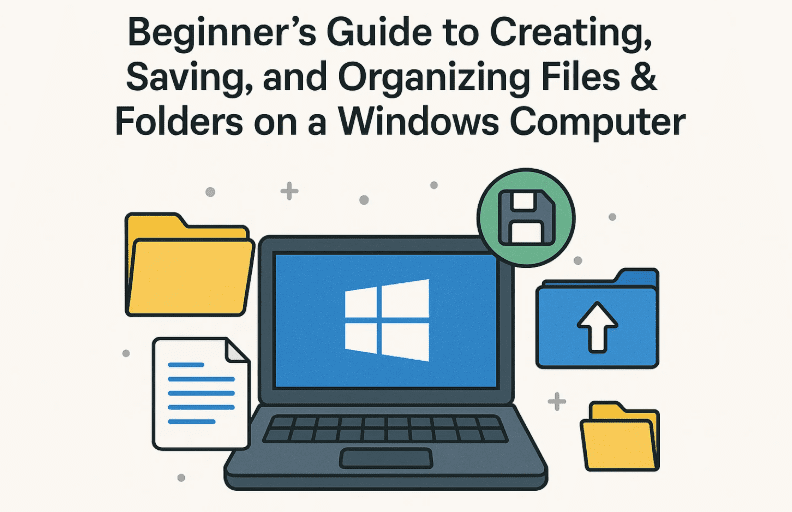
📁 What Are Files and Folders in Windows?
- File: A document, image, spreadsheet, or any digital content.
- Folder: A container to organize and store files (like a digital drawer).
Folders can contain multiple files and even subfolders to help you keep everything tidy and easy to access.
🧭 Step-by-Step: How to Create and Organize Files and Folders in Windows
✅ Step 1: Open File Explorer
There are multiple ways to open File Explorer:
- Click on the folder icon on your taskbar.
- Or press Windows + E on your keyboard.
- Or go to the Start Menu and search for File Explorer.
✅ Step 2: Choose a Location
Navigate to where you want to create your folder:
- Documents (ideal for reports, resumes, personal files)
- Downloads (temporary files you downloaded)
- Desktop (visible space for quick access)
- Or choose This PC > Local Disk (C:) if you want a custom location like a “Temp” folder.
✅ Step 3: Create a New Folder
- Right-click on the blank space in the folder.
- Select New > Folder.
- Enter a name (e.g.,
Project2025,Photos, orKelvin_01) and press Enter.
📝 Tip: Keep folder names short and descriptive for easier navigation.
✅ Step 4: Create Files Inside the Folder
Now that you’ve created your folder, you can add files inside:
- Double-click your folder to open it.
- Right-click inside the folder.
- Go to New and choose from:
- Text Document (Notepad)
- Microsoft Word Document
- Excel Spreadsheet
- PowerPoint Presentation
- Shortcut (for links to apps or files)
- Name your file (e.g.,
file_001.txt,copy_001.docx).
✅ Step 5: Edit and Save Files
- Double-click on the file you want to open.
- Type your content (e.g., in Notepad or Microsoft Word).
- Press Ctrl + S to save, or go to File > Save As to save with a new name.
💡 Even if the program autosaves, it’s good practice to manually save your work frequently.
✅ Step 6: Create Copies of Files
You can easily duplicate files using keyboard shortcuts:
- Select a file.
- Press Ctrl + C (Copy), then Ctrl + V (Paste).
- A duplicate will be created, usually with “– Copy” added to the file name.
You can also rename or move it as needed.
🗃️ Organizing Tips
- Use folders within folders to sort projects or topics.
- Prefix filenames with dates (e.g.,
2025-07-10_Report.docx) to sort them chronologically. - Group by file type: Word Docs in one folder, images in another.
- Back up important folders to cloud storage like OneDrive, Google Drive, or Dropbox.
❓ Frequently Asked Questions (FAQ)
Q1: What if I accidentally delete a file?
Answer: Look in the Recycle Bin. Right-click the file and choose Restore to bring it back.




Q2: Can I rename a file or folder later?
Answer: Yes. Right-click the file or folder > select Rename > type a new name and press Enter.
Q3: What’s the difference between Save and Save As?
Answer:
- Save updates the current file.
- Save As lets you create a new version with a different name or location.
Q4: Can I move folders between drives or USB devices?
Answer: Absolutely. Just drag and drop or use Ctrl + X (Cut) and Ctrl + V (Paste) to move folders.
📝 Final Thoughts
Organizing your files is one of the most basic, yet most important skills when using a computer. It saves time, reduces stress, and helps you stay productive. With these simple steps, you can create folders, organize files, and keep everything accessible—just like you would in a physical filing cabinet, but faster and smarter.
Get started today: Practice creating folders and files, and watch how much smoother your digital life becomes.
🔗 Related Resources
🏷️ Tags
file management, Windows 10, folder organization, beginner computer skills, create folder, file explorer, saving files, desktop basics, windows tutorial, tech for beginners
🔖 Hashtags
#WindowsTips #FileManagement #FolderCreation #OrganizeFiles #BeginnerTechGuide #Windows10 #SaveFiles #TechBasics #ProductivityTips #DigitalOrganization
Feel free to share this guide with someone who’s just starting out with a Windows laptop or desktop. Empower someone to organize their digital world today!








