Setting up Windows 11 can be time-consuming, especially when doing multiple installations. Thankfully, automation is possible through an unattended XML file that allows Windows to install with little or no user interaction. In this article, you’ll learn how to create a customized Auto-Unattended XML file using a free online tool to automate Windows 11 setup with your preferred settings.
We’ll walk through each step of the process in detail, ideal for both home users and IT professionals.
Step 1: Visit the Windows Answer File Generator Website
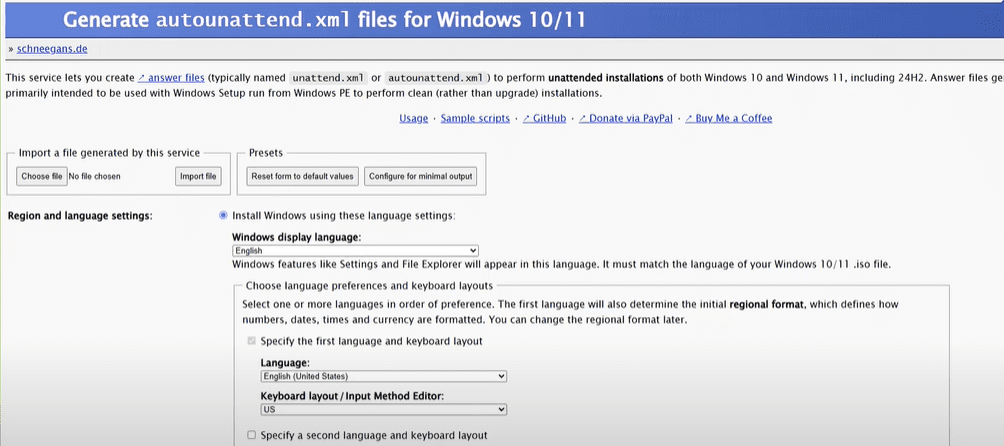
To get started, go to the Windows Answer File Generator (WAFG). This online tool lets you configure a full set of Windows installation parameters and exports them as an XML file you can include with your installation media.
Step 2: Set Language and Region Preferences
- Primary Language: Choose your default language. For example, if you speak English, choose “English”.
- Secondary Language and Keyboard Layout (Optional): If you’re bilingual, set an additional language and its keyboard layout (e.g., French, Spanish).
- Region: Match this to your actual location (e.g., English – United Kingdom) to ensure correct locale settings during setup.
Step 3: Select System Architecture
- For most modern PCs, select x64 (64-bit) under Process Architectures.
- If installing on ARM-based devices, choose ARM64.
- Hold the Ctrl key to select multiple architectures if needed.
This allows the XML file to support multiple types of systems from a single configuration.
Step 4: Windows 11 Setup Settings
- Bypass Hardware Requirements: Check this if your PC doesn’t meet Windows 11’s TPM and Secure Boot requirements.
- Allow Offline Installation: Only check this box if your system does not have internet access during setup.
⚠️ Avoid enabling offline installation unnecessarily, as it disables some setup functionality.
Step 5: PowerShell and OEM Options
- Hide PowerShell Windows: Check this to suppress PowerShell script pop-ups during installation.
- OEM Distribution Share: Leave this unchecked unless you’re an OEM deploying custom software or drivers.
Step 6: Computer Name Configuration
- Auto Generate: Let Windows create a random computer name (sufficient for most users).
- Custom Name: Enter a name if deploying to multiple machines (e.g., PC101, PC102).
- Dynamic Scripting: Reserved for advanced/business deployments; skip unless you know how to script names dynamically.
Step 7: Compact OS Settings
Compact OS compresses system files to save space. You have three options:
- Let Windows decide.
- Always use Compact OS.
- Don’t use Compact OS (recommended for performance).
💡 You can learn more about Compact OS from Microsoft’s documentation.
Step 8: Time Zone Settings
- Choose “Let Windows determine” or manually select a specific time zone to suit your deployment area.
Step 9: Disk Partitioning and Formatting
This is a critical step. Improper settings here could erase your data.
Options:
- Interactive Setup (Recommended): Lets you choose partitions during setup.
- Auto Format Disk 0: Automatically wipes and formats Disk 0 using GPT. ⚠️ Use with caution – all data on Disk 0 will be lost.
🛑 If unsure, always choose interactive setup to avoid unintentional data loss.
Step 10: Configure Windows Recovery Environment (WinRE)
You can:


- Install WinRE with custom partition sizes.
- Choose to remove WinRE entirely.
- Modify recovery and EFI partitions (for advanced users only).
Most users can stick with the default setup unless creating a custom deployment image.
Step 11: Choose Windows Edition and Product Key
- Select a Windows edition (e.g., Windows 11 Pro, Home, Education).
- Use the generic product key provided for testing or:
- Use your own key.
- Retrieve it from the system BIOS (for OEM devices).
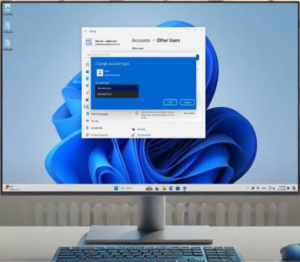
Step 12: User Account Configuration
Under User Accounts:
- Choose to create a local offline account during setup.
- Define:
- Account name (e.g., admin, John).
- Display name.
- Password (optional).
- Group (e.g., Administrators).
This avoids having to create user accounts manually during setup.
Step 13: First Logon Options
Choose whether to:
- Log on automatically to the created admin account.
- Activate the hidden built-in Administrator account.
- Run scripts or other tasks during the first logon.
These are advanced options but helpful for IT administrators managing post-install tasks.
Step 14: Generate the XML File
Once all configurations are complete:
- Click the “Download” button.
- Save the
Autounattend.xmlfile to the root of your Windows 11 installation USB drive.
When you boot from the USB drive, Windows Setup will automatically follow your custom instructions and proceed without manual input.
Final Tips
- Test first on a virtual machine or spare PC.
- Back up important data before using automated installations.
- Use interactive partitioning unless you’re confident disk configurations are correct.
Conclusion
Automating a Windows 11 installation with an unattended XML file saves time, ensures consistency, and reduces the hassle of repeated manual configurations. Whether you’re setting up one PC or deploying to an entire office, this method streamlines the process significantly.
Visit Windows Answer File Generator to begin customizing your unattended install script today.
Tags: Windows 11 installation, unattended setup, automate Windows setup, Autounattend.xml, Windows Answer File Generator, system deployment, disk partitioning, Windows XML setup
Hashtags: #Windows11 #UnattendedInstall #Automation #WindowsSetup #TechTips #SystemDeployment #ITTools #WindowsCustomization








