If you’re a Linux enthusiast who enjoys trying out different desktop environments, then you’ve probably heard of Pantheon, the sleek and minimal UI that ships with elementary OS. While Pantheon is known for its aesthetic appeal and simplicity, it’s not everyone’s cup of tea — and in this article, we’re going to explore exactly why.
Let’s go hands-on with elementary OS + Pantheon Desktop Environment to understand its design choices, features, and some user-experience quirks that may help you decide if this setup is right for you.
🌟 First Impressions: Installation & Login Experience
Installing elementary OS is a fairly simple and fast process, as expected from a Debian-based distribution. However, one quirk stood out — like Fedora, you’re asked to set your username and password after the system is installed and boots for the first time. That might feel a bit odd if you’re used to entering that during setup, but it’s not a major issue.
Upon boot, you’re greeted by a modern and minimal display manager — elegant and responsive.
🎨 Pantheon Desktop: macOS-Inspired or Just Too Familiar?
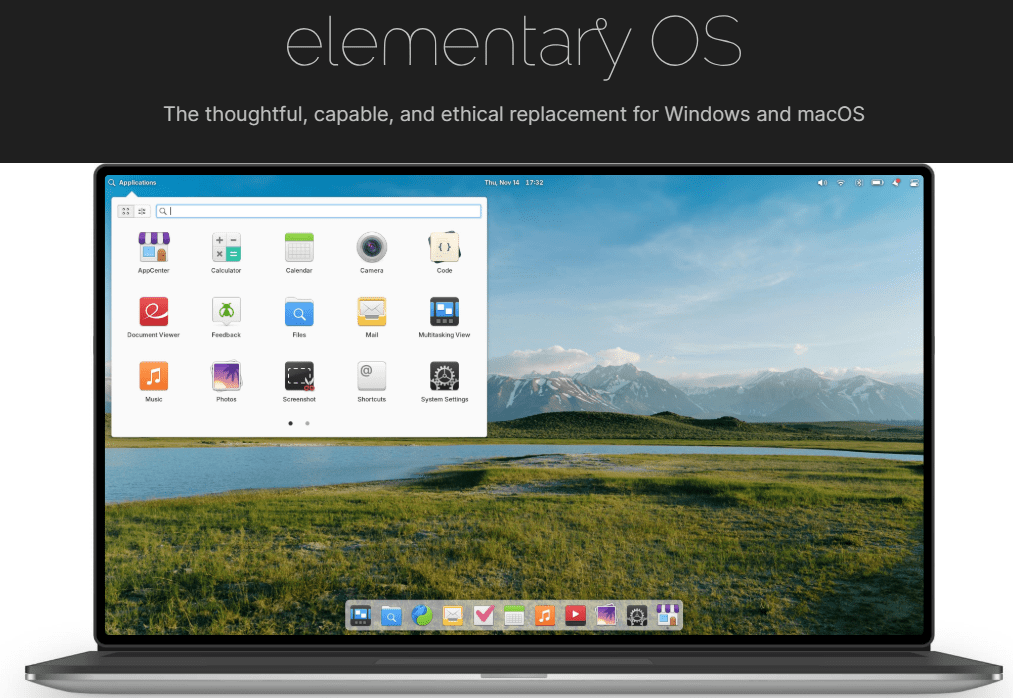
The first thing you’ll notice with Pantheon is how visually clean it is. From the dock panel to the application launcher, everything feels polished.
But here’s the thing — it looks a lot like macOS.
- The bottom dock resembles the macOS dock
- The window buttons (minimize, maximize, close) are placed differently
- The file manager, called simply Files, feels Apple-esque in layout and behavior
While some users will appreciate this layout, others (like myself) who aren’t fans of macOS may find it visually frustrating or counterintuitive.
🧠 Personal note: I personally don’t prefer macOS. Its ecosystem limitations and workflow feel restrictive to me. So, when I see those design inspirations in Linux, it’s a bit of a turn-off.
🧭 Exploring the Default Apps and UI Elements
Here’s what you get out-of-the-box with elementary OS + Pantheon:
- Web: the default browser (uses DuckDuckGo by default, privacy-friendly!)
- Music: for local audio playback
- Files: the file manager
- Photos, Videos, Terminal, and Calculator
- A very lightweight startup configuration — no unnecessary apps running by default
Display & Appearance Settings:
- You can change accent colors, toggle dark mode, and adjust the dock size or behavior.
- Caps Lock and Num Lock indicators are conveniently shown in the dock area.
One thing that stood out was how some settings seemed hidden or hard to find — like display resolution, which took a bit of clicking around to locate and change.
📁 File Manager Observations
The file manager (Files) doesn’t reveal its exact name in the system. There’s no option in the GUI to check version or backend (like Nautilus or Thunar). Functionally:






- You can expand folders in-place (like macOS Finder)
- Navigation is fairly simple
- But it lacks clarity in terms of “where” you are in the directory — especially if you expand multiple folder levels at once
❗ For power users or devs who rely on accurate path visibility, this could be confusing.
🔍 What I Liked & What I Didn’t
👍 Pros:
- Visually appealing UI, clean and distraction-free
- Privacy-focused browser settings by default
- Lightweight system with only ~1600 packages installed
- Smooth performance, even on basic hardware
- Easy to set up and quick to install
👎 Cons:
- Too similar to macOS (not great for everyone)
- Close/Minimize/Maximize buttons feel misplaced
- Lack of in-depth settings in some places
- Dock and UI behavior lacks flexibility compared to KDE or GNOME
- Still shows 195+ updates right after install, which feels incomplete or outdated
💬 Personal Verdict
Pantheon on elementary OS is perfect if:
- You love minimalism
- You appreciate design over flexibility
- You’re switching from macOS and want a Linux alternative
However, if you’re someone who:
- Loves customizing the desktop
- Needs in-depth system settings
- Dislikes the macOS UI pattern
…then you might not find Pantheon suitable as a daily driver.
🔧 System Overview & Commands Used
Here are some useful terminal commands I ran to check system details:
sudo apt update– showed pending 195 package updatesapt list --installed | wc -l– revealed around 1600 packages installed- System was relatively lean but needed updates immediately after install
🙋♂️ Frequently Asked Questions (FAQ)
❓ Can I use Pantheon desktop on other distros like Debian or Arch?
Yes, but the experience isn’t the same. It’s tightly integrated with elementary OS, and installing it elsewhere may lead to UI inconsistencies or missing features.
❓ Does elementary OS support app stores or software centers?
Yes, it includes its own AppCenter, focused on open-source apps, many of which follow its native design language.
❓ Is Pantheon good for low-end hardware?
Generally yes, but it’s still heavier than XFCE or LXQt. Best used on systems with at least 4GB RAM.
💻 Want to Try elementary OS with Pantheon?
👉 Official site: https://elementary.io
It’s a free download — just choose to pay what you want (including $0) on the site.
🔖 Tags
elementary os, pantheon desktop, linux desktop environments, linux ui review, open-source, macos alternative, beginner linux distro, ubuntu-based distro, linux for privacy, pantheon vs gnome
📢 Hashtags
#Linux #ElementaryOS #PantheonDesktop #LinuxReview #FOSS #OpenSource #LinuxForBeginners #DebianBased #MacOSAlternative #PrivacyFirst
⚠️ Disclaimer
This article represents personal opinions and real user experience. While elementary OS is stable and user-friendly, results may vary based on your system configuration. Always create a backup before switching operating systems.








