When it comes to video production, many people assume that only macOS or Windows can handle the task effectively. But Linux, with its powerful suite of free and open-source tools, is absolutely up to the challenge. In this blog post, we’ll walk through a complete Linux-based video creation workflow using three essential tools: Kdenlive, OBS Studio, and Inkscape. Whether you’re a content creator looking for alternatives or a Linux enthusiast aiming to upgrade your production game, this guide has everything you need.
Why Linux for Video Production?
Linux provides a powerful, cost-effective environment for video editing and content creation. With the right tools, it’s entirely possible to produce high-quality content on par with what’s created on other operating systems.
Step 1: Video Editing with Kdenlive
What is Kdenlive?
Kdenlive (KDE Non-Linear Video Editor) is a free and open-source video editing tool developed by the KDE community. It’s built on the MLT framework, which powers professional-grade editing capabilities.
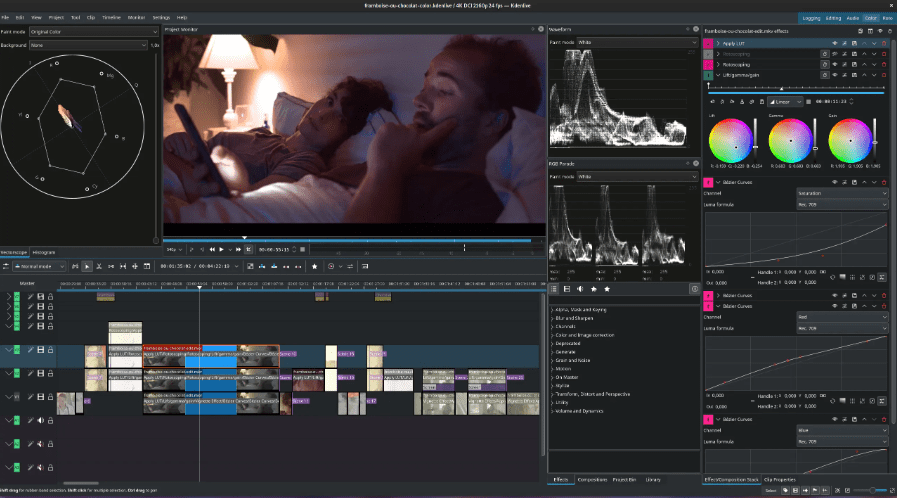
Key Features:
- Non-linear editing: Import clips and arrange them in a flexible timeline.
- Multiple track support: Layer audio, video, and effects.
- Proxy editing: Smoothly edit high-resolution videos (like 4K) by generating lower-resolution proxy files.
Workflow:
- Import video clips into your project.
- Synchronize external audio using “Align audio to reference.” This is helpful when combining high-quality microphone audio with poor camera audio.
- Edit your timeline: Remove awkward silences, trim bloopers, and organize your footage.
- Add overlays: Titles, images, video inserts, and transparent graphics.
- Use proxy clips to speed up editing large files.
- Render the final video in your preferred resolution.
Pro Tip: Kdenlive lacks GPU rendering, but proxy clips help reduce rendering lag significantly.
Captioning:
You can generate captions using built-in Whisper or Vosk models. Be ready to manually clean up technical jargon and punctuation for accuracy. Clear captions improve accessibility and SEO by feeding search engines more context through transcripts.
Step 2: Screen and Video Capture with OBS Studio
What is OBS Studio?
OBS Studio is the industry standard for screen recording and live streaming. It’s free, open-source, and widely supported across platforms, including Linux.
Key Features:
- Canvas-based layout: Add webcam, screen, and audio sources.
- Scene management: Customize different layouts for streaming or recording.
- Audio filters: Add EQ, gain, and other effects.
Typical Use Case:
- Capture external devices via HDMI through a capture card.
- Record screen tutorials using the desktop as the source.
- Mix in high-quality audio input (external mic or interface).
- Produce vintage computing content using devices like RetroTINK 5X or RGB-to-HDMI mods.
Note: For advanced hardware like Blackmagic DeckLink capture cards, use the native OBS version from your distro’s repo, not Flatpak, as Flatpak lacks support for DeckLink drivers.
Step 3: Thumbnail Creation with Inkscape
What is Inkscape?
Inkscape is a free vector graphics editor, ideal for creating high-quality thumbnails, channel graphics, and merchandise designs.
Workflow:
- Export a frame from Kdenlive as a PNG.
- Import into Inkscape and set up the canvas size.
- Add text and graphics using Futura or any other bold, readable font.
- Cut out images using paths and clips to isolate subjects.
- Duplicate outlines to create a stylish cutout effect.
Vector editing makes resizing and text manipulation easier compared to raster tools like GIMP or Photoshop.
Hardware & System Setup
Editing Rig:
- Built inside a Fractal North case.
- Runs Debian Trixie (upgraded from Sid for stability).
- Mixes between desktop environments like Gnome, KDE Plasma, and Sway.
Capture Devices:
- Blackmagic PCIe 4K cards (require proprietary DeckLink drivers).
- Elgato CamLink 4K as a reliable USB alternative.
Audio Interface:
- PreSonus AudioBox — reliable but aging.
- Uses PipeWire for audio routing and low-latency processing.
Cameras:
- Panasonic Lumix GH5 and others, ideal for recording CRT screens.
- Typically used for:
- Main recording (teleprompter).
- Streaming (above monitor).
- B-roll footage (third camera).
Buy used cameras and accessories when possible to save on cost while maintaining quality.
Q&A Section
Q: Can Linux really handle professional video editing?
A: Absolutely. With Kdenlive, OBS, and Inkscape, you can replicate most workflows found on Mac or Windows. It takes setup and some learning, but it’s very powerful.









Q: How do you handle performance without GPU acceleration in Kdenlive?
A: Use proxy editing, which converts high-resolution video to lower resolution for editing. Kdenlive still references original files at export.
Q: Which version of OBS should I install?
A: Use the native distro version if you use DeckLink devices. Otherwise, Flatpak from Flathub is regularly updated.
Q: Is Inkscape better than GIMP for thumbnails?
A: Yes, for text-heavy thumbnails. Inkscape (vector) handles text layout and scaling much better than GIMP (raster).
Final Thoughts
This workflow proves that Linux is a viable, cost-effective, and capable platform for serious content creators. You don’t need to rely on expensive software or operating systems to create high-quality videos.
Use the tools that best fit your style and budget. For me, that’s Linux — not because I dislike Windows or macOS, but because Linux gives me freedom, customization, and open-source power.
“I care more about what you build than how you’re building it.”
Tags:
video editing, linux workflow, kdenlive tutorial, obs studio, inkscape, linux for creators, open source video editing, screen recording linux, thumbnail design
Hashtags:
#LinuxVideoEditing #Kdenlive #OBSStudio #Inkscape #OpenSourceTools #VideoProduction #ContentCreation #LinuxWorkflow #FOSS #YouTubeWorkflow
Disclaimer:
This guide is based on a personal Linux-based workflow and may require additional technical setup depending on your hardware and distribution. Always check compatibility with your devices and software versions.








