🌟 Introduction: What Is Spotlight on macOS?
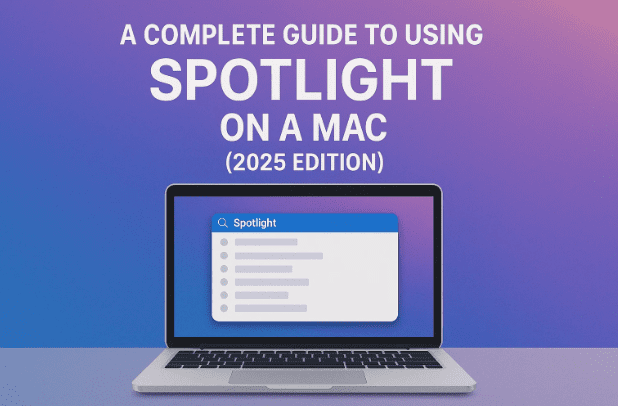
If you’re a Mac user, you’ve probably noticed the small magnifying glass icon at the top-right corner of your screen. That’s Spotlight — one of the most powerful built-in tools on macOS.
Think of Spotlight as your personal command center. It’s not just a search bar; it’s a multi-purpose launcher, calculator, dictionary, file finder, and workflow engine all rolled into one.
In this detailed guide, we’ll explore everything Spotlight can do — from quick searches to advanced commands, app launching, calculations, and even clipboard history. We’ll also explain the new four modes of Spotlight introduced in recent macOS versions and how to make the most of them.
⚡ 1. Launching Spotlight
Spotlight can be opened in two simple ways:
- Click the magnifying glass icon in the top menu bar.
- Or press the shortcut Command (⌘) + Spacebar.
A small text bar appears in the center of your screen. This is where all the magic begins.
You can immediately start typing — a file name, an app, a contact, or even a question — and Spotlight will begin showing results instantly.
🔍 2. The Universal Search Mode
When you launch Spotlight normally, it opens in Universal Search mode. This is the default and most versatile mode — it can look across:
- Your files and folders
- Emails, messages, calendar events
- Photos (including visual recognition)
- Safari bookmarks and browsing history
- App preferences and settings
For example:
- Searching for “invoice” might show PDFs, emails, and even Excel files with that word inside.
- Typing “restaurant” may show notes, calendar reservations, or even nearby map results.
- Searching “giraffe” could pull up photos that include a giraffe — even if they aren’t tagged as one.
You can press the arrow keys to move through results and hit Return (Enter) to open the selected item.
💡 Tip: Spotlight isn’t limited to file names. It searches inside documents too — making it one of the fastest ways to locate hidden files or forgotten notes.
💻 3. Applications Mode (Command + 1)
Let’s move to the next level. Spotlight now has four dedicated modes, and the first one is Applications Mode.

You can switch to it using:
- Keyboard: Command + Space, then Command + 1
- Or by clicking the Applications icon if you access Spotlight from the menu bar
In this mode, Spotlight only displays apps, not files or other data.
Start typing the app name — for instance, “Cal” will bring up Calculator, Calendar, or Call of Duty if installed.
You can press Return to open the app instantly.
If you prefer a compact view, toggle between Icon View and List View using the control at the top.
💡 Bonus Tip:
If you just type a few letters (like “saf” for Safari or “sys” for System Settings), Spotlight predicts the app you want. This makes it faster than manually clicking through Launchpad.
📂 4. Files Mode (Command + 2)
Next up is the Files Mode, designed to help you locate documents, images, and other data faster than Finder.
Activate it by pressing Command + 2 after launching Spotlight.
Here’s what you can do:
- See recently opened files listed automatically
- Search by file name, type, or even contents
- Use Quick Look (Spacebar) to preview files without opening them
Let’s go step by step:
- Open Spotlight → Press Command + 2.
- Start typing the document name or related keyword.
- Use ↓/↑ arrows to navigate results.
- Press Return to open or Command + R to show the file’s location in Finder.
- Use Spacebar to preview any file quickly.
🎯 Advanced Filtering in Files Mode
You can narrow your search further:
- Use a forward slash (/) followed by an app name or type:
/Numbers– shows only Numbers spreadsheets./PDF– filters PDF files.
- Use a slash + folder name to search inside specific folders.
You can also use operators like:
name:invoice— finds only files with “invoice” in the titletest AND report— must contain both wordstest OR report— either termNOT report— excludes that word
This makes Spotlight a powerful search engine within your Mac’s storage.
⚙️ 5. Actions Mode (Command + 3)
Spotlight’s Actions Mode is where productivity meets automation. It allows you to perform tasks directly — no need to open apps first.
You can access it with Command + 3 or by selecting the Actions icon in the Spotlight interface.
Here are some things you can do directly from Spotlight Actions:
- Start a Timer:
Type “start timer” → enter “10 minutes” → press Return.
Your Clock app begins the timer instantly. - Send a Message:
Type “send message to John” → write your text → press Return. - Send an Email:
Type “send email to Alex” → add subject and body → Return. - Create Calendar Events:
Type “new event meeting tomorrow 10am” — Spotlight adds it to Calendar automatically. - Move or Rename Files:
Type “move file” while a file is selected → choose destination folder → Return.
💡 Quick Keys for Actions:
You can create shortcuts like “ST” for “Start Timer” or “CN” for “Create New Calendar Event.”
Go to System Settings → Keyboard → Shortcuts → Spotlight, and customize quick keys for faster workflows.
You can even run your Shortcuts from here. For example, if you have a “Resize Image” shortcut saved, typing its name in Spotlight can execute it without opening the Shortcuts app.
📋 6. Clipboard Mode (Command + 4)
Spotlight also doubles as a clipboard manager, letting you access items you copied in the last few hours.
To use it, press Command + 4 after opening Spotlight.
You’ll see a list of copied items — text, images, or even files.
- Click or use arrow keys to select an entry.
- Press Return to paste it into your current app.
- Right-click or Control-click any item to copy, delete, or mark it as current.
- Use the three-dot icon (…) to clear all clipboard history.
Spotlight stores clipboard data for up to 8 hours, excluding passwords and sensitive data.
This means you can safely copy multiple items and paste them later — a feature previously available only through third-party clipboard apps.
🧮 7. Other Hidden Spotlight Features
Beyond its four primary modes, Spotlight has several built-in utilities that can replace small standalone apps.
Here are some of the most useful:
🔢 a) Calculator
Type any math equation directly:
(45 + 20) * 3
Press Return to get the result instantly.
You can perform complex expressions using parentheses, percentages, and exponents.
🌍 b) Unit & Currency Conversion
Type something like:
60 cm to inches30 mpg to l/100km100 USD to EUR
Spotlight uses real-time internet data to convert units and currencies accurately.
📈 c) Stock Prices and Weather
Type:
AAPL→ shows Apple’s stock dataWeather New York→ current conditions and forecast
⏰ d) World Clock and Time
Type:
time in London→ shows local time instantly
✈️ e) Flights and Sports Scores
Type:
- A flight number (e.g., AA203) → shows departure, arrival, and gate details
- A team name → displays latest game results or schedule
🎬 f) Movie Showtimes
Type:
Showtimesor a movie title → see nearby theatres and times
📖 g) Dictionary and Definitions
Type a word like “meticulous” or use define meticulous. Spotlight provides an instant dictionary definition.
📍 h) Location Search
Type a location name (like “Eiffel Tower”) → view Maps preview and directions.
🔎 i) Web Search Shortcut
If you type something general (like “mac shortcuts”) and press Command + B, Spotlight automatically opens it as a web search in Safari using your default search engine.
🪄 8. Hidden Tricks and Productivity Boosters
- Access Menu Items:
Type a command like “Strikethrough” while in Pages — Spotlight can execute it directly, acting like a universal command search. - Search History:
Use the Up Arrow (↑) in Spotlight to scroll through your previous searches. - Quick Actions from Shortcuts:
In the Shortcuts app, check “Show in Spotlight” for any shortcut you want to run directly from Spotlight search.
⚙️ 9. Customizing Spotlight in macOS Settings
Spotlight is highly customizable. Open System Settings → Siri & Spotlight to adjust what appears in your search results.
Here you can:
- Turn off results from certain apps (like Books, Podcasts, or Reminders).
- Hide results from specific folders to declutter searches.
- Manage clipboard history.
- Reset or delete your Spotlight search history.
💡 Exclude Folders:
If certain folders (like cache directories) always appear in results, click Privacy, then +, and add them. Spotlight will skip indexing them in the future.
You can also modify Spotlight’s keyboard shortcuts under System Settings → Keyboard → Keyboard Shortcuts → Spotlight if Command + Space conflicts with another tool.
❓ Frequently Asked Questions
Q1. Can Spotlight search external drives or network locations?
Yes, as long as the drive is indexed by Spotlight. If not, open System Settings → Siri & Spotlight → Privacy → and remove it from the excluded list.
Q2. How do I make Spotlight search faster?
Turn off irrelevant categories (like Books, Podcasts, or Contacts) in Spotlight settings. This reduces indexing load and improves responsiveness.
Q3. Does Spotlight use the internet for search results?
Some results — like weather, currency conversion, or Siri Suggestions — use online data, but local file searches remain offline and private.
Q4. Can I disable Spotlight Clipboard history?
Yes. Go to System Settings → Siri & Spotlight → uncheck Clipboard.
🧭 Final Thoughts
Spotlight has evolved from a simple file search tool into an intelligent Mac command center. Whether you want to open apps, search files, perform conversions, manage your clipboard, or automate workflows — Spotlight can do it all from one place.
Once you master its four modes (Apps, Files, Actions, Clipboard) and quick shortcuts, you’ll barely need your mouse.
Take some time to explore, customize it to your needs, and you’ll discover that Spotlight is one of the most underrated productivity tools on macOS.
⚠️ Disclaimer
This article is for educational purposes only. Features described here are based on macOS 15 “Tahoe” and may vary slightly across different macOS versions. Always update your system to the latest release for the most stable Spotlight experience.
For more details, visit Apple’s official support page:
🔗 https://support.apple.com/mac-spotlight
#macOS #Spotlight #AppleTips #MacGuide #Productivity #MacShortcuts #Finder #ClipboardManager #macOSTutorial #TechGuide








