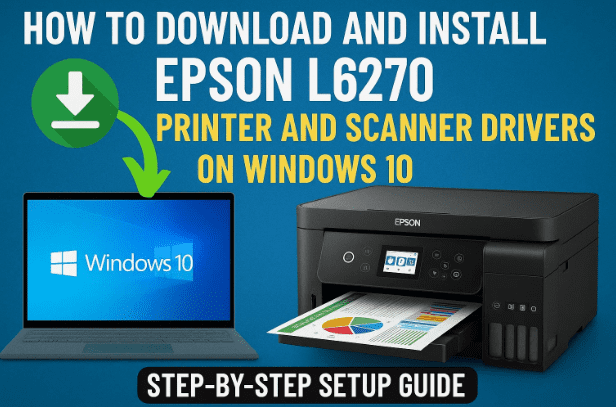
Setting up a new printer can sometimes feel like solving a puzzle — especially when it comes to installing the right drivers. If you’ve recently purchased an Epson EcoTank L6270 All-in-One printer, this detailed guide will help you install both printer and scanner drivers correctly on your Windows 10 PC or laptop, ensuring smooth printing, scanning, and copying.
The process is simple, but there are a few key steps you must follow in the right order — from checking your system type to extracting the files and connecting the printer properly. Let’s go step-by-step and get your Epson L6270 running perfectly.
Understanding the Epson L6270 EcoTank Series
Before we jump into the installation, let’s take a quick look at what the Epson L6270 offers.
It’s a high-performance EcoTank All-in-One printer designed for home and small office use, known for its:
- Ultra-high page yield — up to 4,500 black and 7,500 color prints per ink refill set.
- Support for wireless and duplex (double-sided) printing.
- Integrated Epson Scan 2 software for document and photo scanning.
However, none of these functions will work properly until the correct drivers are installed. Drivers act as the bridge between your printer hardware and Windows system.
Step 1: Check Your Windows System Type (32-bit or 64-bit)
Before downloading any driver, it’s crucial to confirm whether your computer is running a 32-bit or 64-bit version of Windows. Installing the wrong version can cause driver errors.
Here’s how to check it easily:
- Right-click on This PC or My Computer on your desktop or in File Explorer.
- Click Properties.
- Under the System section, look for System type.
- If it says 64-bit Operating System, download the 64-bit driver.
- If it says 32-bit Operating System, download the 32-bit version.
Once you know this, close the window and move to the next step.
Step 2: Visit the Official Epson L6270 Driver Download Page
Now that you know your system type, it’s time to get the official drivers.
- Open your preferred web browser (like Chrome or Edge).
- In the address bar, type or visit the following official Epson India link:
👉 https://www.epson.co.in/Support/Printers/All-In-One/L-Series/Epson-L6270/s/SPT_C11CJ61502 - Once the page opens, it should automatically detect your operating system version.
- If it doesn’t, use the drop-down menu to manually select Windows 10 (32-bit) or Windows 10 (64-bit).
- Click on the Go button to display available software.
You’ll see two main sections:
- Printer Driver and Utilities Combo Package (for printing)
- Scanner Driver (Epson Scan 2)
Step 3: Download Both Printer and Scanner Drivers
Let’s begin by downloading both drivers one by one.
- Under the Drivers section, click the + icon to expand it.
- Find and download the following:
- Printer Driver v2.13.00 — this includes printing and basic utility tools.
- Epson Scan 2 — required for scanning functions.
- Click the Download button for each.
- You may be asked to accept terms and conditions — click I Agree and the downloads will begin.
The files will appear at the top of your browser (or in your “Downloads” folder) once completed.





Step 4: Extract the Downloaded Files
So far, so good — now it’s time to unpack those files.
- Go to your Downloads folder.
- Right-click the downloaded printer driver file (usually a
.zipor.exe). - Choose Extract All → select a destination folder (you can create one named
EpsonL6270on your desktop). - Repeat the same extraction process for the scanner driver file.
Once extracted, you’ll see separate folders — one for the printer driver and one for the scanner.
Step 5: Connect Your Epson L6270 Printer to the Computer
Now let’s connect the printer physically.
- Plug in the printer’s power cable and USB cable to your computer.
- Make sure the printer is powered off while connecting.
- Once connected, turn the printer ON.
Windows might automatically detect it, but if it doesn’t, we’ll add it manually in the next step.
Step 6: Manually Add the Printer in Windows
If your system doesn’t auto-install the printer, here’s how to add it manually:
- Click the Start button → search for Printers & Scanners → open it.
- Click on Add a Printer or Scanner.
- Wait a few moments — if your printer doesn’t appear, click The printer that I want isn’t listed.
- Choose Add a local printer or network printer with manual settings and click Next.
- Under Use an existing port, choose your USB port (usually something like
USB001orUSB002). - Click Next.
We’re now ready to link the extracted driver files.
Step 7: Browse and Install the Printer Driver
- On the next screen, click Have Disk.
- Click Browse and navigate to the folder where you extracted your printer driver files.
- Open the folder until you see
.inffiles. - Select one and click Open → OK.
- From the list, select Epson L6270 Series.
- Click Next and name the printer (for example: “Epson L6270”).
- Installation will begin — wait for a few minutes.
Once finished, choose:
- “Do not share this printer” (recommended for personal use).
- Click Next → then Print a Test Page to confirm everything’s working.
Your printer is now successfully installed!
Step 8: Install the Scanner Driver (Epson Scan 2)
To use the scanner portion of your Epson L6270, install the Epson Scan 2 driver.
- Go to the extracted Epson Scan 2 folder.
- Right-click the installer file (
Setup.exe) and select Run as administrator. - Click Yes when prompted.
- Follow the on-screen instructions — accept the terms, click Next, and let it install.
- When complete, click Finish.
You can test scanning later using Epson Scan 2 from your Start menu.
Step 9: Verify Installation
After completing both installations, it’s time to check everything:
- Go to Printers & Scanners again.
- You should now see Epson L6270 Series listed.
- Click on it → select Manage → choose Print a Test Page to confirm.
- For scanning, open the Epson Scan 2 app and test by scanning a document or photo.
If both printing and scanning work, congratulations — your setup is complete! 🎉
Optional: Wireless Setup
While this guide focuses on USB installation, the Epson L6270 also supports Wi-Fi Direct and network printing. Once you’ve installed the drivers, you can configure wireless printing via the Epson Smart Panel app (available on Android/iOS) or through the printer’s control panel under Network Settings → Wi-Fi Setup Wizard.
This allows you to print directly from mobile devices or any PC connected to the same network.
Troubleshooting Tips
Even with a smooth installation, you might occasionally face some minor issues. Here are common fixes:
- Printer not detected: Try a different USB port or cable.
- Driver installation failed: Make sure Windows 10 is up to date, and that you’ve chosen the correct driver bit version.
- Scanner not found: Launch Epson Scan 2, go to Settings → Add, and select the detected device manually.
- Slow printing: Run Epson Printer Utility → Maintenance → Head Cleaning for performance tuning.
Frequently Asked Questions (FAQ)
Q: Can I use the same driver for Windows 11?
Yes, the Epson L6270 drivers for Windows 10 are compatible with Windows 11 (both 32-bit and 64-bit).
Q: What if I only want to install the scanner without the printer driver?
You can — just download and install only the Epson Scan 2 driver from the same page.
Q: My printer is connected via Wi-Fi but not detected in Windows. What should I do?
Ensure both the printer and PC are connected to the same Wi-Fi network. Then add it manually through Printers & Scanners → Add a printer via network address.
Q: Do I need to uninstall old Epson drivers before installing new ones?
If you’ve previously installed a different Epson model, it’s a good idea to remove it first to avoid conflicts.
Final Thoughts
Setting up your Epson L6270 EcoTank printer on Windows 10 doesn’t have to be complicated. Once you follow the steps — check system type, download the official drivers, extract, install via USB, and verify with a test print — your printer and scanner will be ready for everyday use.
The L6270 is a reliable all-in-one choice for those who print frequently. Its ink tank system saves money in the long run, and its wireless features make it future-ready.
So, if your printer is new or freshly reinstalled, following this guide ensures it runs flawlessly from the very start.
Official Epson Driver Download Page:
👉 https://www.epson.co.in/Support/Printers/All-In-One/L-Series/Epson-L6270/s/SPT_C11CJ61502
Disclaimer:
This article is intended for educational purposes to assist in correctly installing Epson printer drivers on Windows. Always download drivers from Epson’s official website to ensure safety and compatibility.
#EpsonL6270 #PrinterSetup #Windows10 #EcoTank #EpsonDrivers #Scanning #Printing #TechGuide #EpsonSupport








