After working with Windows computers for over 35 years, I’ve identified seven common reasons why PCs slow down—whether gradually over time or suddenly overnight. In this guide, I’ll walk you through each issue and provide step-by-step solutions to restore your computer’s speed.

1. Hardware Limitations (Needs an Upgrade)
Many budget PCs come with slow mechanical hard drives (HDD) or insufficient RAM, drastically reducing performance.
How to Fix:
✅ Upgrade to an SSD – Replacing an HDD with an SSD can 5x your computer’s speed.
✅ Increase RAM – Use Crucial’s Memory Scanner to check your max RAM capacity.
- Example: If your PC has 4GB RAM but supports 16GB, upgrading will make a massive difference.
🔹 Pro Tip: If your PC is older than 5-7 years, consider a full replacement instead of upgrades.
2. Failing or Fragmented Hard Drive
A corrupted file system or failing drive forces Windows to search longer for files, slowing everything down.
How to Fix:
✅ Run chkdsk (Check Disk Utility)
- Open Command Prompt as Admin (
Win + X> Terminal (Admin)). - Type:
chkdsk /f
(Fixes file system errors)
- For deeper checks:
chkdsk /r
(Scans for bad sectors and recovers data)
⚠️ Warning: If chkdsk /r takes days, your drive may be failing—back up data immediately!
3. Faulty RAM (Memory Issues)
Bad RAM causes freezes, crashes, and slowdowns because Windows struggles to manage processes.
How to Test RAM:
✅ Built-in Windows Memory Diagnostic



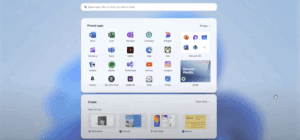

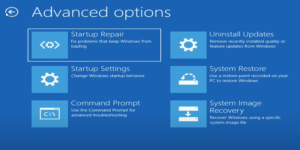

- Search for “Windows Memory Diagnostic” > Restart & check for problems.
✅ Advanced: MemTest86 (More Reliable)
- Download MemTest86 (Free).
- Create a bootable USB and run a full scan.
🔹 If errors appear, replace the faulty RAM stick(s).
4. Low Disk Space (Clogged Storage)
When your drive is 90%+ full, Windows can’t manage temporary files efficiently.
How to Fix:
✅ Use WinDirStat (Free Tool)
- Download WinDirStat
- Scans your drive and shows largest files/folders.
- Delete unnecessary files (old downloads, temporary files).
✅ Run Disk Cleanup
- Search for “Disk Cleanup” > Select drive > Clean up system files.
5. Too Many Startup Programs
Unnecessary apps launching at boot dramatically slow down startup and overall performance.
How to Fix:
✅ Disable Startup Apps
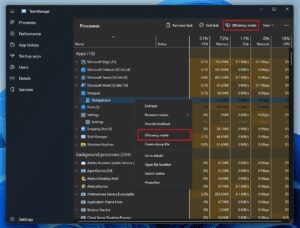
- Open Task Manager (
Ctrl + Shift + Esc). - Go to Startup tab > Disable unnecessary programs (e.g., OneDrive, Adobe Updater).
✅ Check Background Processes
- In Task Manager, sort by CPU/Memory usage and End Task on high-resource apps.
6. Malware or Viruses
Malicious software hogs resources, slows performance, and risks data theft.
How to Fix:
✅ Use a Reliable Antivirus
- Avoid Norton/McAfee (known to slow PCs).
- Recommended: Bitdefender or Malwarebytes.
✅ Run a Full Scan
- Remove any detected threats.
7. Corrupt Windows Files
A failed Windows update or system corruption can cripple performance.
How to Fix:
✅ Run System File Checker (sfc /scannow)
- Open Command Prompt as Admin.
- Type:
sfc /scannow
(Repairs corrupted system files)
✅ Reset Windows (Last Resort)
- Go to Settings > System > Recovery > Reset this PC.
- Choose “Keep my files” (reinstalls Windows but keeps personal data).
⚠️ Warning: Backup important files before resetting!
Final Verdict: Should You Fix or Replace?
- Fix if:
- Your PC is <5 years old.
- Upgrades (SSD/RAM) make it fast enough.
- Replace if:
- It’s >7 years old.
- Even after fixes, it’s still slow.
🔹 Need a new PC recommendation? Email askyourcomputerguy@example.com with your usage needs!
Tags:
Windows slow PC, speed up Windows, fix slow computer, Windows optimization, SSD upgrade, RAM upgrade
Hashtags:
#WindowsTips #PCOptimization #SlowPCFix #TechTips #UpgradeYourPC
Disclaimer: Always back up data before making system changes. Some fixes require technical knowledge—proceed with caution.
Found this helpful? Share your experience in the comments! 🚀







