Are you frustrated with your computer’s poor gaming performance or unexpectedly low FPS (frames per second)? Many gamers face this issue and often assume the only solution is upgrading their hardware — something not always feasible for everyone. The good news is, there are several practical tweaks and fixes that can significantly improve your gaming experience without spending a dime.

This article explores the seven most common reasons for low FPS and poor performance in games on Windows PCs — along with detailed solutions for each issue.
1. Background Applications Eating Up Resources
One of the most common performance killers is background applications consuming memory and CPU power. Programs like Google Chrome, Discord, Steam, Spotify, or Lively Wallpaper often continue running even when you’re gaming.
How to fix:
- Press
Ctrl + Shift + Escto open Task Manager. - Identify applications you don’t need during gameplay.
- Right-click each and select End Task.
Focus all system resources on your game by closing all unrelated apps before launching it.
2. Low VRAM (Video RAM)
If your GPU (graphics card) runs out of VRAM, it can lead to stuttering, slow loading, and overall poor performance. Unfortunately, many budget or mid-range PCs come with limited VRAM.
Solutions:
- Some BIOS settings allow you to allocate more VRAM. Look for Integrated Graphics Configuration in BIOS.
- If your system doesn’t support VRAM changes, upgrading your GPU might be necessary.
👉 Refer to your GPU manufacturer’s site for VRAM upgrade or settings documentation:
3. XMP/EXPO Disabled in BIOS
XMP (Extreme Memory Profile) for Intel or EXPO (Extended Profiles for Overclocking) for AMD allows your RAM to run at its rated speed, significantly improving performance.
How to enable:
- Reboot your PC and enter the BIOS/UEFI settings (usually by pressing
DELorF2during startup). - Find the XMP/EXPO option and enable it.
- Save and exit BIOS.
This small tweak can enhance system responsiveness and boost your FPS in games.
4. Outdated GPU Drivers
Outdated GPU drivers can cause performance issues, especially with newer games that rely on optimized driver support.
How to update:
- Press
Windows + X→ click Device Manager. - Expand Display adapters, right-click your GPU, and choose Update driver.
- Click Search automatically for drivers.
Alternatively, visit your GPU manufacturer’s site:
5. Games Installed on a Hard Disk Drive (HDD)
Modern games demand high read/write speeds, which HDDs often can’t provide. If your game is installed on an HDD, this can lead to longer loading times and lower FPS.








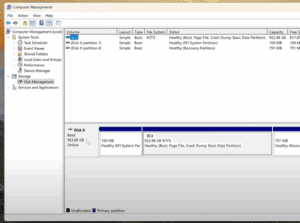



Solution:
- Move your games to an SSD (Solid State Drive). SSDs significantly improve load times and overall game responsiveness.
6. In-Game Graphics Settings Are Too High
Many users unknowingly max out graphics settings, assuming their PC can handle it. However, running games on ultra settings with limited hardware will result in lag and frame drops.
What to do:
- Open your game’s graphics settings.
- Lower settings like texture quality, anti-aliasing, shadows, etc.
- Monitor FPS using built-in or third-party FPS counters and adjust settings accordingly.
7. GPU Power Limit Set to Default
Modern GPUs can dynamically boost their performance, but only if they aren’t constrained by default power limits. Raising the power limit can give a modest FPS boost if your PSU (power supply unit) and thermals allow it.
Note:
Tools like MSI Afterburner can help manage GPU power limits — but tweak settings with caution to avoid overheating or instability.
Final Thoughts
If you’re experiencing poor FPS or choppy gameplay, you don’t need to rush into buying a new PC. Implementing the above seven fixes can often yield noticeable improvements in your gaming performance.
Make it a habit to:
- Keep your system clean and up to date
- Adjust game settings based on your hardware
- Utilize BIOS optimizations when available
By following these steps, you can extend your system’s gaming life and enjoy smoother gameplay.
Tags:
PC gaming performance, improve FPS, gaming on low-end PC, gaming tips, VRAM issues, SSD vs HDD, GPU drivers update, gaming BIOS tweaks
Hashtags:
#GamingTips #PCPerformance #LowFPSFix #BoostFPS #GamerGuide #WindowsGaming #XMP #EXPO #GPUdrivers #SSDgaming
Disclaimer:
Modifying BIOS settings or GPU power limits may affect your system’s stability and should be done carefully. Always back up important data before making significant changes to your system settings.








