Gaming laptops are powerful machines, but getting the most out of them requires smart usage and maintenance. Whether you’re a casual gamer or a competitive player, these 50 expert tips will help you boost performance, extend battery life, and avoid common mistakes.

🔋 Battery & Power Management
- Always plug in while gaming – Running on battery limits FPS.
- Avoid frequent charge cycles – Keep it plugged in to preserve battery health.
- Cap battery charge at 80% (if supported) to prevent long-term degradation.
- Lower screen brightness & refresh rate (60Hz) for better battery life.
- Use Optimus (iGPU mode) when not gaming to save power.
🛠️ Hardware & Maintenance
- Raise the laptop’s back for better airflow (use a stand or book).
- Never block vents – Avoid soft surfaces like beds that trap heat.
- Clean dust every 6-12 months to prevent overheating.
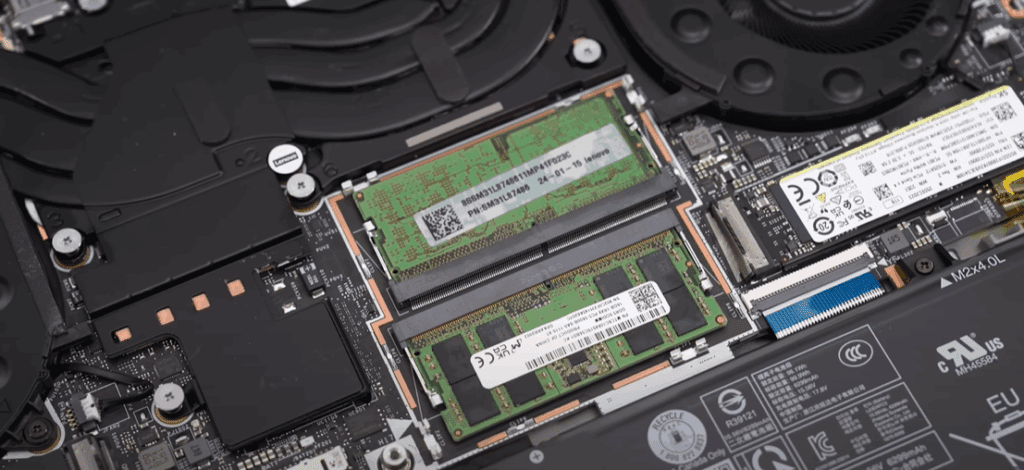
- Use dual-channel RAM (DDR4/DDR5) for better performance.
- Avoid HDDs – Always upgrade to an SSD for faster load times.
- Replace cheap factory thermal paste for better cooling.
- Check port layout before buying – Left-side ports annoy right-handed mouse users.
- Ensure all necessary ports (Ethernet, Thunderbolt, SD card) are included.
⚡ Performance Optimization
- Disable Core Isolation (Windows Security) for an FPS boost.
- Use Advanced Optimus (if available) for automatic GPU switching.
- Remove bloatware & antivirus – Windows Defender is sufficient.
- Limit FPS in games to reduce heat and fan noise.
- Customize in-game settings for the best balance of visuals & performance.
- Enable DLSS/FSR/XeSS for higher FPS without sacrificing quality.
- Undervolt the GPU for lower temps and stable performance.
🎮 Gaming-Specific Tips
- Avoid external GPUs (Thunderbolt 3/4) – Wait for Thunderbolt 5.
- Upgrade to 32GB RAM if playing modern AAA titles.
- Match GPU to resolution – RTX 4080+ is overkill for 1080p.
- Skip 4K on small screens – 1440p is ideal for gaming laptops.
- Calibrate your display (or use an ICC profile) for accurate colors.
💡 General Usage & Upkeep
- Use a laptop bag with padding to prevent damage.
- No eating/drinking near the laptop – Avoid spills & crumbs.
- Handle with care – Rough usage shortens lifespan.
- Disable startup apps for faster boot times.
- Reinstall Windows yearly to remove software bloat.
🛒 Buying & Upgrading Advice
- Check reviews before buying – Performance, thermals, and build quality vary.
- Prioritize GPU over CPU – It’s the most critical for gaming.
- Test keyboards & touchpads in-store before purchasing.
- Buy during Black Friday or July for the best deals.
- Avoid overspending – Diminishing returns kick in past mid-range.
- Consider used laptops to save money.
- 16-inch laptops offer the best balance of portability & performance.
🎨 Personalization & Aesthetics
- Customize RGB lighting (red for +5 FPS, obviously 😉).
- Use dark mode to reduce eye strain.
- Set a custom wallpaper for a personal touch.
🚀 Future-Proofing & Trends
- New laptop models debut at CES (January) – Watch for RTX 50-series updates.
- Gaming laptops last 3-5 years – Upgrade only when necessary.
- Avoid overclocking – Minimal gains, not worth the effort.
🔗 Helpful Resources
- Best Deals: GamingLaptop.Deals (Updated Daily)
- Driver Updates: NVIDIA | AMD
Final Thoughts
By following these 50 gaming laptop tips, you’ll maximize performance, extend lifespan, and enhance your gaming experience. Whether tweaking settings, optimizing hardware, or shopping smartly, every tip helps you get the most from your machine.
🔹 Have more tips? Share them in the comments!
Tags
Gaming Laptop, PC Gaming, Performance Tips, Laptop Maintenance, Tech Guide
Hashtags
#GamingLaptop #PCTips #GamingPerformance #TechTips #LaptopGuide
Disclaimer:
- Some features (e.g., Advanced Optimus, undervolting) depend on laptop model.
- Always back up data before reinstalling Windows.
Now go game smarter, not harder! 🎮💻
Visited 26 times, 1 visit(s) today