If you’ve invested in a high-end gaming PC, you want every bit of performance you paid for. However, many gamers unknowingly leave free performance on the table due to improper system optimization. In this guide, we’ll cover five key ways you might be limiting your gaming performance—and how to fix them.

1. Enable XMP/EXPO for Faster RAM Speeds
What is XMP/EXPO?
XMP (Extreme Memory Profile) is an Intel technology that allows RAM to run at its advertised speeds instead of default (JEDEC) speeds. AMD has a similar feature called EXPO (Extended Profiles for Overclocking) for AM5 systems, while older AMD platforms use DOCP (Direct Overclock Profile).
Why Enable It?
- Most RAM kits run at 4800 MHz (DDR5) or 2133/2400 MHz (DDR4) by default.
- Enabling XMP/EXPO unlocks the full speed (e.g., 6000 MHz, 6400 MHz).
- Faster RAM improves minimum FPS, 1% lows, and overall smoothness, especially in CPU-bound games.
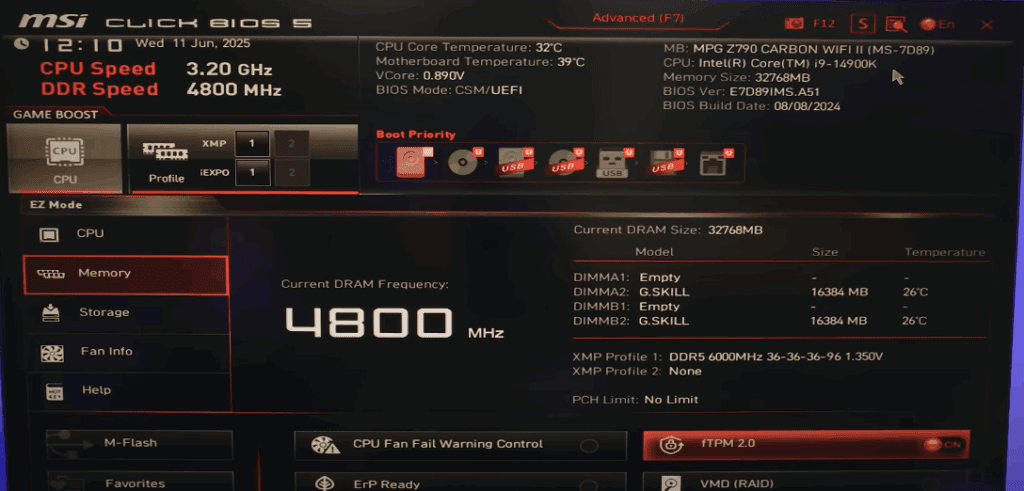
How to Enable It?
- Restart your PC and enter BIOS/UEFI (usually by pressing DEL, F2, or F12 during boot).
- Look for XMP, EXPO, or DOCP in the memory settings.
- Select the correct profile and save changes.
What If It Doesn’t Boot?
- XMP/EXPO is technically an overclock—some CPUs/motherboards may not handle the highest speeds.
- If your system crashes, try manually lowering the speed (e.g., from 6600 MHz to 6400 MHz).
How to Check Your RAM Speed?
- Open Task Manager (Ctrl+Shift+Esc) → Performance → Memory.
- Use CPU-Z (under the “Memory” tab).
🔹 Pro Tip: Some BIOS updates reset XMP/EXPO—always double-check after a crash or update.
2. Optimize GPU Fan Curves for Better Cooling & Performance
Why Does Cooling Matter?
Modern GPUs (NVIDIA & AMD) use boost clocks that dynamically adjust based on temperature:
- NVIDIA GPUs lose 15 MHz per ~5°C after 45°C.
- AMD GPUs also downclock as temps rise.
A hotter GPU = lower sustained clock speeds = fewer FPS.
How to Optimize Fan Curves?
- Use MSI Afterburner, ASUS GPU Tweak, or Fan Control (Download Fan Control).
- Set a more aggressive fan curve—most stock curves prioritize silence over cooling.
- Aim for 70-80% fan speed under load (if noise isn’t an issue).
Case Airflow Matters Too!
- If your case has poor airflow, your GPU will recycle hot air, leading to thermal throttling.
- Ensure proper intake/exhaust fan balance.
🔹 Pro Tip: Link case fans to GPU temperature (using Fan Control) for better cooling.
3. Use the Correct Windows Power Plan (Especially for AMD X3D CPUs)
AMD Ryzen X3D CPUs (7800X3D, 7950X3D, etc.)
- Problem: If Windows is set to “Ultimate Performance”, it may prioritize the higher-clocked CCD over the 3D V-Cache CCD, hurting gaming performance.
- Fix: Use “Balanced” or “AMD Ryzen Balanced” power plan.
Intel Hybrid CPUs (12th Gen and Newer)
- Problem: Games may accidentally run on E-cores (Efficiency cores) instead of P-cores (Performance cores).
- Fix: Use “Balanced” or “High Performance” mode.
🔹 Pro Tip: For Intel, disable “E-cores” in BIOS if you’re only gaming (but this may hurt multitasking).
4. Keep GPU Drivers Updated (But Be Cautious)
Why Update Drivers?
- New games often require the latest drivers for optimal performance.
- Bug fixes, stability improvements, and performance optimizations are common.
When to Avoid Updates?
- If a new driver is buggy (check forums like Reddit or NVIDIA/AMD subreddits).
- If you’re playing older games that worked fine before.
🔹 Pro Tip: Use DDU (Display Driver Uninstaller) before installing new drivers to avoid conflicts.
5. Disable Virtualization-Based Security (VBS) for Maximum FPS
What is VBS?
- A security feature that protects against malware, ransomware, and memory exploits.
- Downside: Can reduce gaming performance by ~5% or more due to CPU overhead.
Should You Disable It?
- Only if:
- You only game on this PC (no banking/sensitive tasks).
- You’re chasing maximum FPS (e.g., competitive esports).
How to Disable VBS?
- Open Windows Search → Type “Core Isolation” → Turn off “Memory Integrity”.
- Open Command Prompt as Admin → Run:
bcdedit /set hypervisorlaunchtype off - Restart your PC.
⚠️ Warning: Disabling VBS reduces security—only do this on a dedicated gaming PC.
Bonus: Check Your Monitor Refresh Rate!
- Many gamers forget to enable 144Hz, 240Hz, etc. in Windows.
- Right-click Desktop → Display Settings → Advanced Display → Refresh Rate.
Final Thoughts
By optimizing these settings, you can gain 10-20% more FPS without spending a dime. Which tip helped you the most? Let us know in the comments!
Tags:
gaming performance, PC optimization, FPS boost, XMP, EXPO, GPU cooling, AMD X3D, Intel hybrid CPUs, VBS, driver updates







Hashtags:
#GamingPC #PCOptimization #FPSBoost #XMP #GPUPerformance #AMD #Intel #PCGaming
🔗 Useful Links:
Disclaimer: Overclocking and disabling security features (like VBS) may void warranties or reduce system stability. Proceed at your own risk.
Did we miss any optimization tips? Drop your suggestions below! 🚀








