If your Windows 10 or 11 machine takes forever to start, you’re definitely not alone. That frustratingly long wait after pressing the power button is something we’ve all experienced. And while Windows may look “ready,” it’s often still grinding away in the background with bloat, unnecessary startup apps, and even misleading features that actually make things slower.
Let’s fix that.
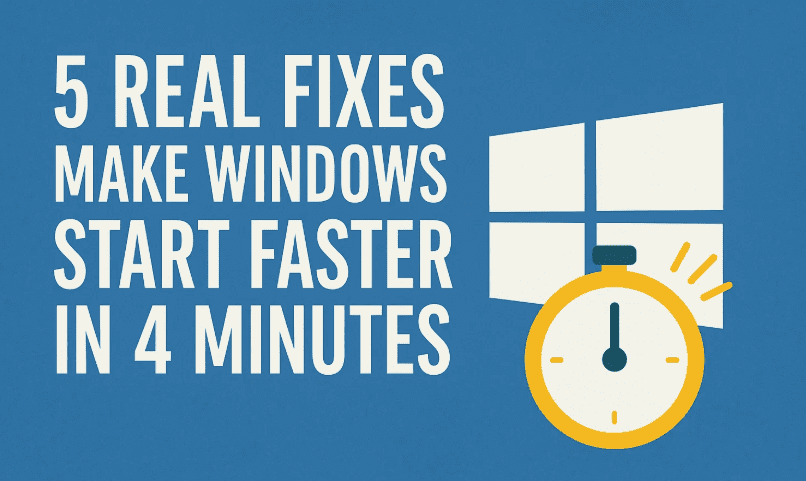
This article walks you through five proven steps that genuinely work to reduce your PC’s boot time. These aren’t gimmicks—they’re real system-level changes that can give you back valuable time every day.
✅ Disclaimer: Always back up important files before making major changes to system configurations. Some settings here may affect how other software or features behave. These tweaks are safe for most users, but caution is always good practice.
🔧 Step 1: Disable Fast Startup (Yes, Seriously)
Let’s start with something that sounds helpful but often does more harm than good—Fast Startup.
While it’s meant to speed things up by caching system files between shutdowns, it’s notorious for causing black screens, high disk usage, and delayed boots. Disabling it can actually fix several hidden problems.
Here’s how to turn it off:
- Press
Startand type Control Panel. - Go to Power Options.
- On the left, click Choose what the power buttons do.
- Then click Change settings that are currently unavailable.
- Uncheck Turn on fast startup (recommended).
- Click Save changes and restart your PC.
🎯 Why this works: Disabling Fast Startup gives you a clean, full boot process and reduces conflicts with updates or drivers.
🗂️ Step 2: Disable Heavy Startup Programs
Let’s move to the next big culprit—startup apps. These programs silently launch every time your PC boots, gobbling up resources before you even see your desktop.
Here’s how to stop them:
- Press
Ctrl + Shift + Escto open Task Manager. - Click the Startup tab.
- Look at the Startup impact column.
- Right-click on apps you don’t need immediately (like Spotify, Steam, Adobe Updaters) and choose Disable.
- Keep essential items like Windows Security and antivirus enabled.
🧠 Pro Tip: Disabling just a handful of high-impact apps can shave off 15–30 seconds from your boot time.
⚙️ Step 3: Tweak System Configuration for Faster Boot
Now let’s trim down some internal settings to make Windows boot leaner and meaner.
Follow these steps:
- Search for System Configuration or type
msconfigin the search bar. - Click the Boot tab.
- Check No GUI Boot (this skips the Windows logo animation).
- Click Advanced options, check Number of processors, and select the highest available.
- Click OK to save.
- Next, go to the Services tab.
- Check Hide all Microsoft services.
- Click Disable all to stop non-essential services from loading.
- Click Apply, then OK, and restart your system.
⚠️ Note: If you use specific third-party tools like audio mixers or VPN clients, keep their services enabled.



🎮 Step 4: Update Your Graphics Drivers
Surprisingly, outdated or corrupted GPU drivers can delay your boot. Your graphics card needs to initialize on startup, and if Windows is using generic or broken drivers, that adds seconds or even minutes.
Here’s how to fix it:
- Right-click Start and choose Device Manager.
- Expand Display adapters.
- Right-click your graphics card and click Update driver.
💡 Better Option:
If you already use NVIDIA GeForce Experience or AMD Adrenalin, simply open them and check for updates.
🧠 Extra Insight: Microsoft sometimes replaces your custom drivers with generic ones during system updates. Reinstalling from the manufacturer avoids this problem.
🧹 Step 5: Disable Windows Subsystem for Linux (WSL)
Even if you’ve never used Linux, Windows might be running hidden background services for it. On mid-range or low-end machines, this can slow down your startup significantly.
Let’s clean it up:
- Type Windows Features into the search bar.
- Click Turn Windows features on or off.
- Scroll down and uncheck Windows Subsystem for Linux.
- Click OK.
- Restart your PC when prompted.
💬 Why disable it? WSL uses background processes—even when you’re not using Linux. Unless you’re actively developing with Linux tools, it’s safe to disable.
🧠 Bonus Tip: Reboot & Measure the Difference
After applying all five steps above, restart your PC a couple of times and feel the difference. Apps will open faster, the system will feel lighter, and you’ll wonder why you didn’t do this sooner.
❓ Frequently Asked Questions (FAQ)
Q1: Is Fast Startup bad for all PCs?
Not always. But for most users—especially on custom builds or PCs with dual-boot setups—it causes more harm than good.
Q2: Should I disable all services in msconfig?
No. Only non-Microsoft services. Microsoft services are core to system functionality, and disabling them could cause crashes.
Q3: Is updating GPU drivers really necessary for faster boot?
Yes. Poor GPU initialization can delay boot time. Always use the latest manufacturer drivers for the best performance.
Q4: Can I re-enable Windows Subsystem for Linux later?
Absolutely. Just return to the same “Windows Features” menu and recheck the WSL box.
✅ Final Thoughts
So far, you’ve done a fantastic job tackling some of the most common causes of a slow Windows boot. Whether it’s cutting out unnecessary startup programs, updating a faulty driver, or disabling bloated features, every second saved at startup adds up over time.
You deserve a fast, responsive PC—and now you’re one step closer.
Let us know how much faster your system boots after trying these fixes!
Tags: Windows 11 slow boot fix, Windows 10 boot speed, startup optimization, disable fast startup, msconfig tweaks, GPU driver fix, turn off WSL
Hashtags:
#Windows11 #BootTimeFix #FasterStartup #Windows10Tips #PCOptimization #FixSlowBoot #SpeedUpPC #DisableFastStartup #WindowsTweaks #TechTips








